> ## Documentation Index
> Fetch the complete documentation index at: https://moengage-partner-guide.mintlify.site/llms.txt
> Use this file to discover all available pages before exploring further.
# Jampp
# Introduction
[Jampp](https://www.jampp.com/) is a performance marketing platform used for acquiring and retargeting mobile customers. Jampp combines behavioral data with predictive and programmatic technology to generate revenue for advertisers by showing personal, relevant ads that inspire consumers to purchase for the first time or more often.
# MoEngage × Jampp
The MoEngage and Jampp integration allows MoEngage users to sync events into Jampp via MoEngage Connector campaigns. As a result, customers can add richer data sets to their retargeting initiatives within their mobile advertising ecosystems.
## Use Cases
* When a customer’s email or push subscription state changes
* When a customer interacts with any MoEngage campaign
* If the customer has triggered any specific geofence.
# Integration
PREREQUISITES
* Ensure that you have Jampp account.
* Android app ID - Your unique application identifier for Android (i.e., “com.example”).
* iOS app ID - Your unique application identifier for iOS (i.e., “012345678”).
* Collection of Google advertising ID via custom attribute - Google advertising ID collection is optional for customers and can be collected as a custom attribute.
## Step 1: Create Connector Campaign on MoEngage
To create a connector campaign on MoEngage,
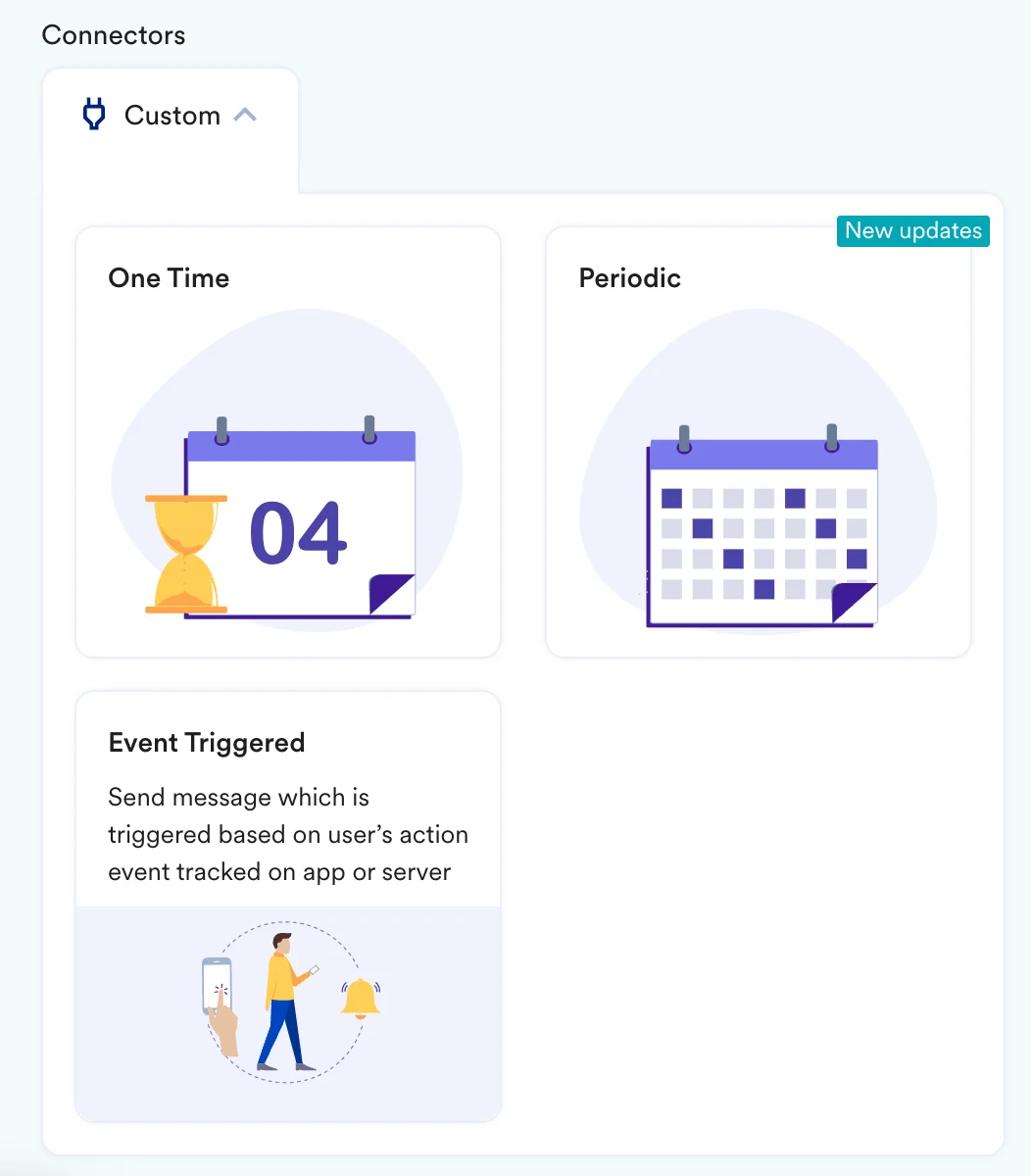
1. Navigate to Create Campaign >> Connectors >> Custom and choose Event triggered
 2. On step 2 of the campaign,
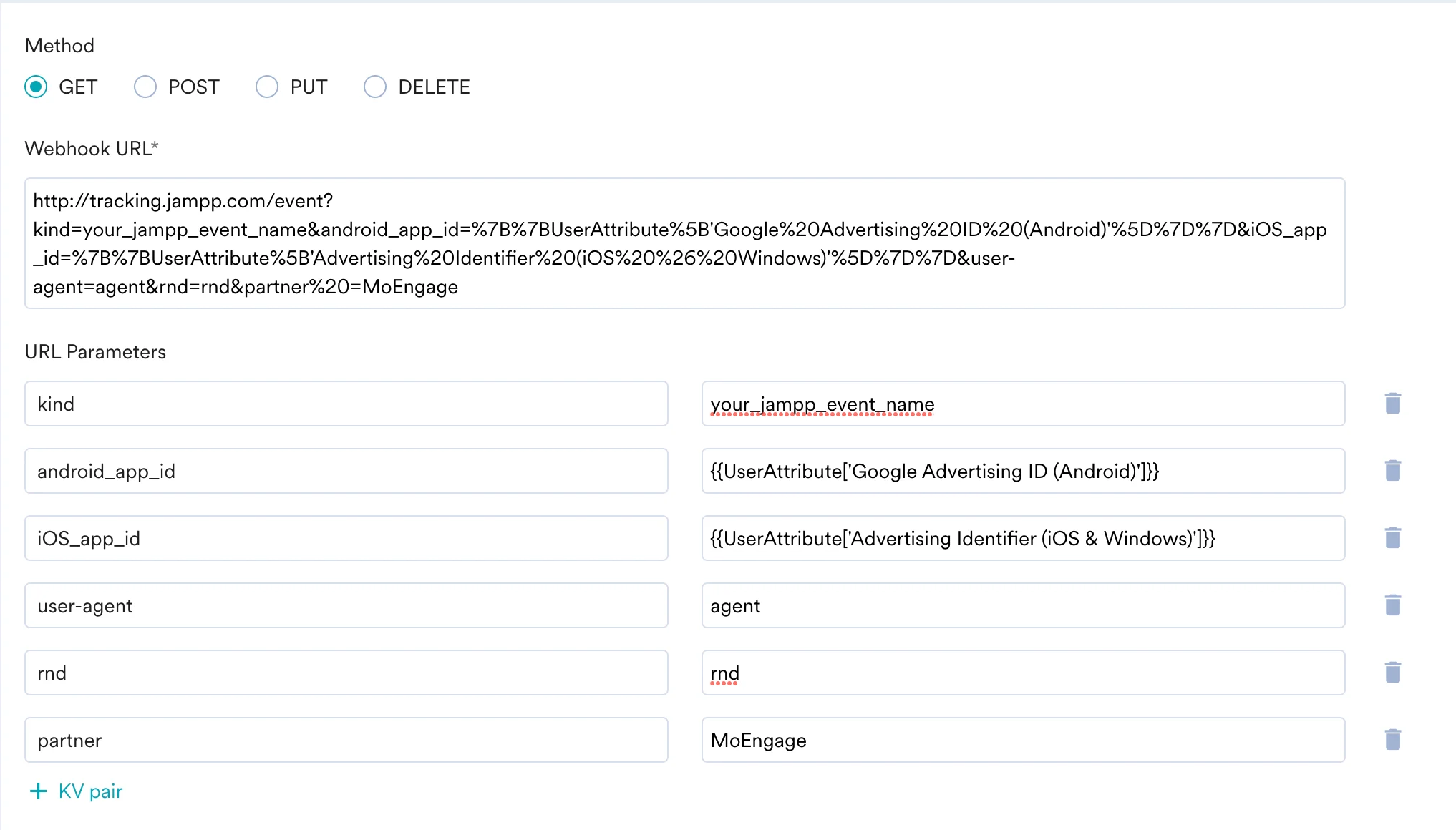
* Select method as GET
* Add Webhook URL as :
[http://tracking.jampp.com/event](http://tracking.jampp.com/event)
* URL params, you must
* Set the event name. This name will appear in your Jampp dashboard.
* Pass your app’s unique application identifier for Android (i.e. “com.example”) and iOS (i.e. “012345678”).
* Add the appropriate custom attribute. You can use MoEngage templating language to decide whether you are tracking as the Google advertising ID or Apple advertising identifier.\
Note- These need to be passed to MoEngage as custom attributes.
2. On step 2 of the campaign,
* Select method as GET
* Add Webhook URL as :
[http://tracking.jampp.com/event](http://tracking.jampp.com/event)
* URL params, you must
* Set the event name. This name will appear in your Jampp dashboard.
* Pass your app’s unique application identifier for Android (i.e. “com.example”) and iOS (i.e. “012345678”).
* Add the appropriate custom attribute. You can use MoEngage templating language to decide whether you are tracking as the Google advertising ID or Apple advertising identifier.\
Note- These need to be passed to MoEngage as custom attributes.
 * In Headers, use
Content-Type: application/json
* In Body, you do not have to define a request body for this connector.
4. At this point, your campaign should be ready to test and send. You can also test your connector configuration using the Test functionality available on Step 2 of Create Connector Campaign
* In Headers, use
Content-Type: application/json
* In Body, you do not have to define a request body for this connector.
4. At this point, your campaign should be ready to test and send. You can also test your connector configuration using the Test functionality available on Step 2 of Create Connector Campaign
 We recommend sending test requests for both Android and iOS users. If the request is successful, the API will respond with`HTTP 204`. You can go ahead and Publish the campaign.