> ## Documentation Index
> Fetch the complete documentation index at: https://moengage-partner-guide.mintlify.site/llms.txt
> Use this file to discover all available pages before exploring further.
# Rise.ai
# Introduction
[Rise.ai](https://rise.ai/) Gift Cards & Loyalty is a powerful app that helps eCommerce brands boost revenue and improve customer retention.
# MoEngage × Rise.ai
With the MoEngage and Rise.ai integration, you can display your customer's loyalty information as well as their referral links dynamically inside MoEngage campaigns to increase their conversion.
# Integration
**Prerequisites**
* You would need your Rise.ai [access tokens](https://api.rise.ai/) to use their APIs.
## Display customer loyalty cards in MoEngage Campaigns
Using MoEngage's Content APIs, you can dynamically pull customers' loyalty cards inside MoEngage campaigns for a more personalized experience.
### Step 1: Set up a MoEngage Content API
Log in to the MoEngage Dashboard and follow these steps: aaa
1. Navigate to **Settings** -> **Advanced settings** -> **Content API**. Click **+ Add content API** at the top right corner of the Content API screen. 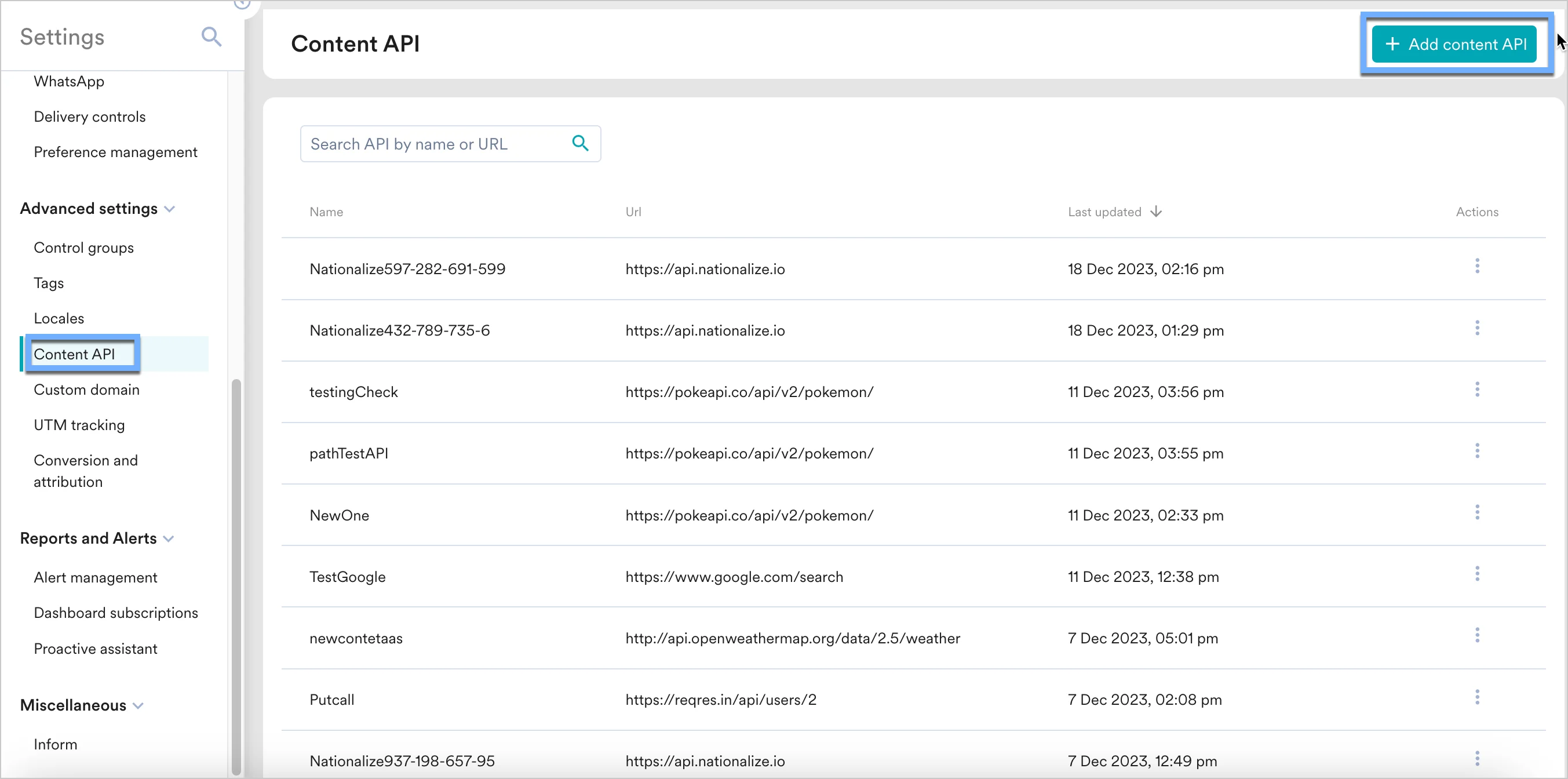 2. Add your Rise.ai API to the endpoint URL. The endpoint will change depending on your use case.
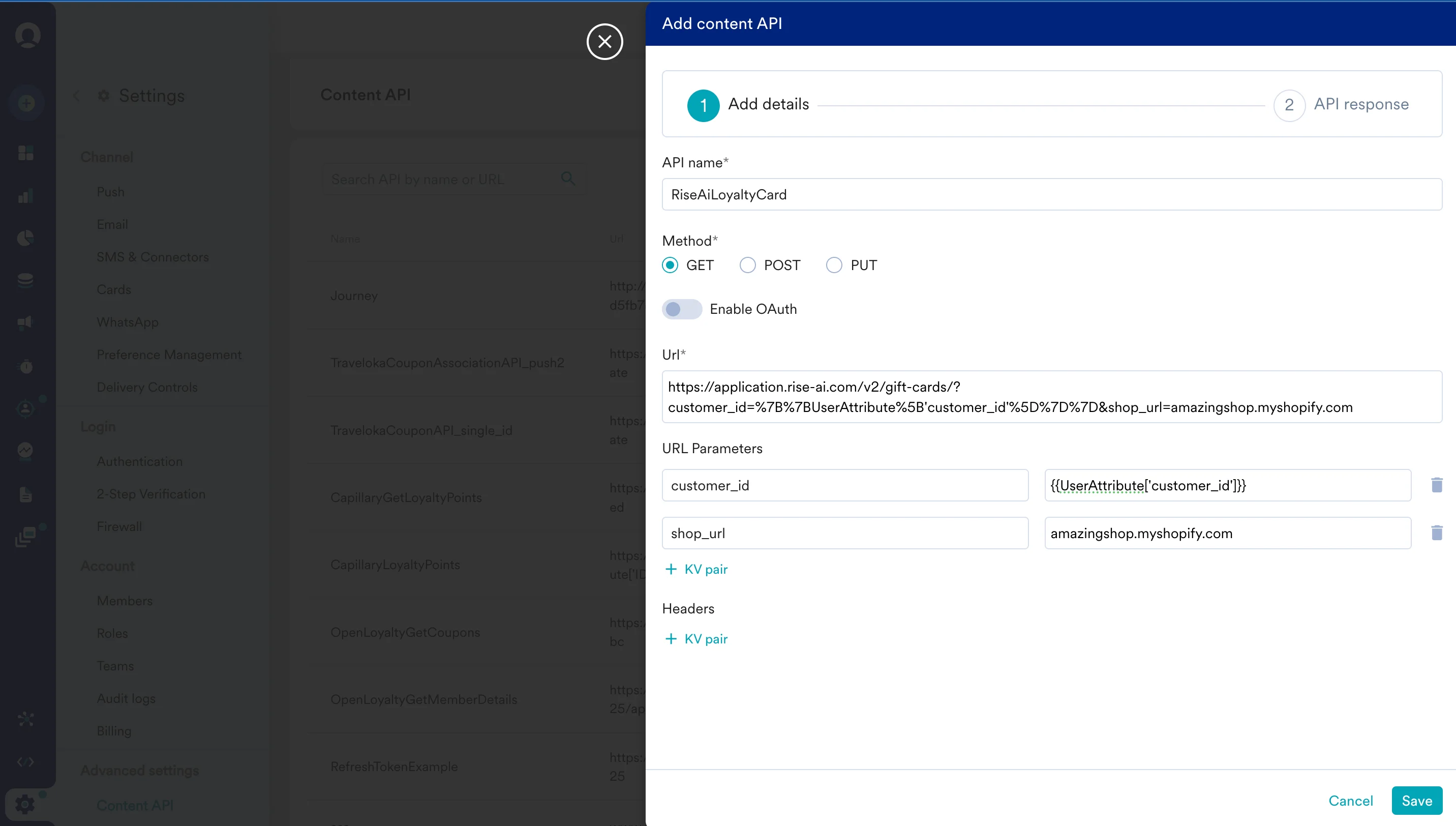 To display your customers' loyalty card information, use Rise.ai's [Get Customer Loyalty Card](https://api.rise.ai/).
While setting up your content API, insert the following URL:
[https://application.rise-ai.com/v2/gift-cards/?customer\_id=\{\{UserAttribute\['customer\_id'\]}}\&shop\_url=amazingshop.myshopify.com](https://application.rise-ai.com/v2/gift-cards/?customer_id=\{\{UserAttribute\['customer_id']}}\&shop_url=amazingshop.myshopify.com)
Under Headers, add the following:
1. `x-rise-access-token`: Enter your Rise.ai's API Access Token.
2. `Accept`: `application/json`
3. Click **Save** and then **Done.** After you see a successful response.
You can also test your APIs. To test your APIs, from the Content API's action menu, click on "Test". You can test your API response and validate it.
### Step 2: Display your customers' loyalty card information inside MoEngage campaigns
To use this API in your MoEngage campaigns,
1. On step 2 on your campaign creation, enter @.
2. In the pop up, you can select the Rise.ai Content API configured in Step 1.
3. You can use [MoEngage Templating Language](/user-guide/campaigns-and-channels/getting-started/message-personalization/jinja-templating-language#content-api-0-3) to parse through the API response and use the content in your campaigns.
To display your customers' loyalty card information, use Rise.ai's [Get Customer Loyalty Card](https://api.rise.ai/).
While setting up your content API, insert the following URL:
[https://application.rise-ai.com/v2/gift-cards/?customer\_id=\{\{UserAttribute\['customer\_id'\]}}\&shop\_url=amazingshop.myshopify.com](https://application.rise-ai.com/v2/gift-cards/?customer_id=\{\{UserAttribute\['customer_id']}}\&shop_url=amazingshop.myshopify.com)
Under Headers, add the following:
1. `x-rise-access-token`: Enter your Rise.ai's API Access Token.
2. `Accept`: `application/json`
3. Click **Save** and then **Done.** After you see a successful response.
You can also test your APIs. To test your APIs, from the Content API's action menu, click on "Test". You can test your API response and validate it.
### Step 2: Display your customers' loyalty card information inside MoEngage campaigns
To use this API in your MoEngage campaigns,
1. On step 2 on your campaign creation, enter @.
2. In the pop up, you can select the Rise.ai Content API configured in Step 1.
3. You can use [MoEngage Templating Language](/user-guide/campaigns-and-channels/getting-started/message-personalization/jinja-templating-language#content-api-0-3) to parse through the API response and use the content in your campaigns.
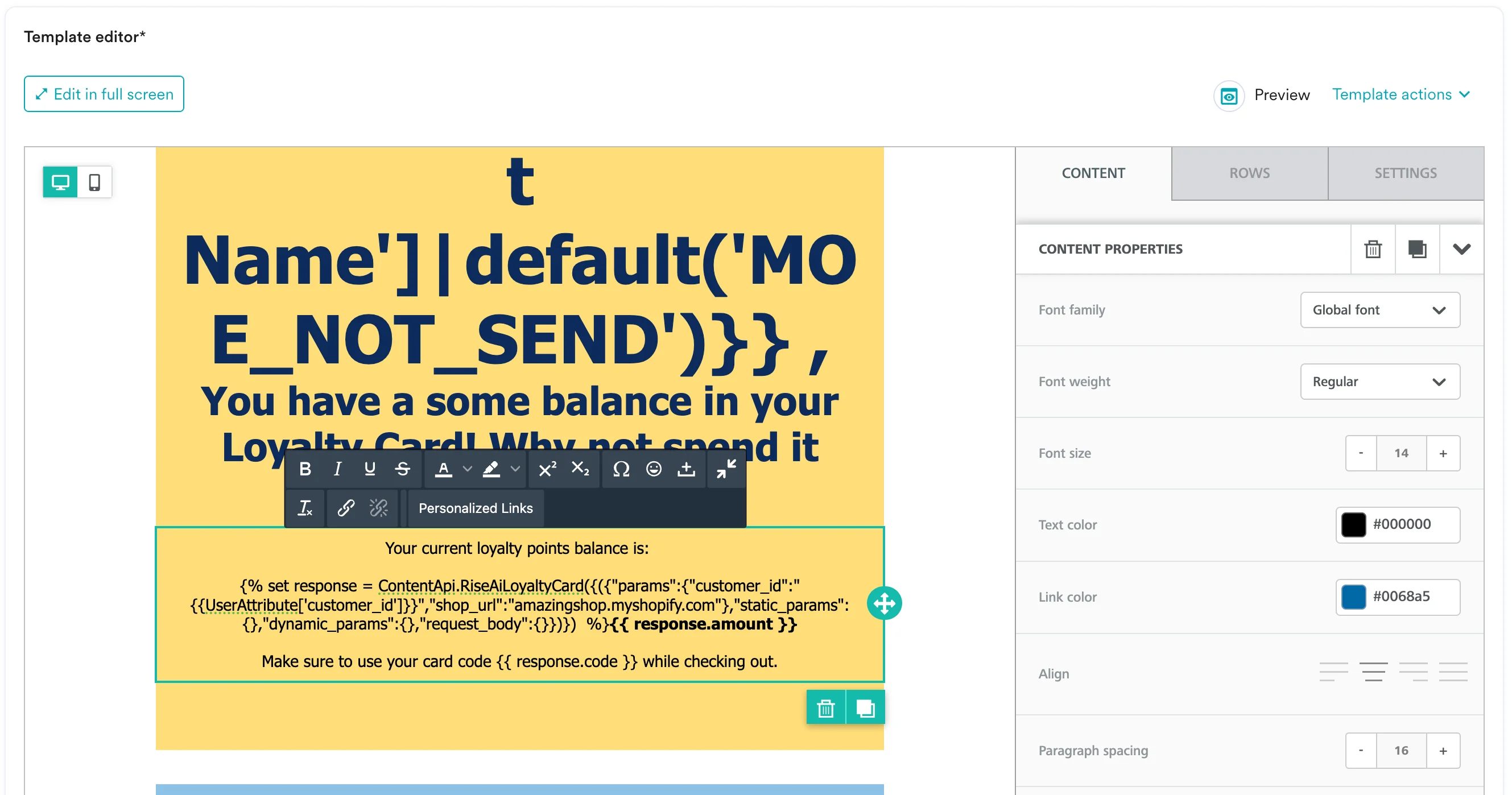 4. You can click on the Preview tab to view your campaign in real-time personalization:
 5. Once you are ready, click on Publish to send the campaign.