

SDK Installation
Install using Swift Package Manager
MoEngageCards is supported through SPM from SDK version 3.2.0. To integrate use the following GitHub URL link and set the branch as master or version as 4.11.1 and above https://github.com/moengage/MoEngage-iOS-Cards.gitInstall using CocoaPod
InformationCocoaPods is being deprecated. MoEngage recommends using Swift Package Manager for all new integrations. For detailed info on cocoapods, refer to CocoaPods Integration Guide.
pod install to install the framework
Manual Integration
Manual IntegrationTo integrate the
MoEngageCards SDK manually to your project follow this doc.Displaying AppInbox/Feeds
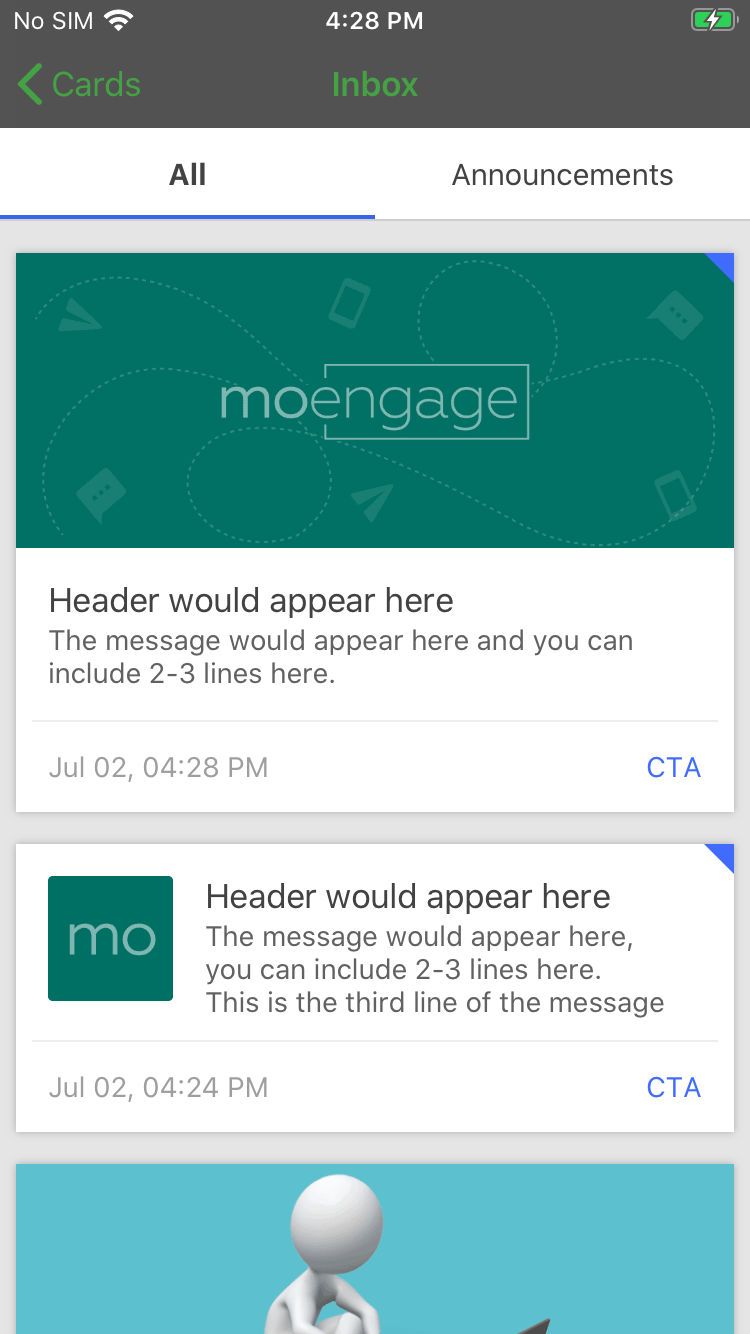
Once the module is integrated, use the below-provided methods to display theMoEngageCardsListViewController with the transition:
Customizing Inbox UI
The earlier snapshots indicate what the default UI of the Inbox would look like. But we have also added support for customizing the App Inbox screen according to your App Theme. For customizing the screen make use of MoEngageCardsUIConfiguration instance and pass the same in the above-mentioned methods. Refer to the example below: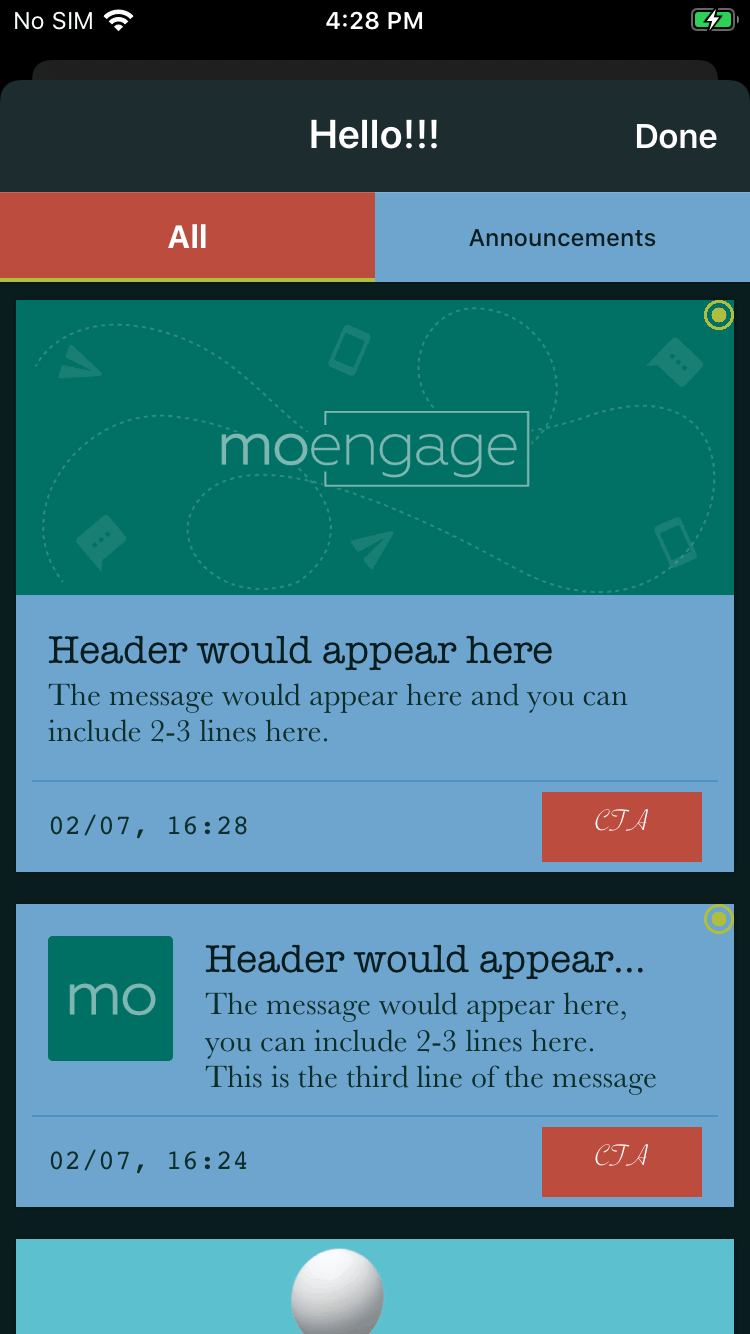
Customizing Navigation Bar:
Navigation Bar customization includes updating the title, navigation bar color, title color, title font, etc. Create an instance of MoEngageCardsNavigationBarStyle and set all the attributes as shown below, post that assign the same to your MoEngageCardsUIConfiguration instance:Customizing Category TabBar:
Directly set the attributes of MoEngageCardsUIConfiguration instance, you would like to change for the Category Tabs Bar view as shown below:Customizing Empty Inbox:
In the case of an empty inbox, we provide the option of setting a message and image. By default, the empty inbox will look as described in the following image: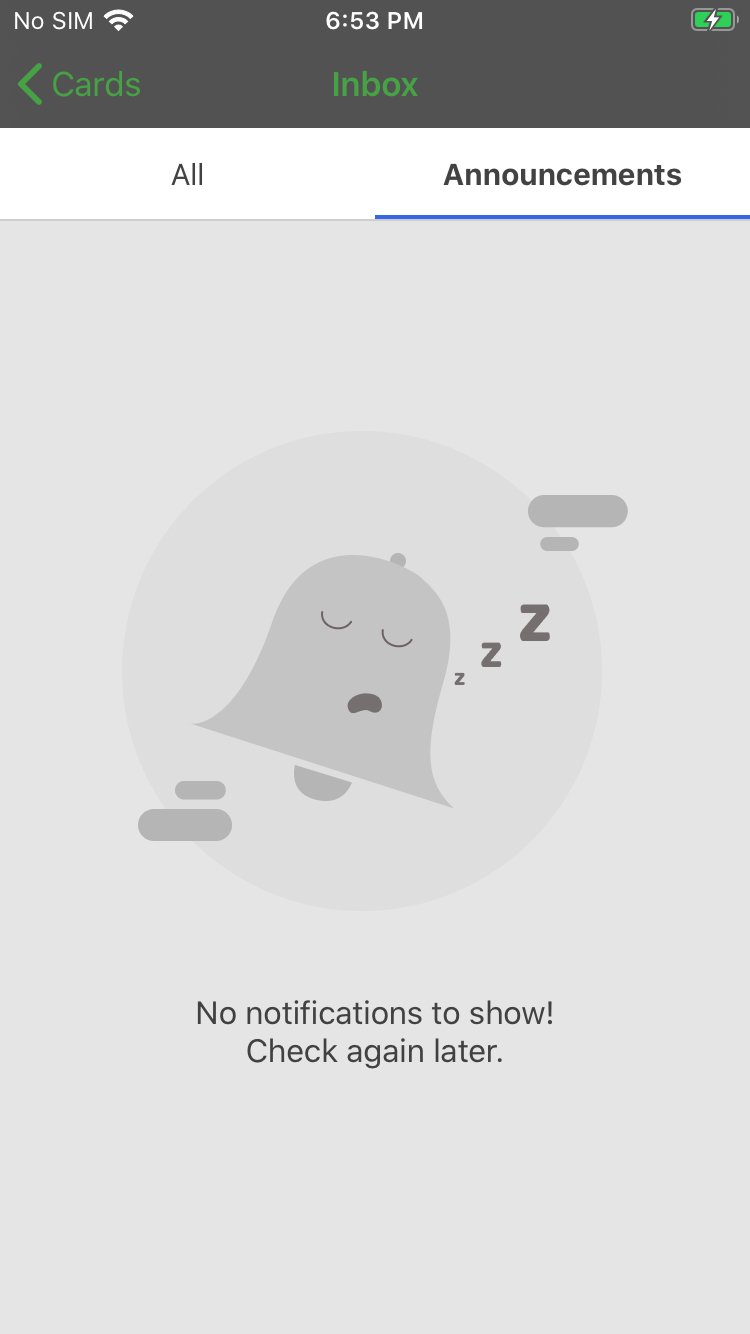
Customising Inbox Container:
In case any of the property ofMoEngageCardsListViewController has to be customized, refer to the below example:
NoteWe have supported pull to refresh in the Inbox, the activity indicator color for the same can be updated as shown above.
Customizing Card Properties:
We have provided options to customize your Card in the dashboard while creating the campaign, but along with it you can also set the default attribute values so that you don’t have to set it every time while creating the campaign, refer to the example below:Getting Cards Count APIs
Getting New Cards Count:
A Card is considered new if it’s not yet seen by the user. To get the number/count of new cards use the getNewCardsCount(forAppID:withCompletionBlock:) method as shown below:Getting Unclicked Cards Count:
To get the number/count of cards which are not clicked by the user, use the getUnclickedCardsCount(forAppID:withCompetionBlock:) method as shown below:Callbacks using MoEngageCardsDelegate
Use MoEngageCardsDelegate protocol for getting the callbacks from the Cards Module:Callbacks using MoEngageCardsViewControllerDelegate
UseMoEngageCardsViewControllerDelegate protocol for getting the callbacks from the Cards Module:
MoEngageCardsViewControllerDelegate by passing the delegate as parameter in the below functions: