

Implementing Login/Logout
- It’s important to set the User Attribute Unique ID when a user logs into your app.
- This is to merge the new user with the existing user, if any exists, and will help prevent creation of unnecessary/stale users.
- Setting the Unique ID is a critical piece to tie a user across devices and installs/uninstalls as well across all platforms (i.e. iOS, Android, Windows, The Web). Set the USER_ATTRIBUTE_UNIQUE_ID attribute as soon as the user is logged in. Unique ID can be something like an email ID, a username (unique), or a database ID or any Backend generated ID.
- Do not set this for the user who not logged in.
Login
Logout
The application needs to notify the MoEngage SDK whenever the user is logged out of the application. To notify the SDK, call the API whenever the user is logged out of the application.Updating User Attribute Unique Id
Use the method setAlias() to update the user attribute unique id instead of setUniqueId() with a different value. Using the method setUniqueId() with a new value creates unintended users in MoEngage.Tracking User Attributes
The SDK provides APIs to track commonly tracked user attributes like First Name, Last Name, Email-Id, etc. Please use the provided methods for tracking these attributes.Tracking Date as user attributes
To track any date as user attributes use the SetUserAttributeISODate(). This API takes the attribute name and ISO Date as input.Date Format - yyyy-MM-dd’T’HH:mm:ss.fff’Z’ Example:
Tracking Location as user attributes
To track any location as user attributes use the SetUserAttributeLocation(). This API takes the attribute name and an instance of GeoLocation for coordinates as input.Example:
Custom Boolean User Attribute
iOS(optional)
Starting from version 4.x.x of MoEngage.unityPackage, the default tracking for the custom boolean attribute will be changed to bool(true/false) from double(0/1). To configure this, enable should Track Boolean As Number variable of MoGameObject script as shown below to track the boolean as double . By default it is disabled to track boolean as true/false.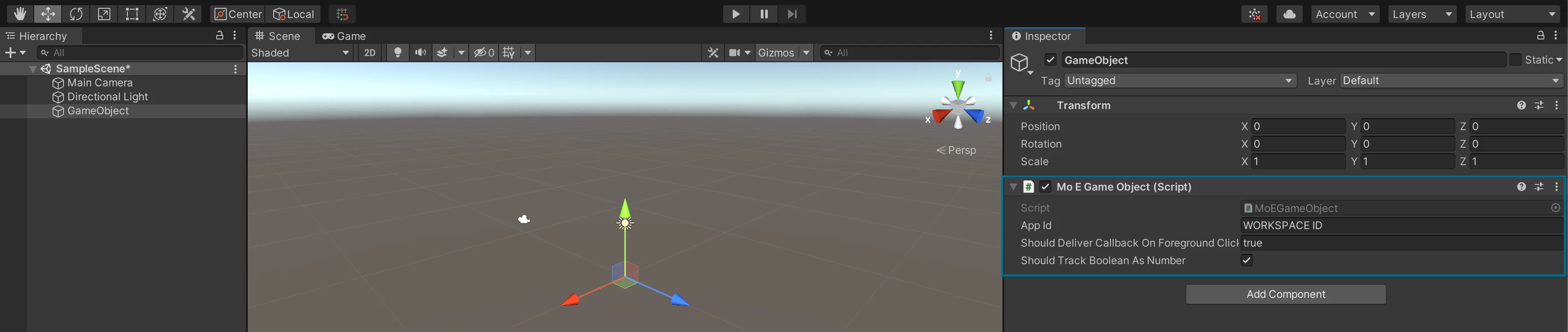
Reserved keywords for User Attributes
Below is the list of keys that should not be used when tracking user attributes.- USER_ATTRIBUTE_UNIQUE_ID
- USER_ATTRIBUTE_USER_EMAIL
- USER_ATTRIBUTE_USER_MOBILE
- USER_ATTRIBUTE_USER_NAME
- USER_ATTRIBUTE_USER_GENDER
- USER_ATTRIBUTE_USER_FIRST_NAME
- USER_ATTRIBUTE_USER_LAST_NAME
- USER_ATTRIBUTE_USER_BDAY
- USER_ATTRIBUTE_NOTIFICATION_PREF
- USER_ATTRIBUTE_OLD_ID
- MOE_TIME_FORMAT
- MOE_TIME_TIMEZONE
- USER_ATTRIBUTE_DND_START_TIME
- USER_ATTRIBUTE_DND_END_TIME
- MOE_GAID
- INSTALL
- UPDATE
- MOE_ISLAT
- status
- user_id