Include MoEngage Configuration
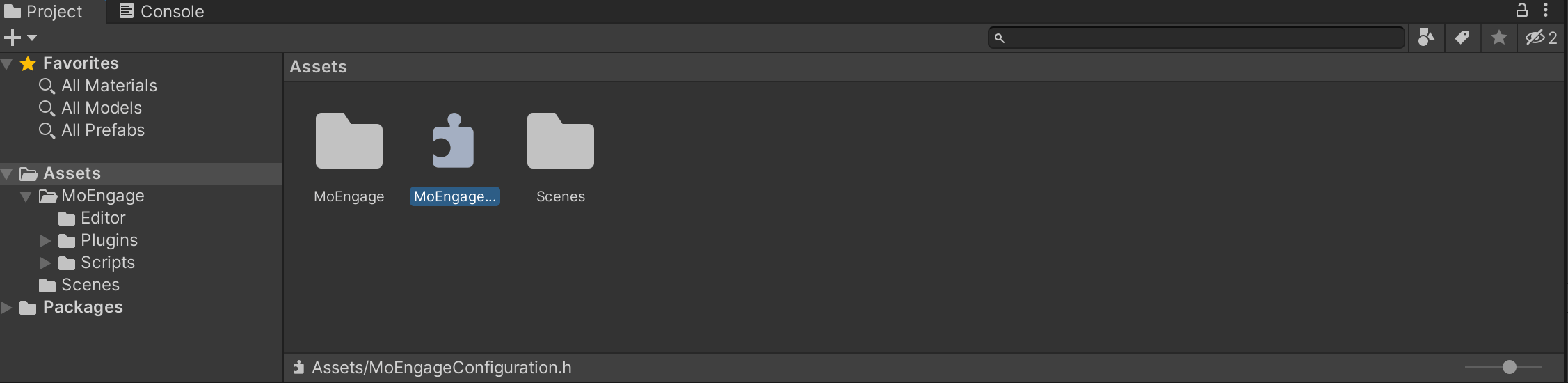
After the MoEngage package is imported, include MoEngageConfiguration.h file in your Asset folder(
Asset > Import New Asset). Download this configuration file from here.
Unity App Controller Swizzling
There are two approaches using which the SDK can be initialized:- Unity App Controller Subclass:
SDK contains theMoEUnityAppControllerclass which is the subclass of UnityAppController. Here we get a callback on AppLaunch to initialize MoEngage SDK. - UnityAppController swizzling:
DefinekMoEngageUnityControllerSwizzlingEnabledin the configuration file and set it toYESto enable UnityAppController swizzling. Hereapplication:didfinishLaunchinWithOptions:method is swizzled to initialize MoEngage SDK.
Build and Replace
We make use of CocoaPods for managing native dependencies, therefore make sure the same is installed in your system.
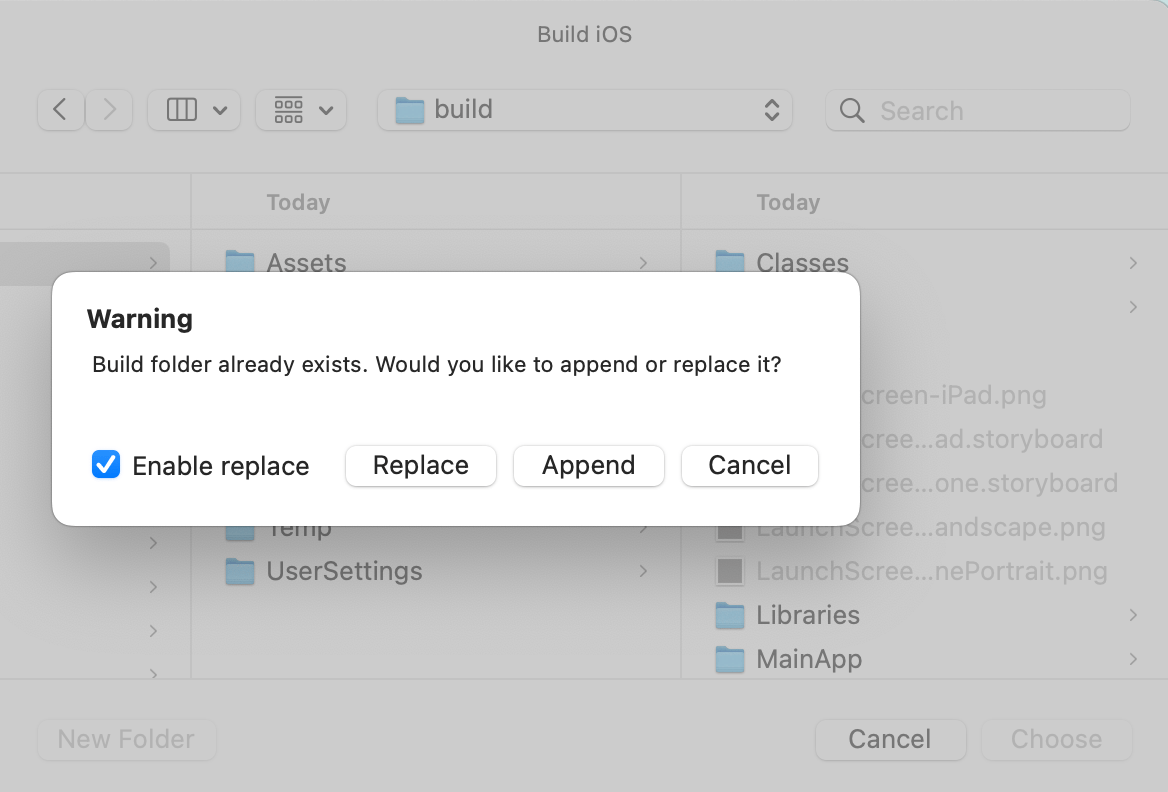
File > Build Settings, switch to iOS platform, and click on Build. Select Replace in the pop-up. It’s necessary to select Replace on first-time integration, this is because we will be updating the build settings of the Xcode project for MoEngage SDK and also installing the native dependencies via CocoaPods.