- Accurately measure ROI by closing the loop between digital ad spend and offline revenue.
- Optimize campaign bidding based on actual conversion data rather than clicks.
- Improve targeting by understanding which keywords and ads drive high-value offline actions.
PrerequisitesTo use this feature, you must have access to a Microsoft Advertising account with the required permissions.Microsoft Advertising Offline Conversions is part of the Connected Channels add-on. Contact your dedicated MoEngage customer success manager (CSM) to enable it for your account.
Step 1: Connect Microsoft Advertising on the App Marketplace
To connect Microsoft Advertising on the App Marketplace, perform the following steps:- On the left navigation menu in the MoEngage UI, click App Marketplace.
- On the App Marketplace page, search for Microsoft Advertising Offline Conversions.
- Click the Microsoft Advertising Offline Conversions tile.
- On the Microsoft Advertising Offline Conversions page, go to the Integrate tab.
- Enter the following details:
- Click Connect.

You are taken to the Microsoft login page to authorize the account. - Log in using an account with Administrator privileges to grant MoEngage the necessary permissions to establish the connection.
- Once authenticated, you will be automatically redirected back to the MoEngage dashboard.
Step 2: Create a campaign to sync offline conversions
After you configure the connector, send conversion events within a MoEngage campaign. To create a campaign to sync offline conversions, perform the following steps:- On the left navigation menu in the MoEngage UI, click Engage, and then click Campaigns.
- On the All campaigns page, click + Create campaign. The Create campaign dialog box appears.
- Under Connected Apps, click Microsoft Advertising Offline Conversions.
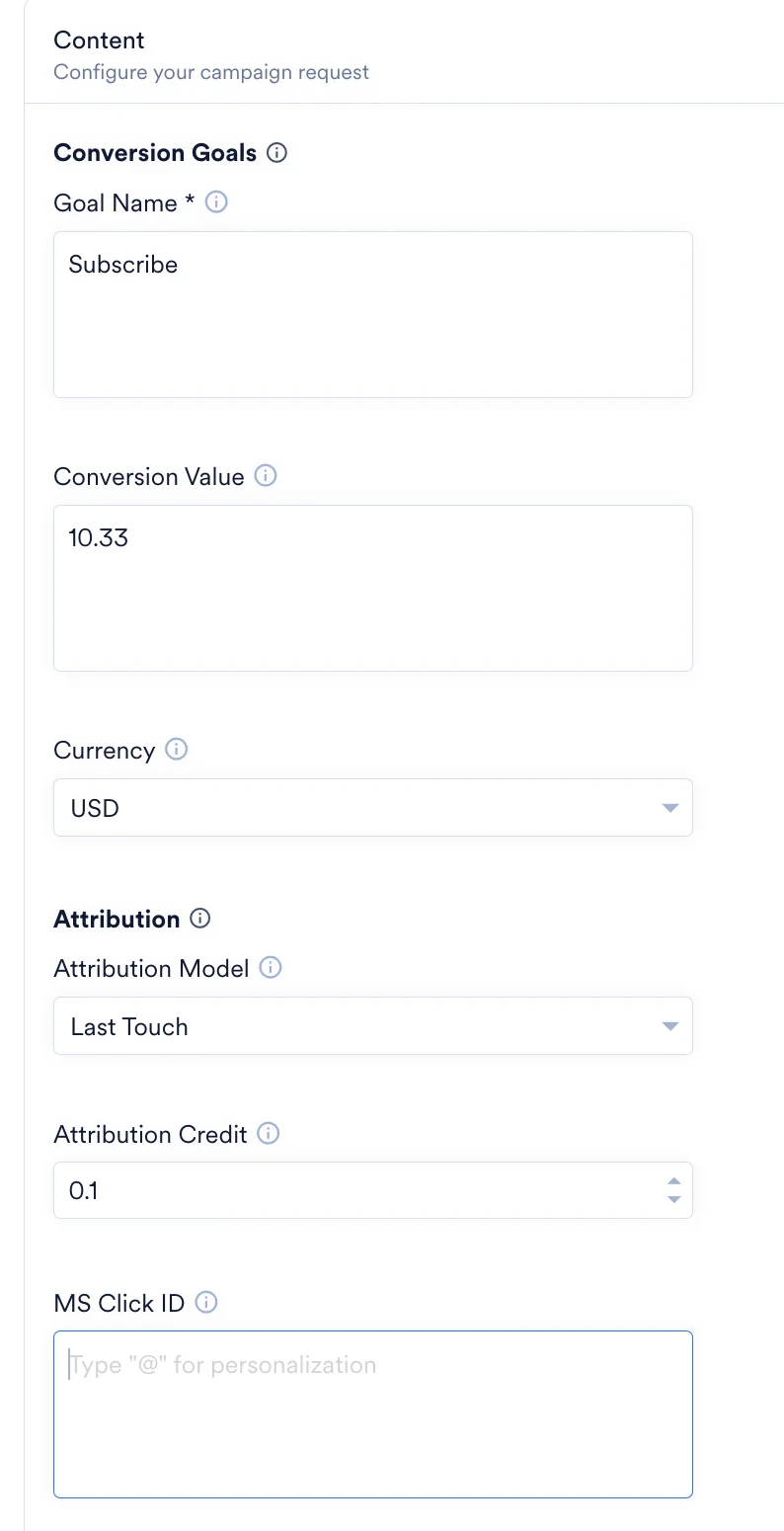
- In the Content step of the campaign creation, map the MoEngage attributes to the following fields: