

Overview
The Microsoft Teams integration enables you to receive critical MoEngage alerts directly within a designated channel in your workspace.MoEngage × MS Teams
The integration of MoEngage and Microsoft Teams allows you to configure Teams as an alert destination. By routing key alerts—such as campaign statistics, flow performance, and token expirations—into your team’s communication hub, you create a unified, real-time feed for monitoring marketing activities. With this integration, you can do the following:- Receive real-time notifications for critical marketing alerts without switching applications.
- Centralize campaign and system health monitoring in your primary collaboration tool.
- Enable immediate team collaboration on triggered alerts.
Use Cases
Integrating Microsoft Teams as an alert destination helps you with the following use cases:- Real-time incident response : Instantly notify the relevant stakeholders when critical metrics (like delivery rates) drop or when tokens (APNS/Facebook) are about to expire, reducing downtime.
- Centralized monitoring : View campaign performance stats and flow execution details alongside your daily team discussions.
- Collaborative troubleshooting : Discuss and resolve alert triggers immediately within the Teams channel, ensuring transparency and faster resolution.
Integration
Before you begin the configuration, ensure you have the following:
- An active Microsoft Teams workspace.
- Permissions to create channels and configure workflows in Microsoft Teams (specifically the “Post to a channel when a webhook request is received” workflow).
- Access to your MoEngage workspace with permissions to configure alert management and App marketplace integrations.
- Step 1: Create an MS Teams Channel
- Step 2: Generate a Webhook URL
- Step 3: Integrate MS Teams via Webhook URL
Step 1: Create an MS Teams Channel
- Log in to your MS Teams workspace.
- Navigate to Chat in the left navigation and click +.
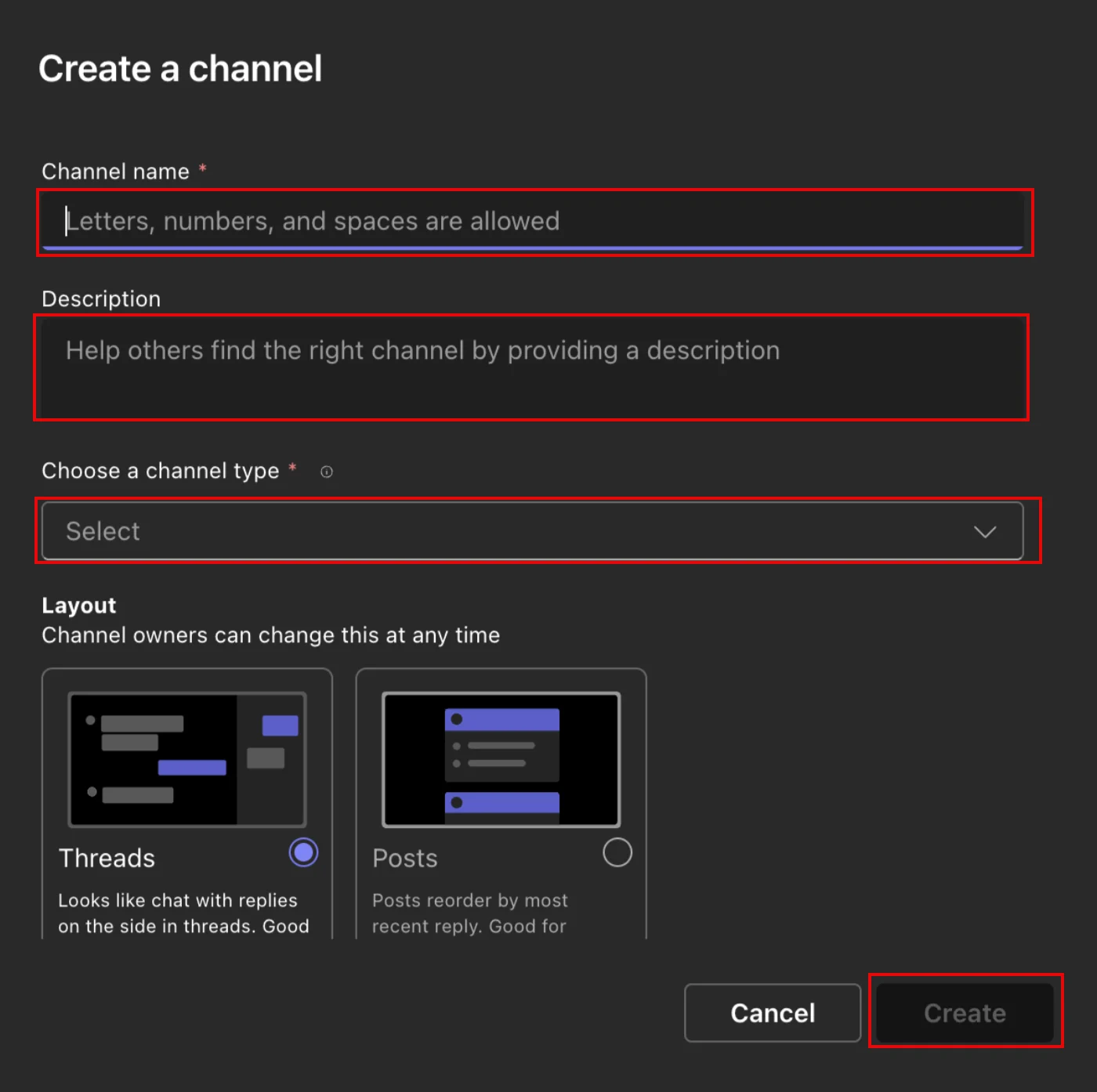
- On the Create a channel dialog box, enter the following details:
- In the Add the channel to a team field, select the preferred team name.
- In the channel name box, enter your channel name.
- In the Description box, enter your channel description.
- From the Choose a channel type list, select Standard- everyone on the team has access.
- Click Create.
Step 2: Generate a Webhook URL
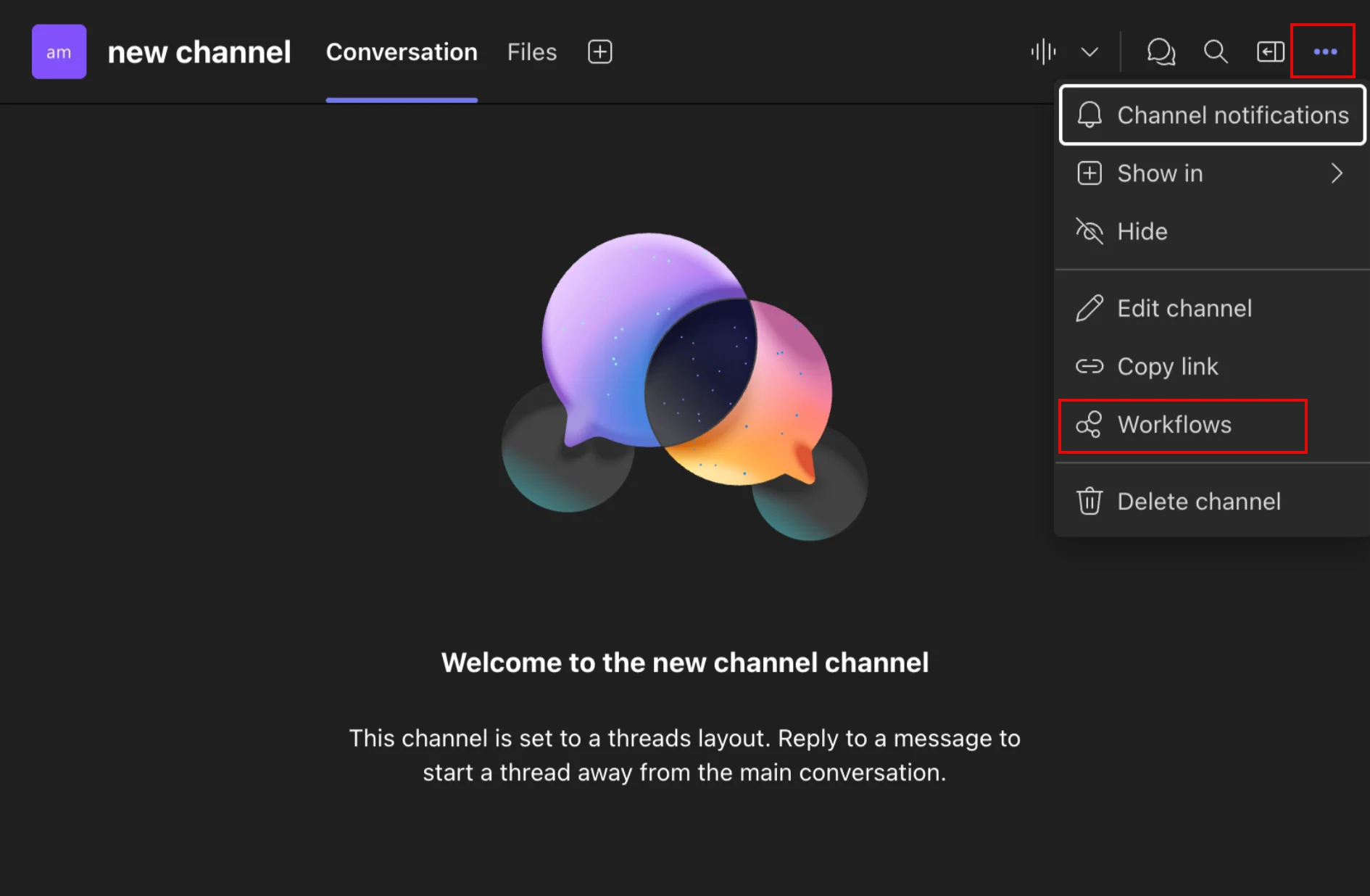
- On the channels page, click the ellipsis icon on the right and select Workflows.
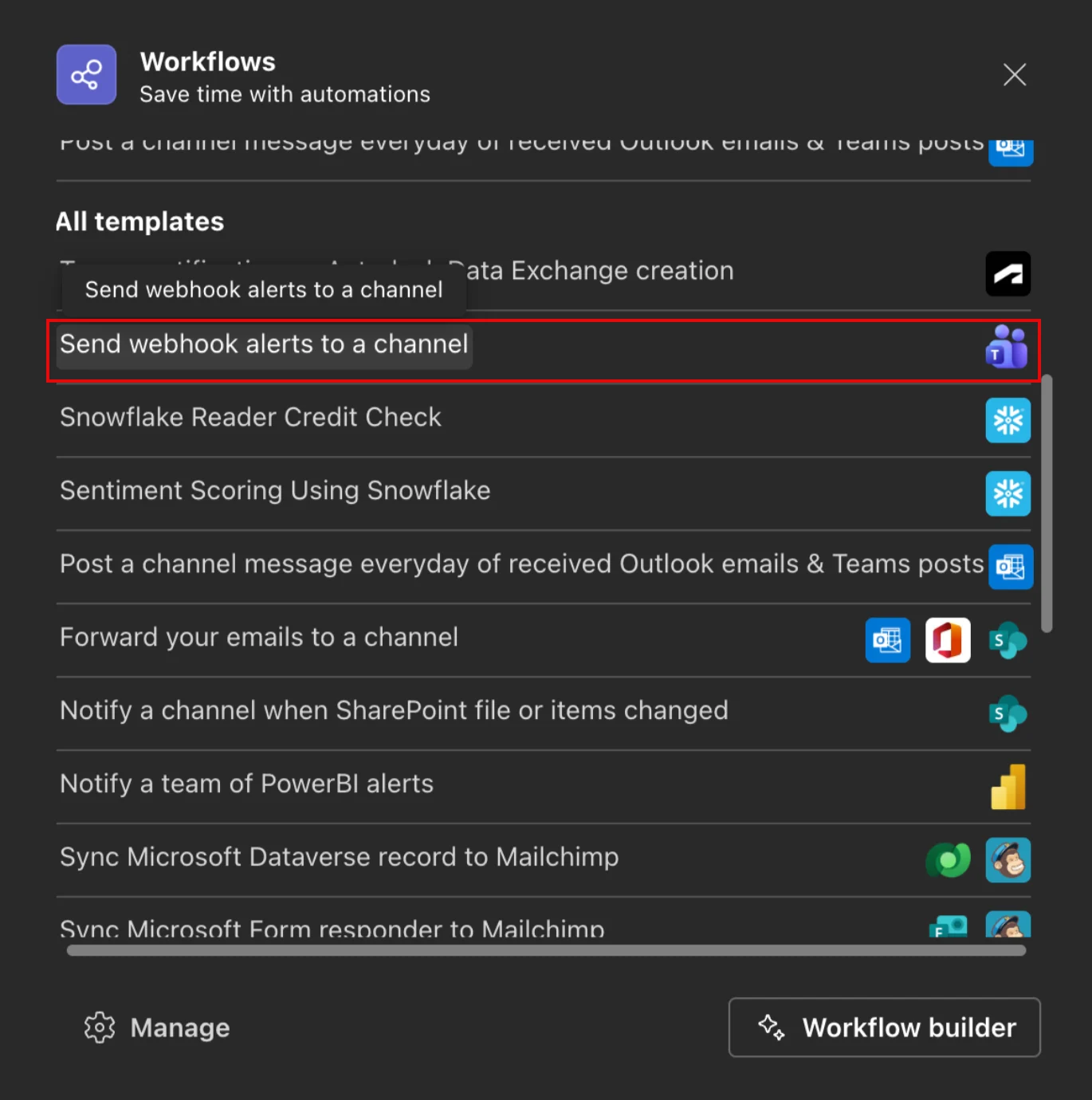
- On the Workflows dialog box, select Send webhook alerts to a channel.
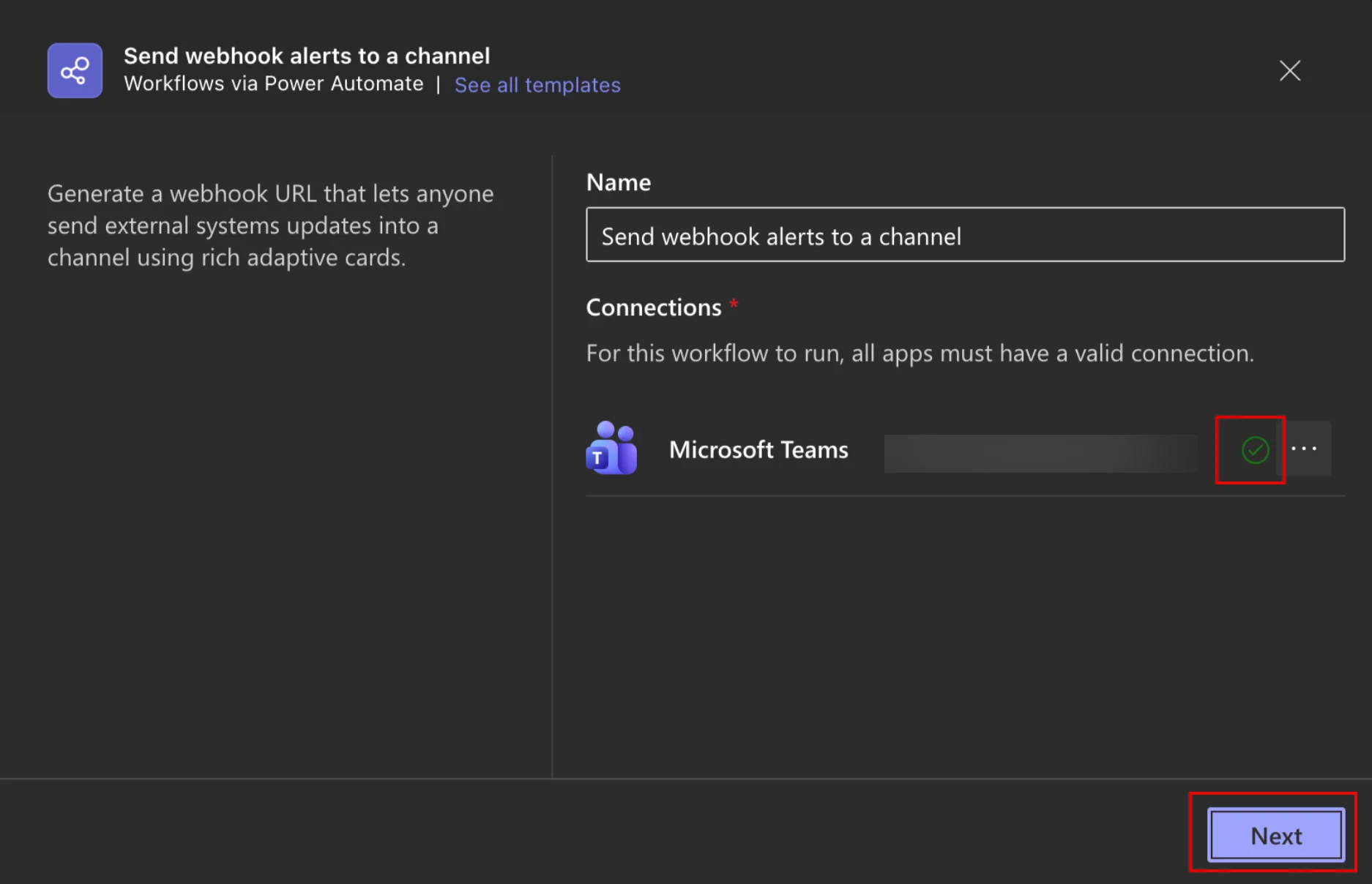
- On the Send webhook alerts to a channel page, ensure the app has a valid connection. The app has a valid connection if a checkbox is visible next to the Microsoft Teams organization account name.
- Click Next.
- In the Details section, configure the following fields:
- Microsoft Teams Name : Select the team that contains the channel you created.
- Microsoft Teams Channel : Select the specific channel you created previously.
- Click Workflow. When the workflow is added successfully, a confirmation message appears.
- In the message, click the Copy icon to copy the workflow URL.
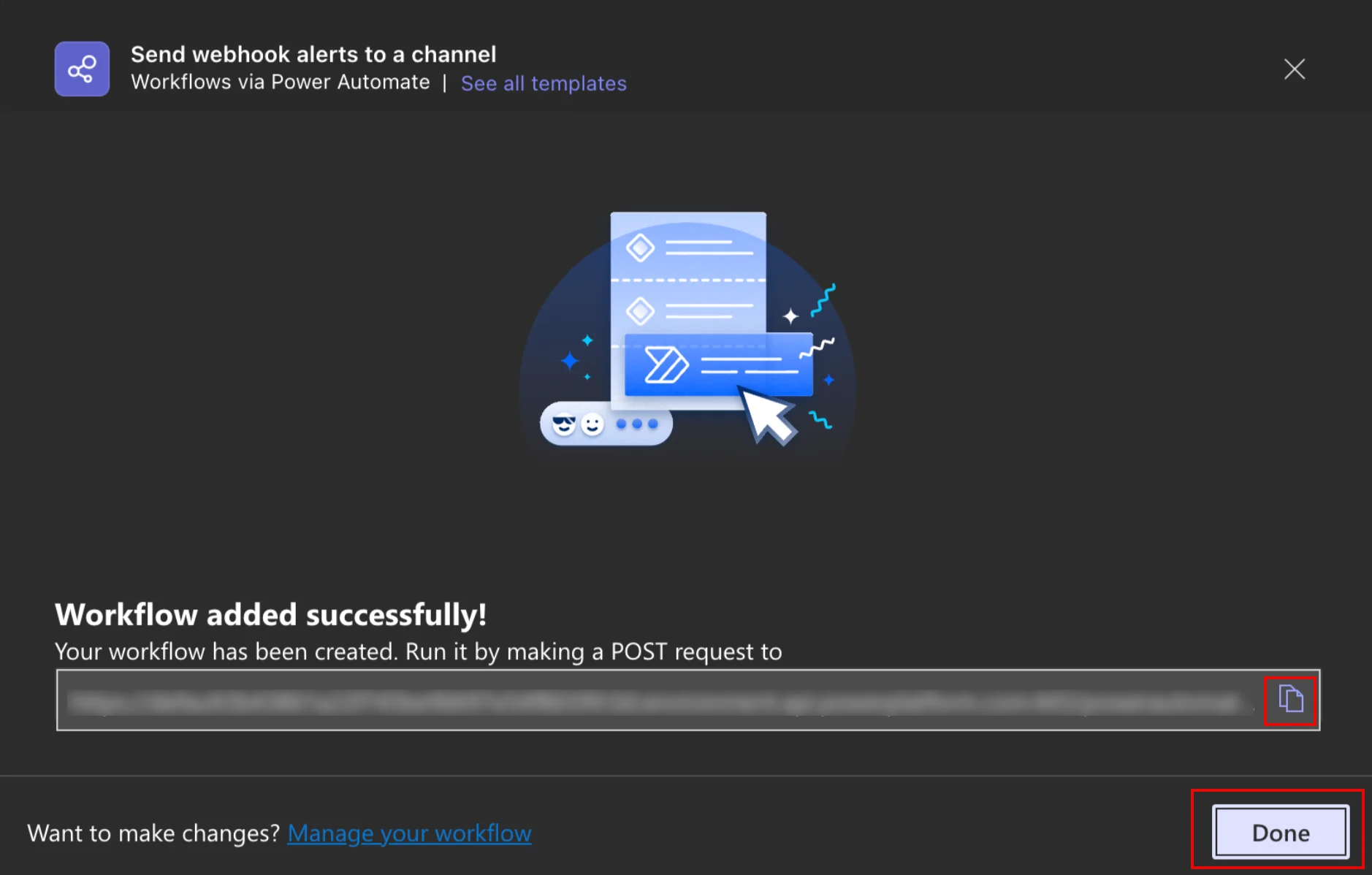
This Webhook URL enables programmatic message delivery to the chosen MS Teams channel through your Teams app. Copy the generated URL to integrate it into your alert settings.
Workspace administrator approval may be required to generate this Webhook URL. You can optionally message the admin to request approval.
Step 3: Integrate MS Teams into Alert Management via Webhook URL
- On the left navigation menu of your MoEngage UI, click App marketplace.
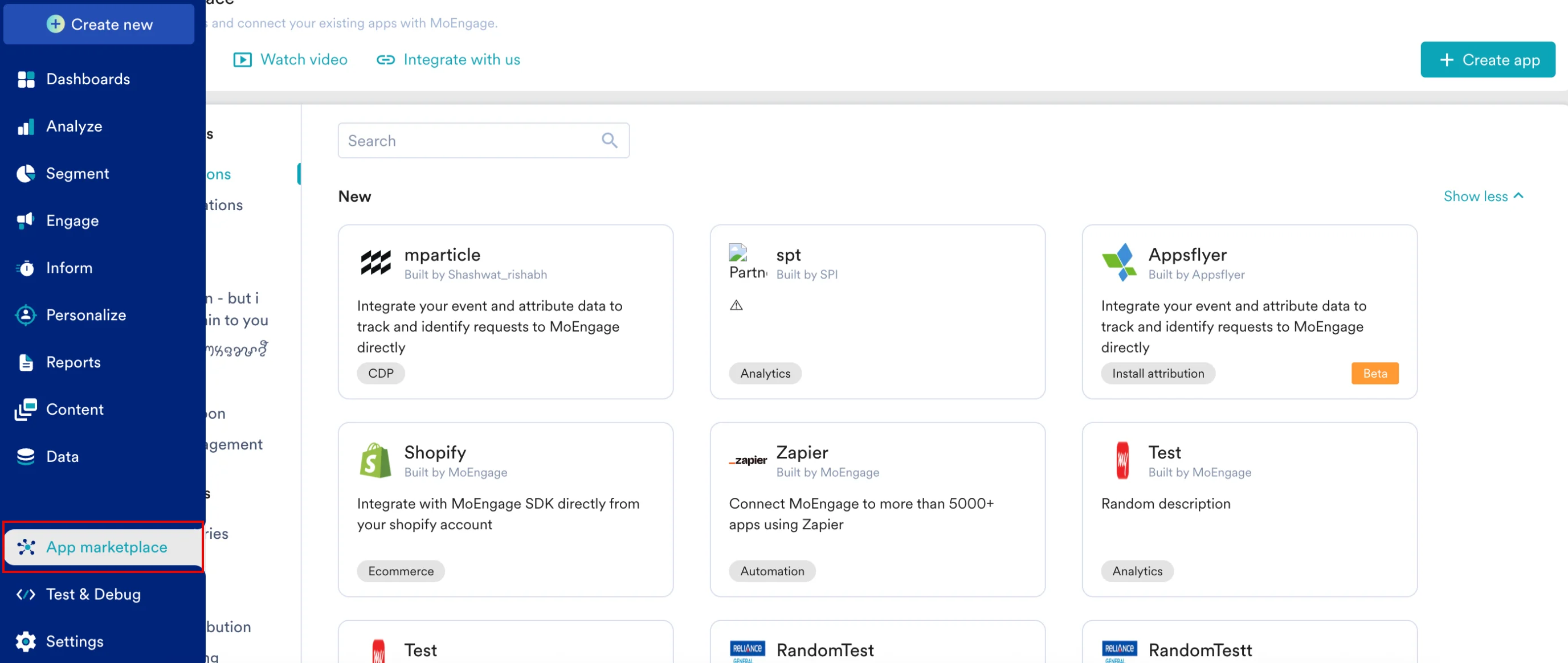
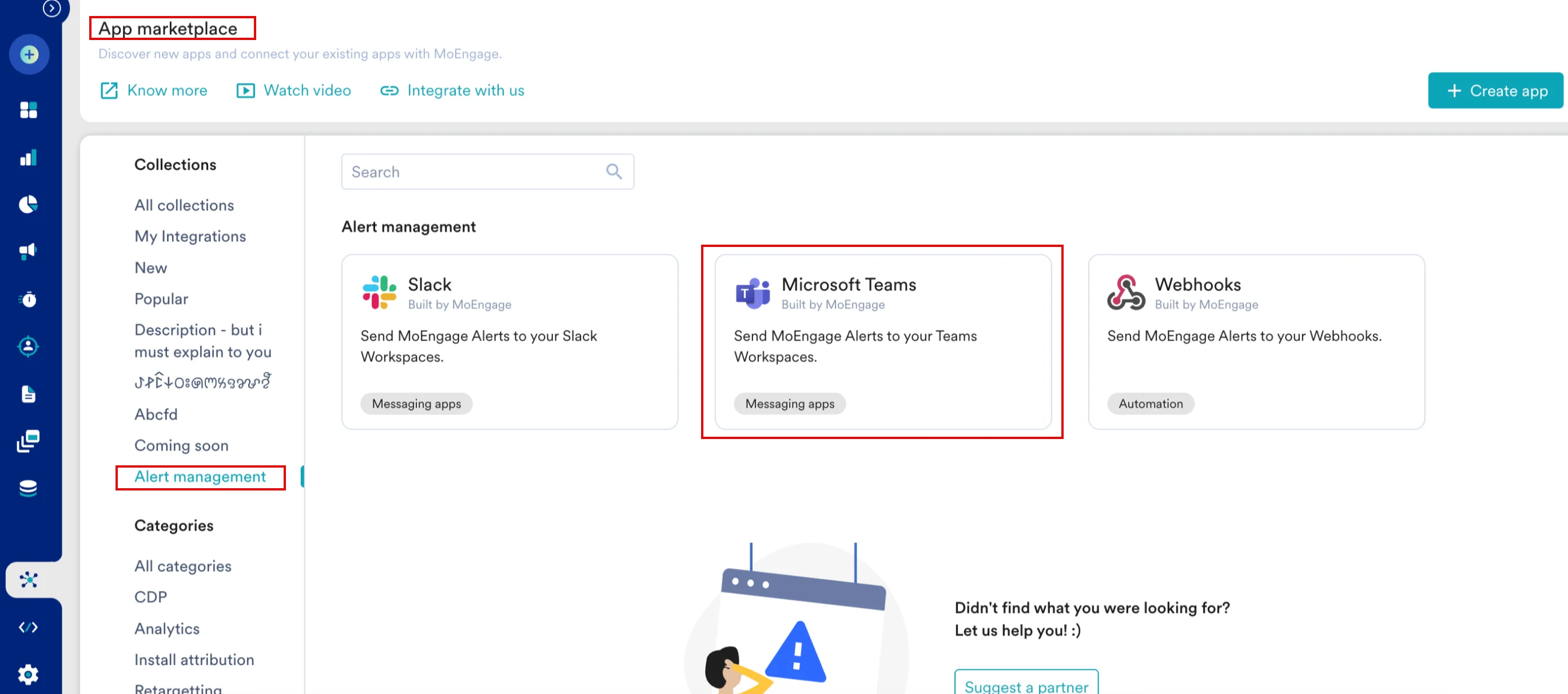
- On the App marketplace page, click Alert management , and then select Microsoft Teams.
- On the Microsoft Teams page, click the Integrate tab.
- On the Integrate tab, enter the following details:
- Connection name : Enter the connection name.
- Connection URL : Enter the Webhook URL created in the step 2.
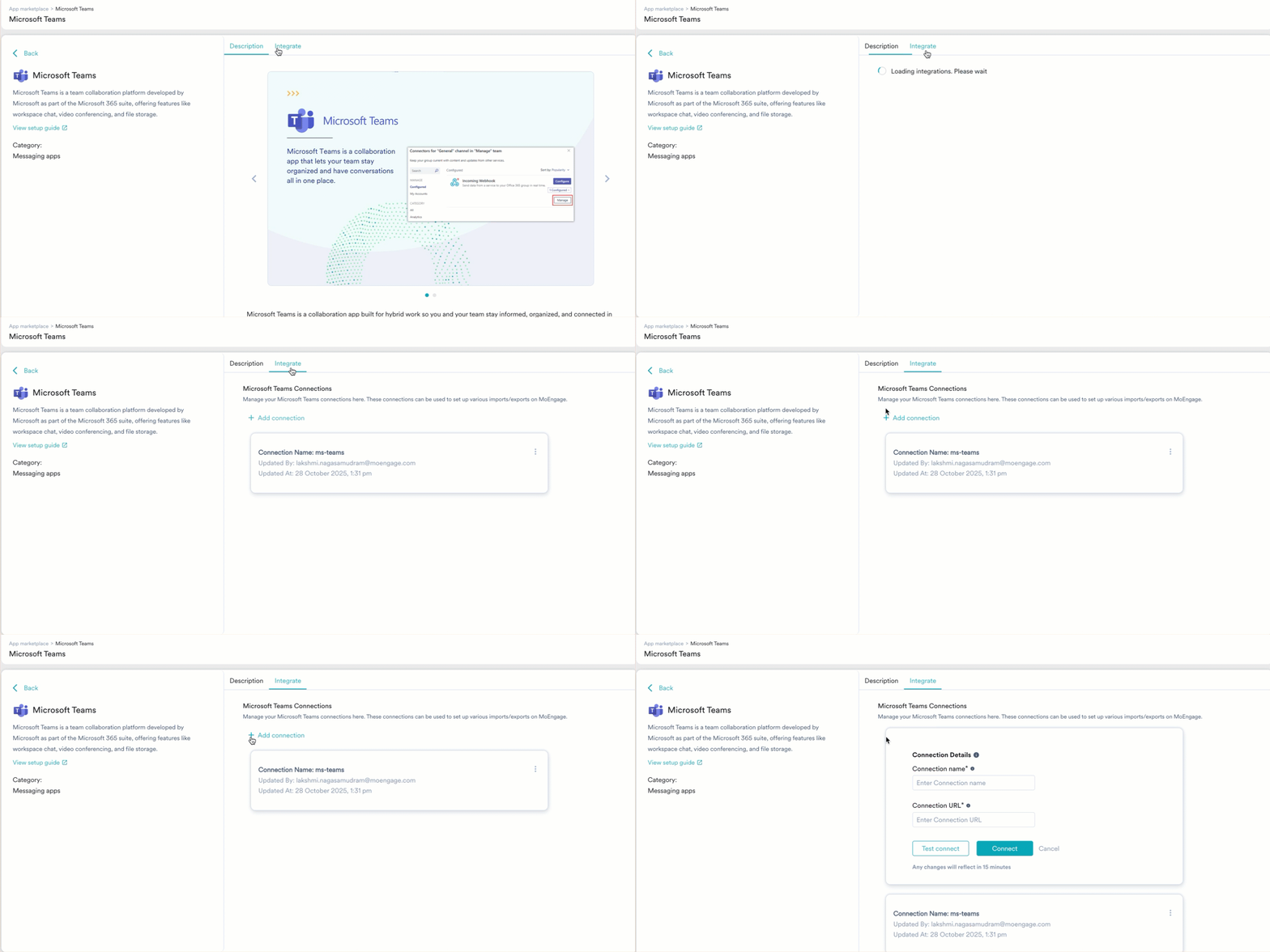
- Click Connect.
- After the connection is defined, you can now select the defined new destination from the Send Alerts On list while creating an alert on the Alert management page. You can select Email , MS Teams, or both.
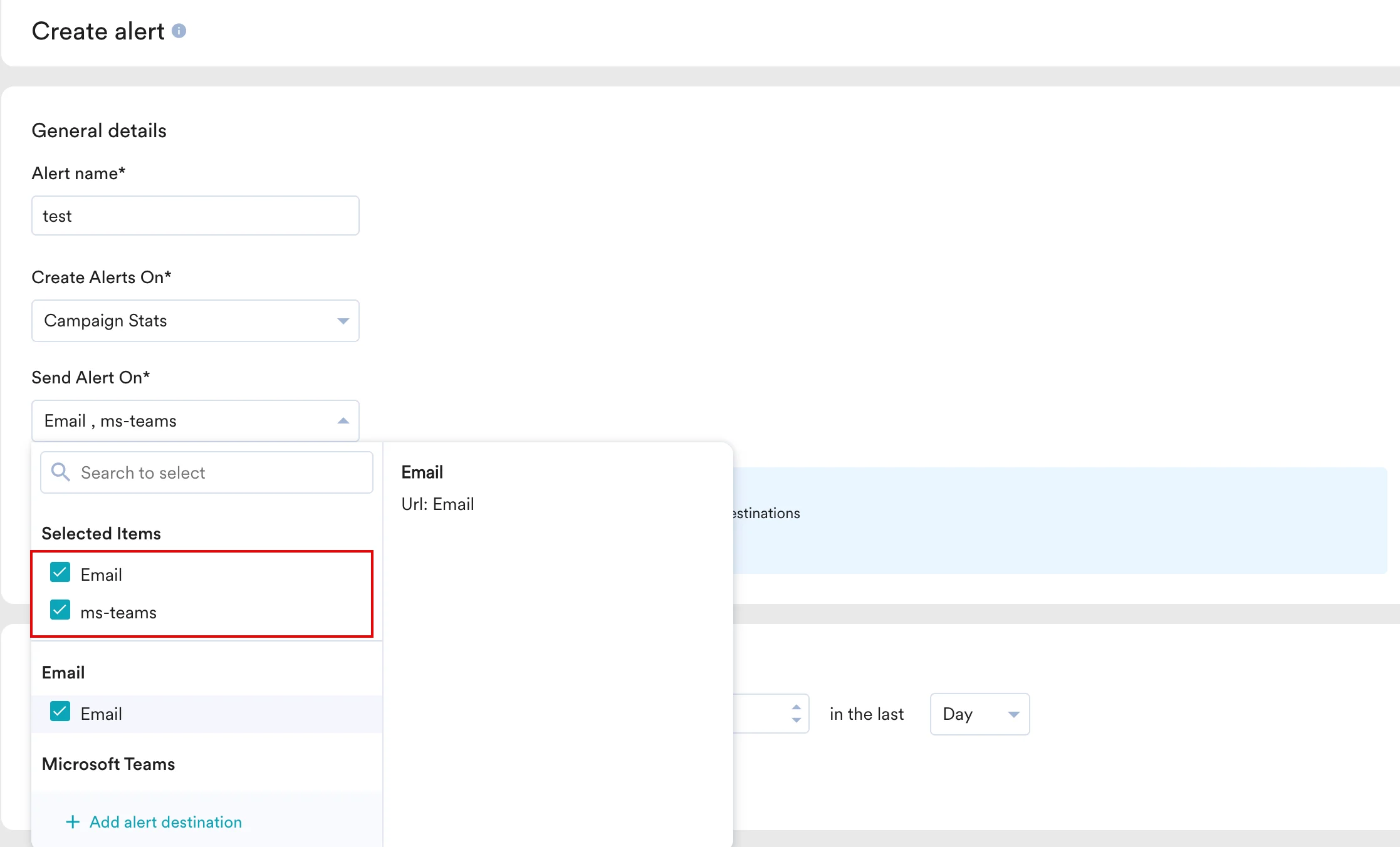
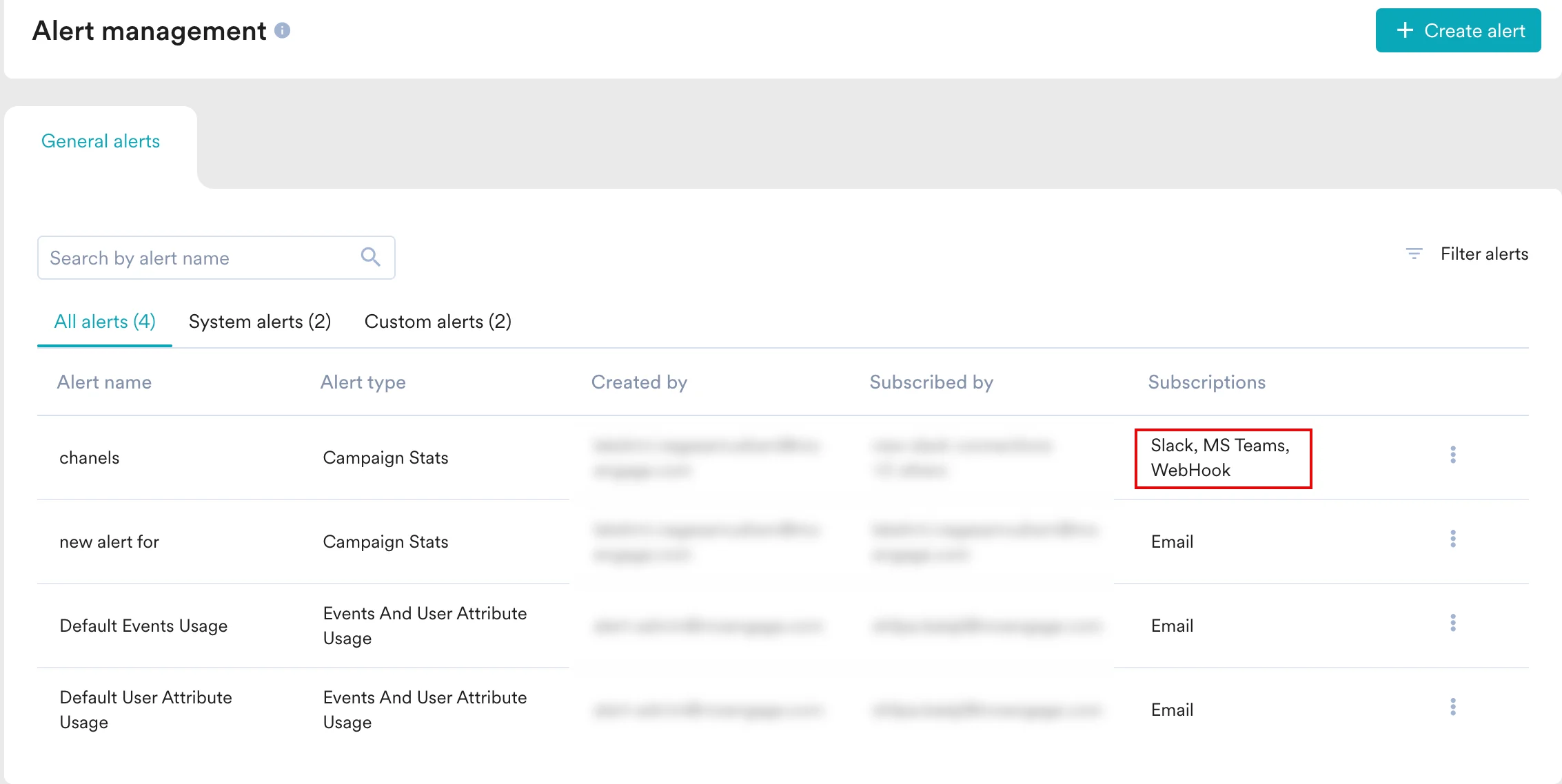
- After adding the destinations, you can view the defined alert destinations on the Alert management page.
- Alerts sent to MS Teams are webhook-triggered.
- When alerts are configured for both email and MS Teams, unsubscribing from email notifications will not affect the delivery of MS Teams alerts, which will continue to be sent.