

Introduction
The integration enables streaming MoEngage campaign events and user actions to Adobe Experience Platform HTTP APIs via MoEngage Streams, creating unified customer profiles in Adobe Experience Platform (AEP).Key Features/Functionality
With this integration, you can:- Send MoEngage campaign events (email opens, push notifications, SMS delivery) in real-time.
- Send user action events (app events, custom events, behavioral data) from MoEngage to AEP.
- Build unified customer profiles combining MoEngage engagement data with CRM, web analytics, and offline data.
Architecture and Adobe Audience Manager Integration
Why Stream to AEP instead of Adobe Analytics?This integration utilizes AEP as the central ingestion point. Unlike legacy methods that push data directly to Adobe Analytics, streaming to AEP utilizes the flexible XDM (Experience Data Model) standard.How to use this data in Adobe Audience Manager (AAM):Once MoEngage data is ingested into AEP, it enriches the Real-Time Customer Profile. You can then use the Audience Manager Destination to share these segments directly with AAM. This allows you to combine MoEngage offline/event data and your existing Adobe Analytics web data inside AAM for advanced audience stitching.For implementation details, refer to the official Adobe documentation: Official Guide: Experience Platform Segment Sharing with Audience Manager →
Use Cases
- Unified Customer View: Combine MoEngage campaign engagement (email opens, push clicks) with web behavior from Adobe Analytics and offline purchases from CRM to create complete customer profiles.
- Advanced Segmentation: Build segments like “Users who opened promotional email in last 7 days but haven’t purchased” using both MoEngage engagement data and e-commerce transaction data.
- Cross-Channel Journey Orchestration: Trigger Adobe Journey Optimizer campaigns based on MoEngage campaign non-engagement (e.g., didn’t open email → send SMS via different channel).
- Campaign Performance Analytics: Query historical MoEngage campaign events in Data Lake to analyze performance trends, A/B test results, and cohort behavior over time.
- Identity Graph Enrichment: Stitch MoEngage user IDs with Adobe ECID, CRM IDs, and email addresses to resolve identities across all customer touchpoints.
Integration Approach
- This integration requires you to configure your AEP environment and share specific details with MoEngage to enable Streams. MoEngage will then configure the streams to send events in the format that matches your AEP schema.
- The MoEngage Streams is a paid add-on.
Step 1: Identify Your Identity Namespaces
Before you configure the integration, identify the identity namespaces to use for stitching MoEngage data with your existing customer profiles in AEP.Step 1.1: Review Existing Identity Namespaces
To review existing identity namespaces, perform the following steps:- Log in to Adobe Experience Platform.
- Navigate to Identities → Browse.
- Review your existing identity namespaces.
- Identify the namespace(s) to use as primary and secondary identities.
Identity Namespace Requirements
You must share the following identity namespace details with MoEngage when requesting Streams setup:
- Primary Identity Symbol: for example, lumaCrmId, loyaltyId
- Secondary Identity Symbols: for example, Email, Phone
- MoEngage User ID Symbol (if created): moengageUserId
Step 2: Create an XDM Schema
The XDM schema defines the structure of MoEngage event data in AEP. You can use the recommended schema structure or customize it based on your requirements.Use the Recommended Schema Structure (Out-of-the-Box)
MoEngage provides a sample schema structure that works out-of-the-box with MoEngage Streams. If you replicate this structure, the integration will work with minimal configuration.Sample Schema Structure
Create an XDM ExperienceEvent schema with the following field structure:
Note:
_{tenant} represents your organization’s tenant namespace (for example, _yourorgname).
Step 2.2: Create the Schema in AEP
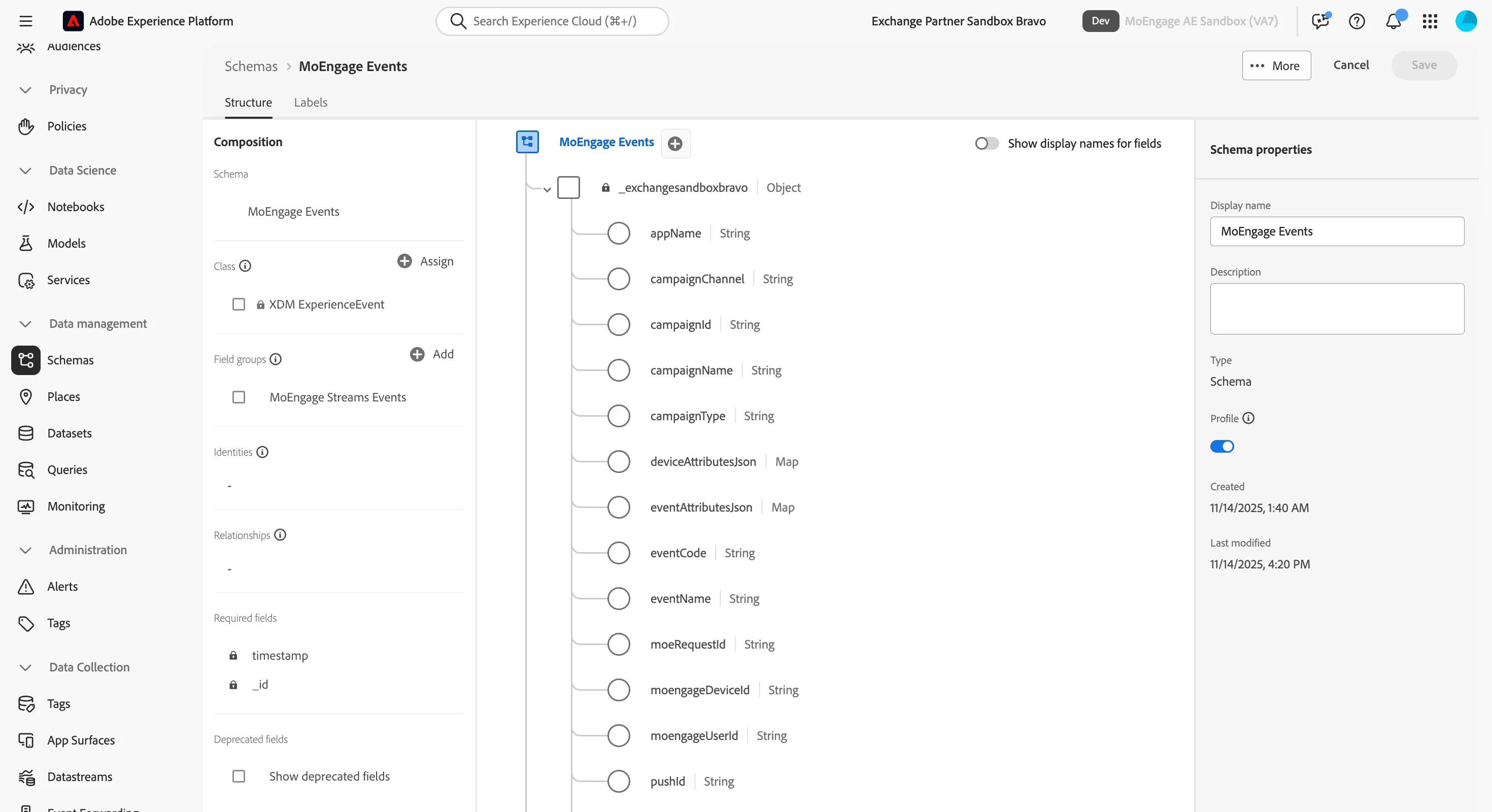
To create the schema in AEP, perform the following steps:- Navigate to Schemas → Browse.
- Click Create schema → XDM ExperienceEvent.
- In the Name box, type MoEngage Events.
- Ensure the following standard field groups are present:
- XDM ExperienceEvent
- IdentityMap
- Create a custom field group named MoEngage Event Details.
- Add the fields listed in the table above under your tenant namespace.
- To enable the schema for profiles, turn the Profile toggle on.
- Click Save.\
Step 2.4: Download Schema JSON
After you create and save the schema, download the schema JSON for reference:- Open your schema in the Schema Editor.
- Click the More (three dots) menu in the upper-right corner.
- Select Copy schema structure or Download JSON.
- Save this file. You might need it when you coordinate with MoEngage support.
Step 2.5: Note Your Schema Details
After creating the schema, note down the following details:- Schema ID: You can find it in the schema details (for example,
https://ns.adobe.com/{TENANT}/schemas/{SCHEMA_ID}) - Tenant ID: Your organization’s tenant namespace (for example,
_yourorgname).
Step 3: Create a Dataset
Datasets store data that conforms to your XDM schema. To create a dataset, perform the following steps:- Navigate to Datasets → Browse.
- Click Create dataset from schema.
- Select the
MoEngage Eventsschema that you created. - Configure the dataset with the following information:
- Name:
MoEngage Event Data - Description: Campaign events and user actions from the MoEngage Streams API.
- Name:
- Click Finish.
- Open the new dataset and turn the Profile toggle on to enable it for the Real-Time Customer Profile.\
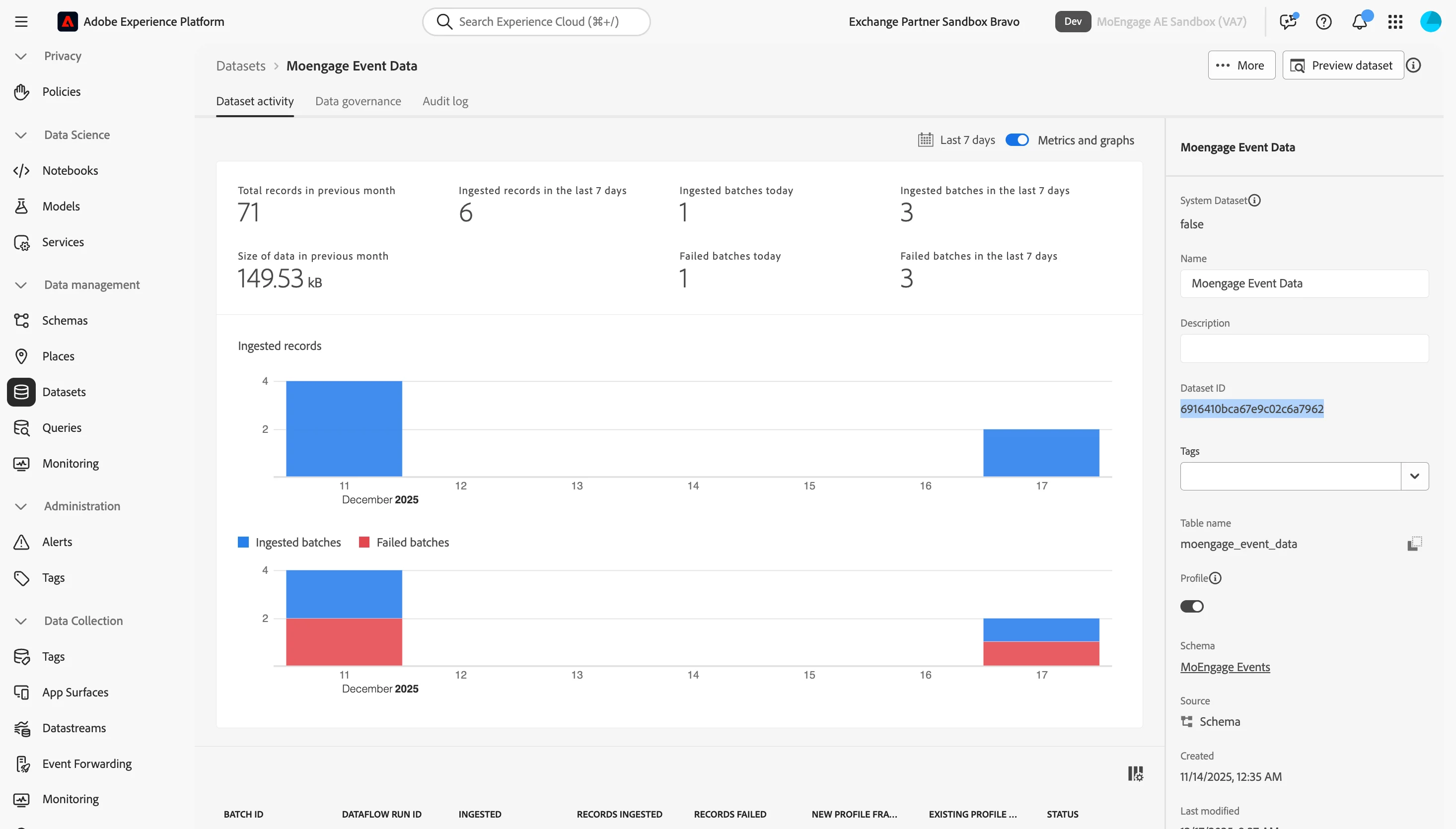
690da33230e4cd0adff86e57).
Step 4: Configure the HTTP API Streaming Source
The HTTP API source provides a streaming endpoint to send data to AEP.Step 4.1: Choose an Authentication Method
Before you create the HTTP API source connection, choose one of the following authentication methods:- No Authentication
- OAuth 2.0 Authentication
Step 4.2: Create the HTTP API Source Connection
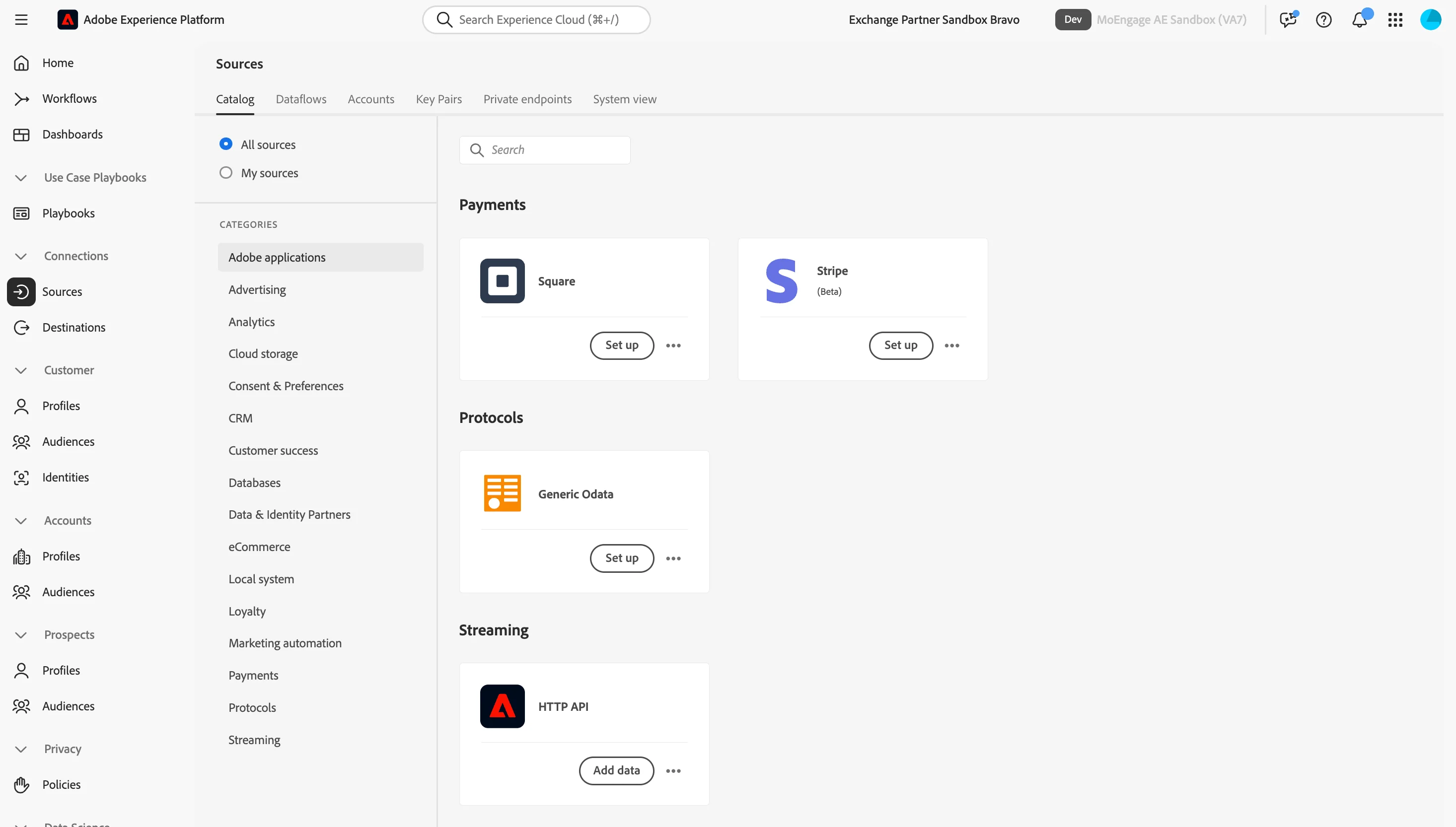
To create the HTTP API source connection, perform the following steps:- Navigate to Sources → Catalog.
- In the Streaming category, find HTTP API.
- Click Add data.
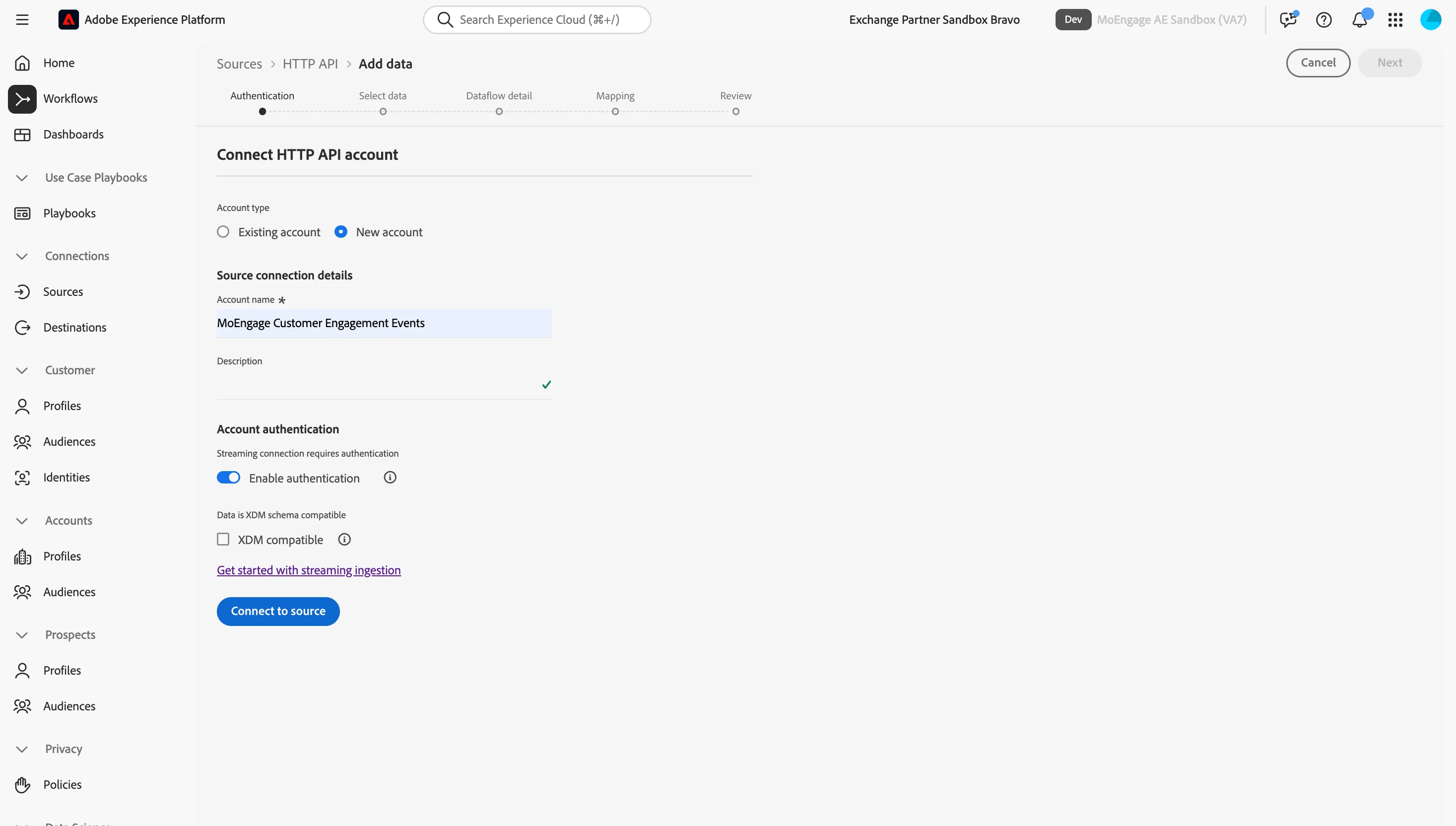
- Configure the account details:
- Account name: MoEngage Streams Connection.
- Description: HTTP API endpoint for streaming MoEngage events.
- Authentication: Choose the method you had selected earlier.
- Click Connect to source.
Step 4.3: Set Up OAuth 2.0 Credentials (If Selected)
If you selected Authenticated in the previous step, you must set up OAuth 2.0 credentials through Adobe Developer Console and perform the following steps:Step 4.4: Create the Service Account Integration
To create the service account integration, perform the following steps:- Navigate to Adobe Developer Console.
- Select your organization or create a new project.
- Click Add to Project → API.
- Select Adobe Experience Platform from the API list.
- Choose OAuth Server-to-Server credential type.
- Configure the required product profiles and permissions.
- Click Save configured API.
Copy OAuth Credentials
After creating the integration, copy the following credentials from the Adobe Developer Console:Step 4.5: Configure Dataflow
To configure the dataflow, perform the following steps:- In the dataflow configuration enter the following details:
- Dataflow name:
MoEngage Event Stream. - Description: Streams MoEngage campaign and user events to AEP.
Note: Do NOT select XDM compatible.
- Dataflow name:
- Select dataset:
MoEngage Event Data - Click Next to proceed to mapping.
Limitations of XDM compatible modeWe do not select “XDM compatible” because MoEngage sends data in its own format, and we’ll use the mapping interface to transform it to your XDM schema structure. This gives you more flexibility and control over field mappings.
Step 5: Configure Field Mapping
After you create the HTTP API source, AEP displays a mapping interface where you can map MoEngage fields to your XDM schema. Before proceeding with field mapping, you have to either share your schema structure with MoEngage or generate a test payload yourself.Step 5.1: Prepare a Schema Sample
Generate a sample payload based on your schema structure to validate the mapping configuration:- Using the schema JSON you downloaded in Step 2, generate a sample event payload that includes:
- All required XDM fields (
_id,timestamp,identityMap) - Your custom tenant fields for MoEngage data
- Identity mappings for your configured namespaces
- All required XDM fields (
- Share with MoEngage: Send this sample payload along with your schema JSON to MoEngage support. They will generate the appropriate mapping CSV file for your schema structure.
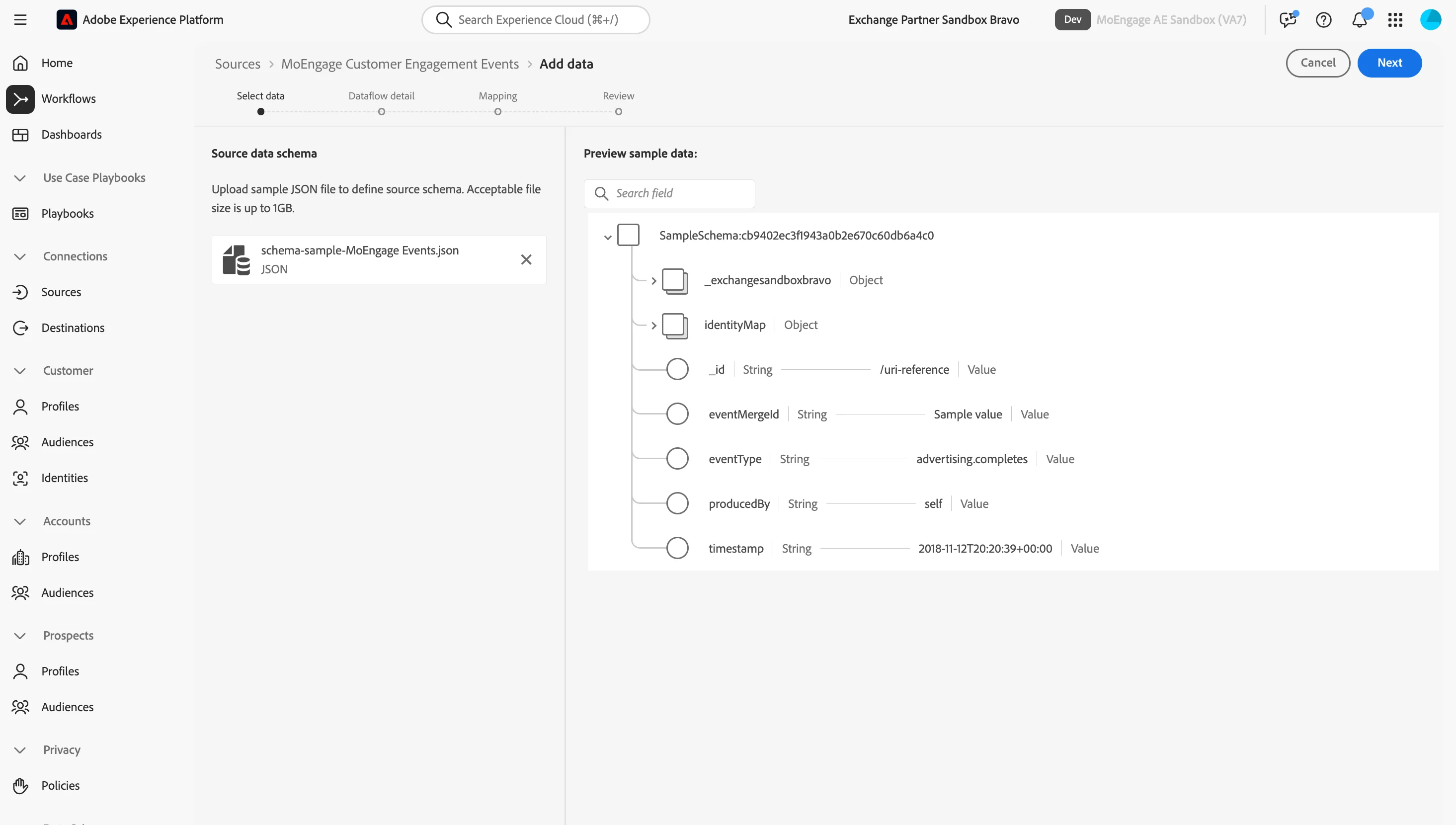
MoEngage Mapping CSV GenerationMoEngage support will create a custom mapping CSV file tailored to your schema structure and identity namespace configuration. This ensures accurate field mappings between MoEngage event data and your AEP schema.
- (Recommended) MoEngage-Provided Mapping CSV
- Manual Mapping for Local Testing
Step 5.2: Use the MoEngage-Provided Mapping CSV File (Recommended)
For production deployments, request the mapping CSV file from MoEngage support:- In the mapping interface, you will see error messages for fields that don’t auto-map.
- Remove any error-causing fields by clicking the trash icon.
- Contact MoEngage support and provide the following:
- Your schema JSON file (from Step 2)
- A sample event payload with your required fields
- Identity namespace symbols (primary and secondary)
- Your tenant namespace (for example,
_yourorgname)
- MoEngage will generate a custom
moengage-aep-mapping.csvfile tailored to your schema. - Once received, verify the CSV contains correct mappings:
- Tenant namespace should match yours (for example,
_yourorgname). - Identity namespace symbols should match your configuration (e.g.,
lumaCrmId,Email,Phone). - Field paths should match your schema structure.
- Tenant namespace should match yours (for example,
- Click Import in the AEP mapping interface and upload the CSV file.
- Review the imported mappings to ensure all fields are correctly mapped.
- Click Next to proceed.
Complete Dataflow Setup
After configuring the dataflow, you’ll receive a streaming endpoint URL that looks like:Endpoint URL
Step 6: Test with Postman
Before enabling MoEngage Streams, test the streaming endpoint with sample data to ensure proper schema validation and data ingestion.Step 6.1: Prepare the Test Payload
Create a test payload in the MoEngage Streams format: Test Payload JSONStep 6.2: Send a Test Request in Postman
To send a test request in postman, perform the following steps:- Open Postman and create a new POST request.
- In the URL box, enter:
{YOUR_STREAMING_ENDPOINT}?syncValidation=true. - Add the following header
Content-Type: application/json. - Paste the test payload in the Body (RAW JSON).
- Update the identities section with your actual identity values.
- Click Send.
Expected Response
Successful ingestion returns: Success Response JSONStep 6.3: Verify Data in AEP
- Navigate to Datasets → MoEngage Event Data.
- Click Preview dataset.
- Verify that the test event appears with the correct field values.
- Check Profiles → Browse to verify profile creation or update.
Save Your Test PayloadKeep your verified test payload - you’ll need to share it with MoEngage when requesting Streams setup. This payload demonstrates the exact format and identity mappings that work with your AEP configuration.
Step 7: Share Details with MoEngage for Streams Setup
After you have successfully tested the integration, provide the following details to MoEngage to enable Streams for your workspace.Information to Share with MoEngage
OAuth 2.0 Credentials Details (If Using OAuth)
If you configured OAuth 2.0 authentication in Step 4, provide the following credentials to MoEngage:Submit Integration Request
Contact your MoEngage Customer Success Manager and share all the details mentioned above. MoEngage performs the following:- Review your configuration and test payload.
- Generate or validate the mapping CSV file for your schema (if not provided).
- Configure Streams to send data in the correct format.
- Set up identity mappings based on your namespace configuration.
- Enable Streams for your workspace.
- Notify you once the integration is live.
MoEngage Streams DocumentationFor more information on MoEngage Streams configuration and available event types, refer to MoEngage Streams Documentation.
Need Help?For assistance with this integration, contact your MoEngage Customer Success Manager. For Adobe Experience Platform support, visit the Adobe Experience League Community.