

Introduction
Microsoft Azure Blob Storage is a massively scalable object storage for unstructured data offered by Microsoft as part of the Azure product suite.MoEngage × Microsoft Azure Blob
MoEngage and Microsoft Azure Blob integration makes use of MoEngage’s S3 Data Exports to transfer data to your Azure Blob Storage for further processing and analytics.Integration
Prerequisites
- Ensure you have a Microsoft Azure Blob account.
- Ensure that S3 Data Exports is enabled for your account.
Step 1: Create a storage account on Azure
On your Microsoft Azure account:- Navigate to Storage Accounts in the sidebar.
- Click + Add to create a new storage account.
- Provide a storage account name. Other default settings do not need to be updated.
- Select Review + Create.
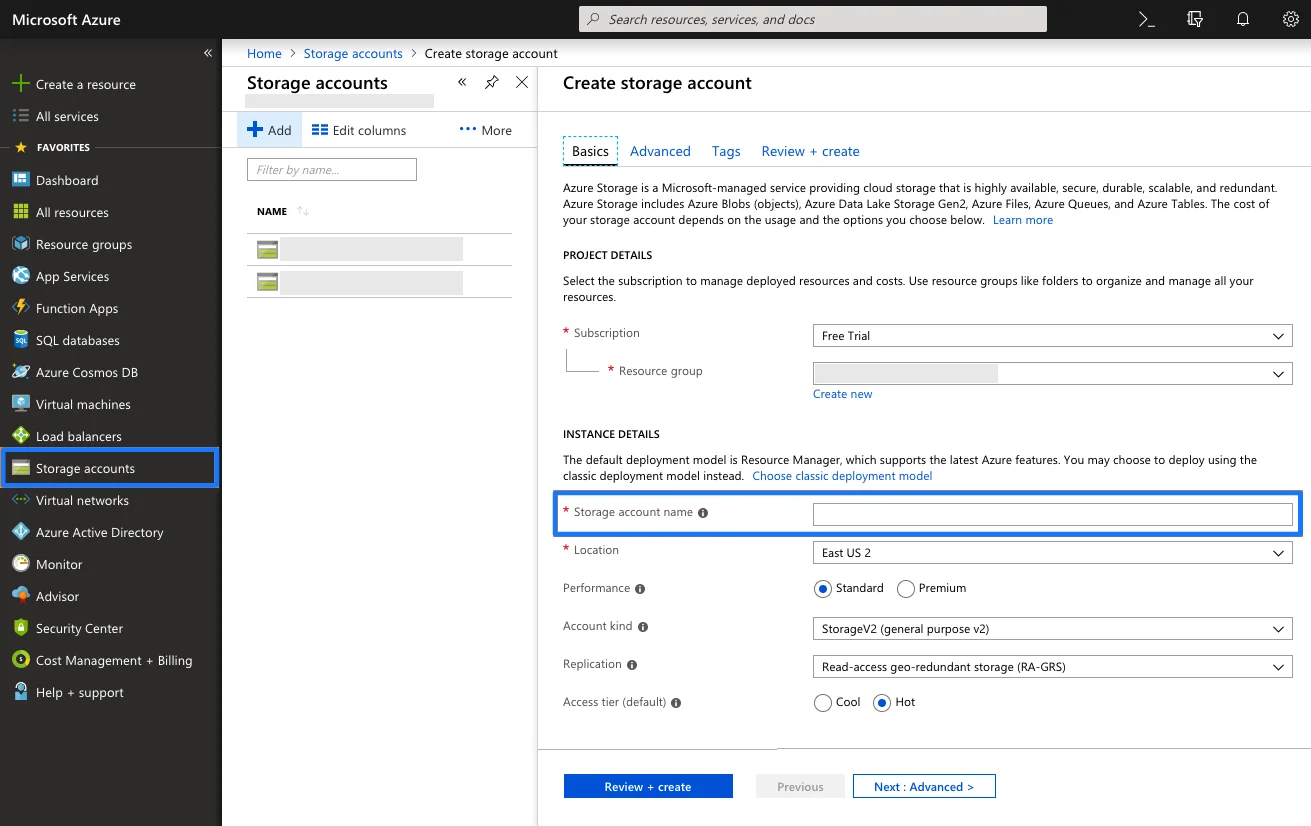
Step 2: Get the connection string
Once the storage account is deployed, navigate to the Access Keys menu from the storage account and take note of the connection string. Azure provides two access keys so you can maintain connections using one key while regenerating the other. You only need the connection string from one of them.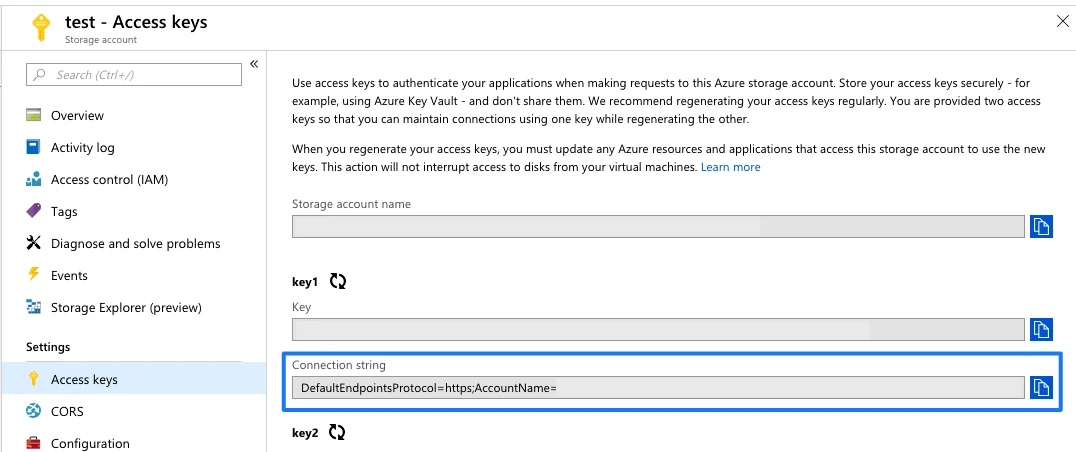
Step 3: Create a blob service container
- Navigate to Blob Service > Blobs menu.
- Create a Blob Service Container within the storage account you created earlier.
- Provide a name for your Blob Service Container. Other default settings do not need to be updated.
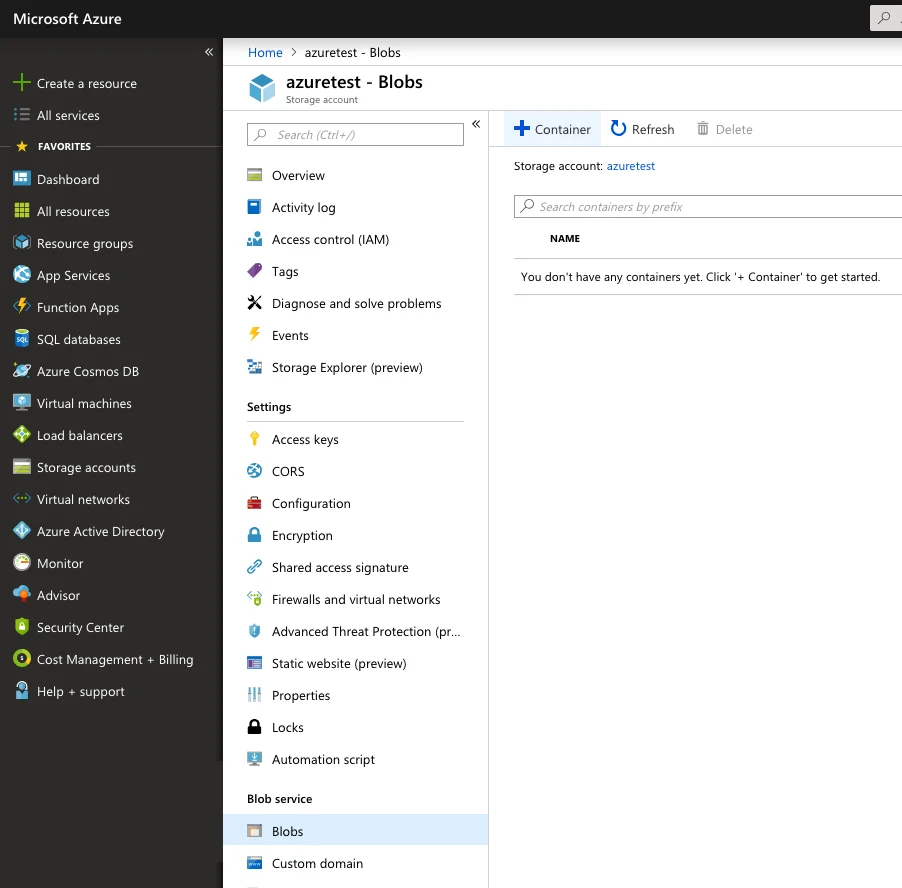
Step 4: Set up AWS Data Exports on MoEngage
Ensure you have already set up Data Exports to S3 by following the steps mentioned here. Once the data starts to flow into S3, move to the next step. This is important because we need to predefine the schema of our imports. Sample file format:s3://client-moengage-data/event-exports/export_day=2021-07-01/export_hour=06/
If you do not have an S3 account, MoEngage can configure it on our S3 bucket and configure the transfer service. For further assistance, contact the MoEngage Support team.
Step 5: Script to transfer data from S3 to Azure Blob
You can fetch the data from MoEngage S3 using AWS CLI commands and ingest the data into your Azure Blob Storage, or use Azure commands directly to access the S3 bucket and fetch the data. Below is a sample script that uses a middleware to process the data and ingest it into your Azure Blob Storage. The script:- Copies the data from S3 to an intermediate location (VM) and then to Azure Blob Storage.
- Deletes the data on the intermediate location after 1 day.
- Runs every 1 hour. You can modify it as per your requirements.
This is a reference script; you can modify it or use other methods compatible with your infrastructure.
BASH