

Introduction
Kudosity is a messaging and engagement platform for businesses that offers reliable connections to 114+ global destinations. You can build authentic customer relationships through intelligently personalized SMS, MMS, omnichannel messaging, and conversational AI.Ensure that you have your Kudosity account and an API key. If you have any issues with the credentials or if you don’t have them, contact Kudosity support.
Configure Kudosity as a Custom SMS Connector (Service Provider)
This article helps you configure Kudosity as a Custom SMS Connector (Service Provider) on the MoEngage dashboard. Before proceeding, ensure that you have the following parameters to make calls to the Kudosity API (Transmitsms). You can find your API URL, API Key, and API Secret in your Kudosity settings. You can also read about the Kudosity SMS API here.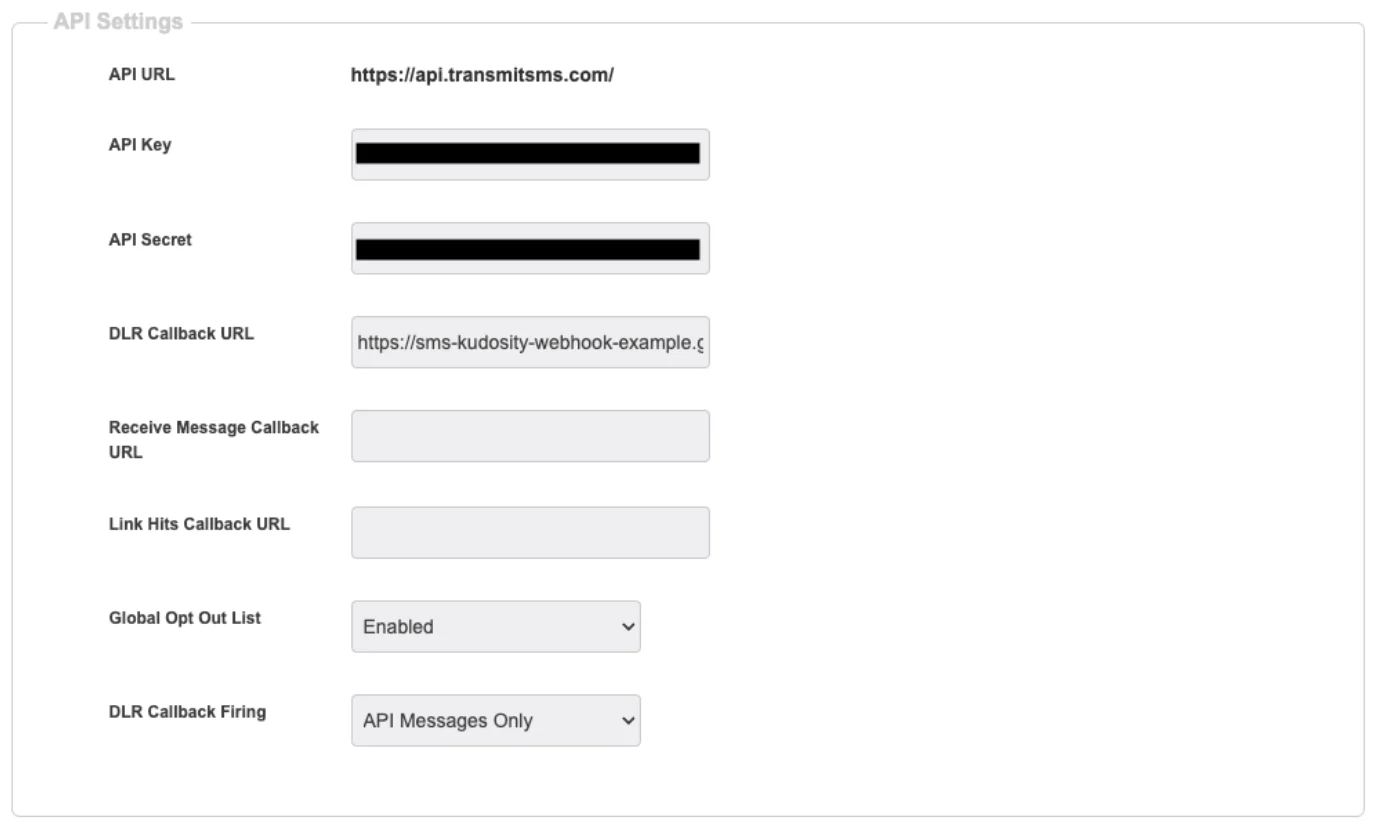
Log in to the MoEngage dashboard and follow these steps:
- Navigate to Settings -> Channel -> SMS.
- Click + Sender in the upper-right corner.
- Click + Add custom service provider.
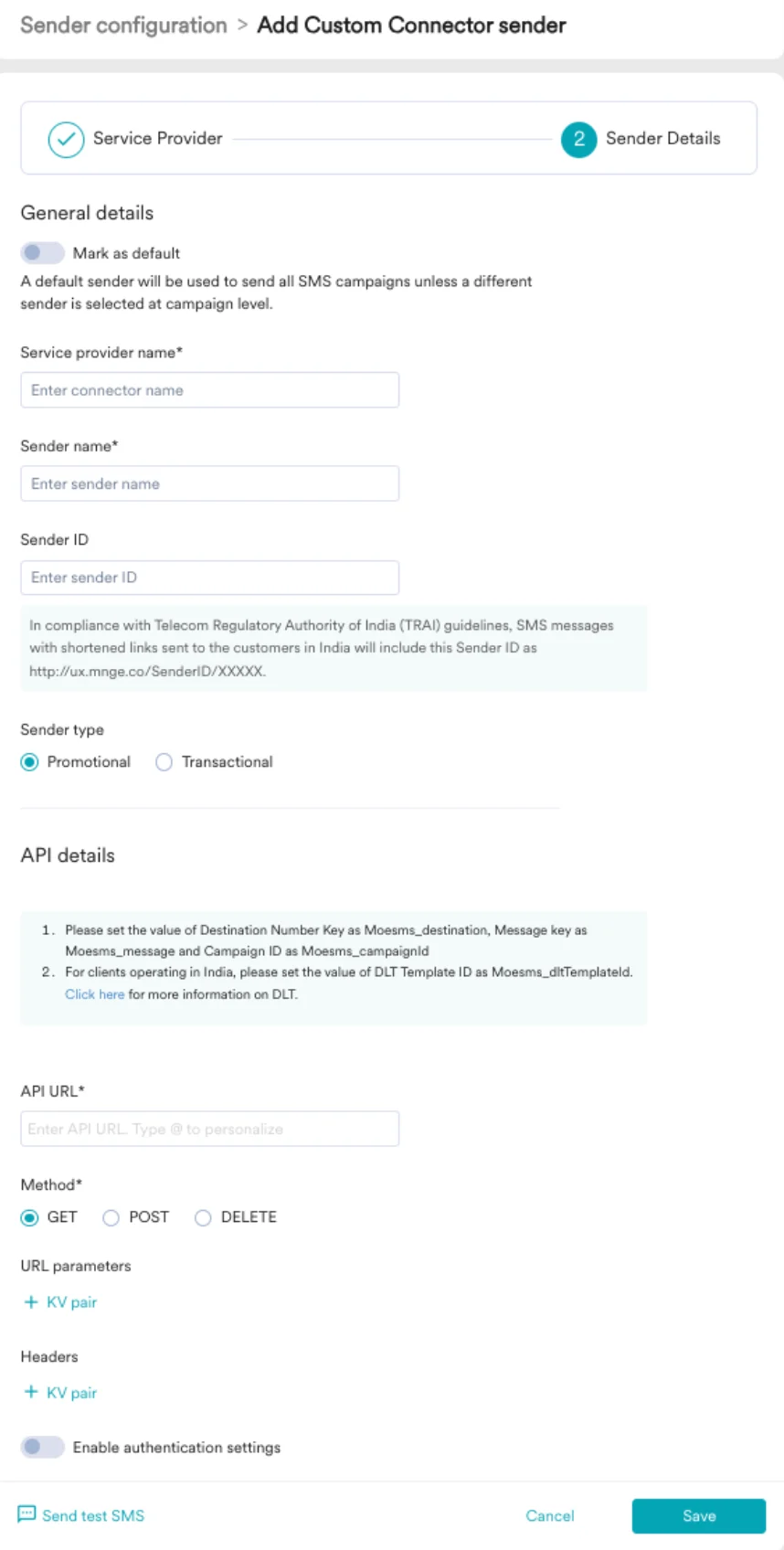
- Add the following details on the Service Details page.\
| Field | Description |
|---|---|
| Mark as default | Turn this toggle on to mark the sender as the default sender for the service provider being configured. If marked as default, this sender will be used to send all SMS campaigns from MoEngage unless you select a different sender while creating the campaign. |
| Service provider name | This field identifies the service provider you are configuring on the MoEngage dashboard and must be unique. Type Kudosity here, as you are creating a Kudosity service. |
| Sender name | This field identifies the readable sender name that can be used while creating a campaign or alert. |
| Sender ID | This field is your sender ID, which is the phone number you have set up in Kudosity to send SMS messages. Senders can be configured in your Kudosity account at https://kudosity.transmitsms.com/u/senders. 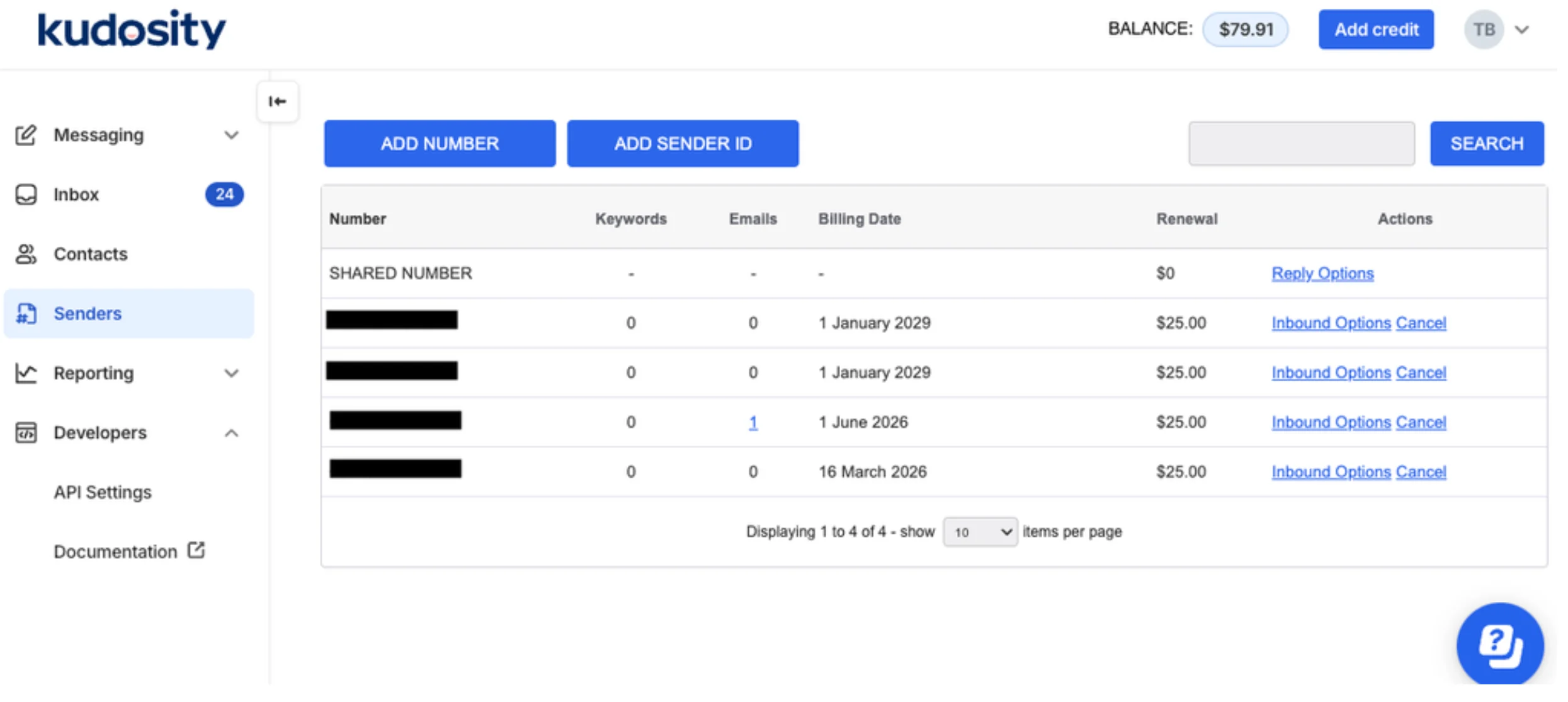 |
| Sender type | Select the sender type. Available options are:
|
- Configure the API details:
| Field | Description |
|---|---|
| API URL | This field contains information about the URL that should be used to send an API request to the sender. The API URL for Kudosity is: https://api.transmitsms.com/ |
| Method | Select POST as the HTTP method. |
| Headers | Create the following Key-Value pairs for the headers: 
|
| Body type | Configure the body type as Form and add the following details: 
|
- Click Send test SMS to verify your configuration.
- Click Next.
- You can configure delivery tracking after creating the sender in the MoEngage dashboard. For information on Delivery Tracking, refer to Delivery Tracking for Custom Connectors.
- Click Save to save the sender configuration.
Next Steps
- Create an SMS campaign using the Getting Started for creating SMS campaign.
- Set the Frequency Capping for SMS.
- Set the Current Service Provider.
- Read more about campaign analytics.