

Sender Configuration
To configure a WhatsApp number in the MoEngage Dashboard, perform the following steps:- Go to Settings > WhatsApp > Sender configuration.
- Choose Wisely from the left menu and click + Sender.
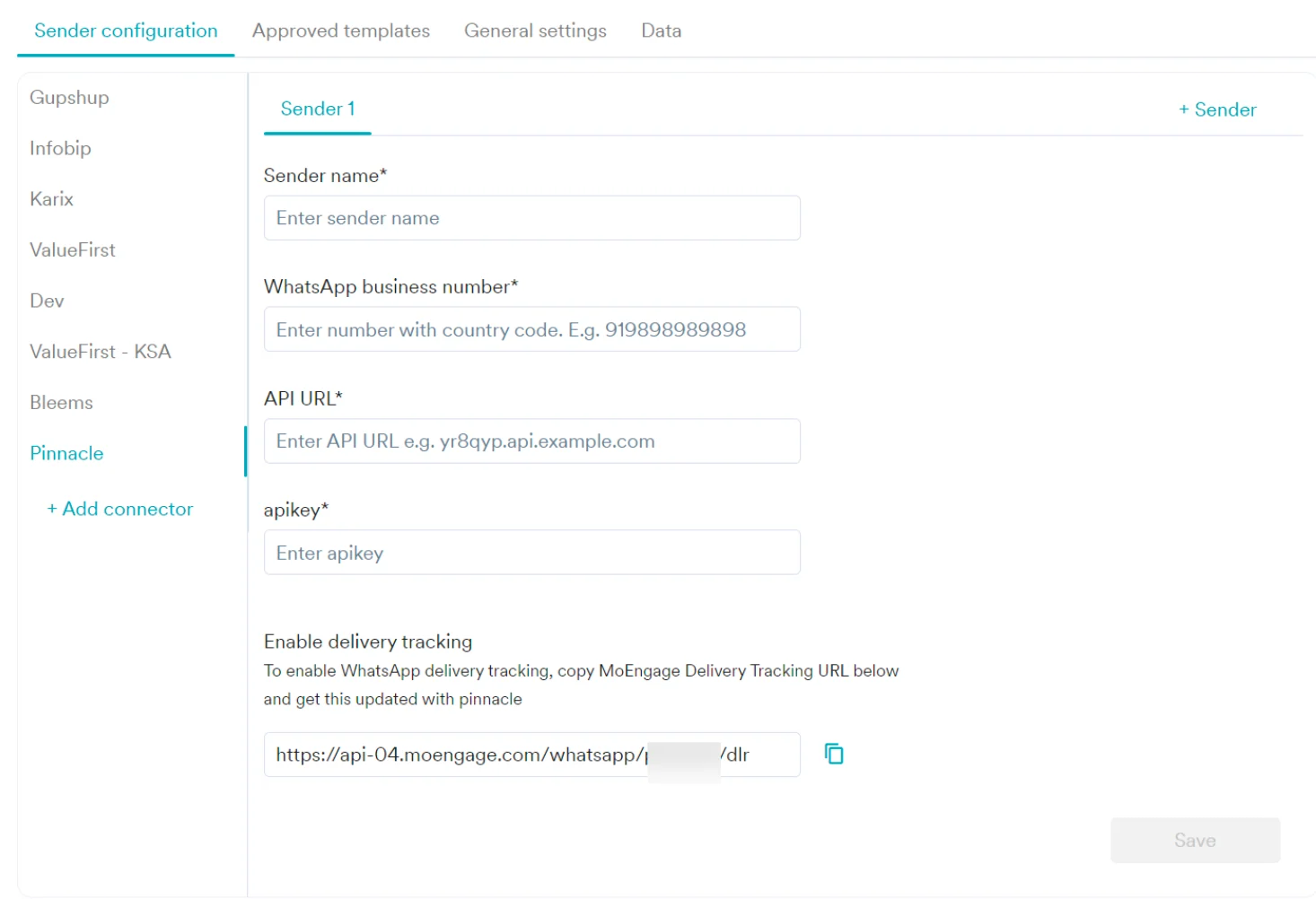
- Enter the following details:
Delivery Tracking
To track the delivery of your WhatsApp messages inside MoEngage, you must copy the MoEngage Delivery Tracking URL, and share it with Wisely, and get it updated on their side. You should be able to see the URL as shown below: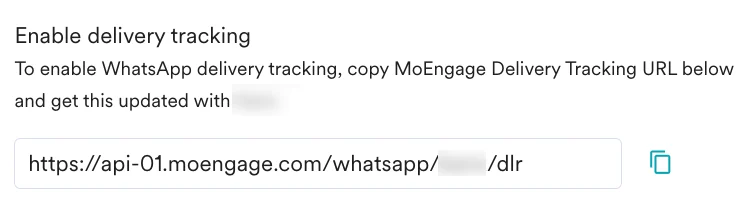
Add MoEngage Webhook in Wisely
- Log in to your Wisely account with valid credentials.
- Click API from the left menu.
- Locate and select the Access Account where you want to place the webhook URL.
- Click the stencil icon (
 ) next to the access account.
 - Select Webhook for Outgoing Status Events and place the delivery tracking URL of MoEngage in the HTTPS Webhook URL field.
Add the MoEngage webhook to an access account with WhatsApp configured as one of the channels.
- Click Update.
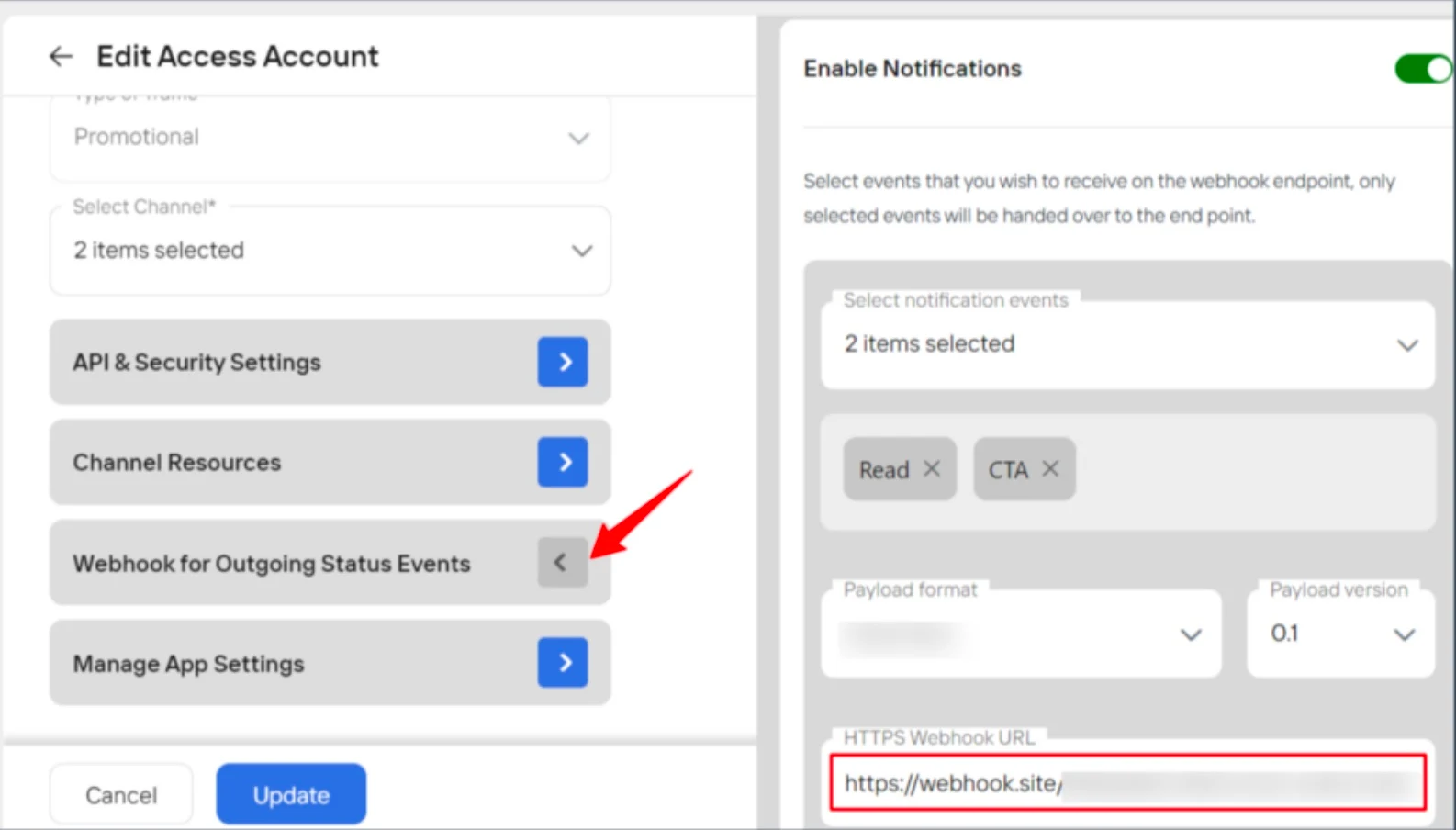
Upon successfully adding webhook, you will see the “Access Account updated successfully” message.
Add Delivery Tracking for User-Initiated Messages
- Log in to the Wisely platform with valid credentials.
- Click API from the left menu.
- Locate and select the Access Account where you want to place the webhook URL.
- Click the stencil icon ( ) next to the access account.
- Select the Webhook for User Initiated Messages and place the MoEngage webhook URL in the HTTPS Webhook URL field.
Webhooks for user-initiated messages can only be added to access accounts that are of the Conversational type.
- Click Update.
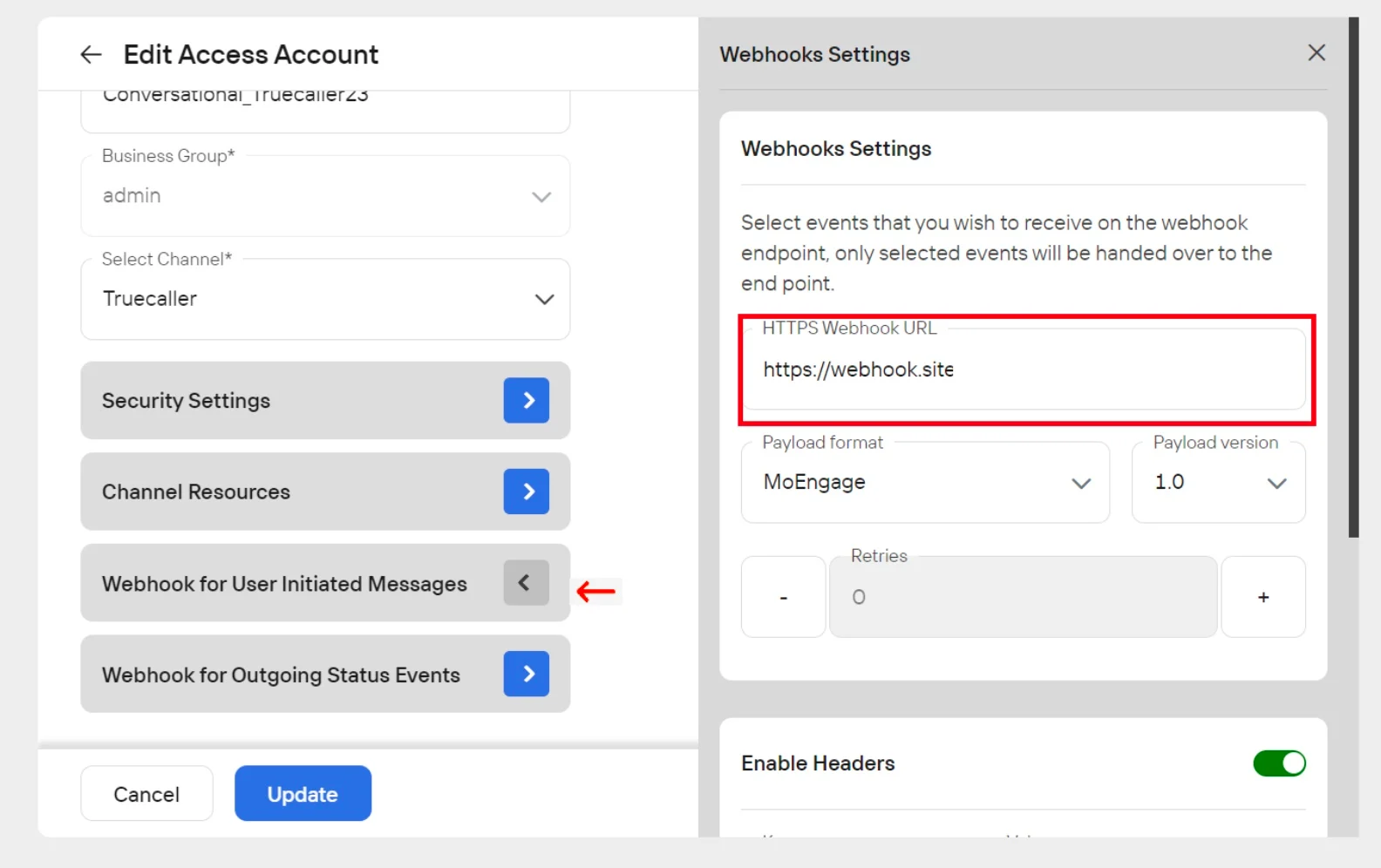
Upon successfully adding webhook, you will see the “Access Account updated successfully” message.