

MoEngage × Pinterest Ads
The MoEngage and Pinterest integration empowers you to seamlessly transfer your customer data to Pinterest Ads. Utilizing this data, you can create targeted advertising lists based on specific user behaviors and segmentation, leading to more relevant ad delivery.Use Cases
Integrating Pinterest with MoEngage helps you solve the following use cases:- Enhanced user engagement and conversions : You can target high-value users via multiple channels to drive purchases or engagement.
- Re-engagement of less responsive users : You can target users who are less responsive to other marketing channels by showing them targeted display ads based on their past behavior.
- Optimized advertising spend : You can create suppression audiences to prevent users from receiving advertisements when they’re already loyal consumers of your brand.
- Efficient new user acquisition : You can create lookalike audiences to acquire new users more efficiently.
Integration
- Pinterest business account : To use this feature, you must have an active advertising account with Pinterest.
- Pinterest developer app : Either an existing App with necessary permissions, or create a new one.
- Pinterest’s marketing APIs : Use Pinterest’s marketing APIs to sync audiences or users to Pinterest Ads through MoEngage. You must have a Pinterest App and an Ad account to use these marketing APIs. You can use your existing app and Ad account or create a new one to connect with MoEngage.
- Pinterest Ads is part of the Connected Segments add-on. Contact your dedicated MoEngage CSM (customer success manager) to enable it for your account.
Step 1: Create a Developer App on Pinterest
To set up a Pinterest developer account, perform the following steps:- Go to the Pinterest Developers Platform.
- Follow the instructions on the Pinterest document to set up a new App or use your existing App.
- To connect MoEngage to your Pinterest App configuration, type the specific URL in the Redirect link box based on the following MoEngage data center.

- MoEngage would require access to the following scopes:
- From your Pinterest App dashboard, on the Configure tab, obtain the App id and App secret key.
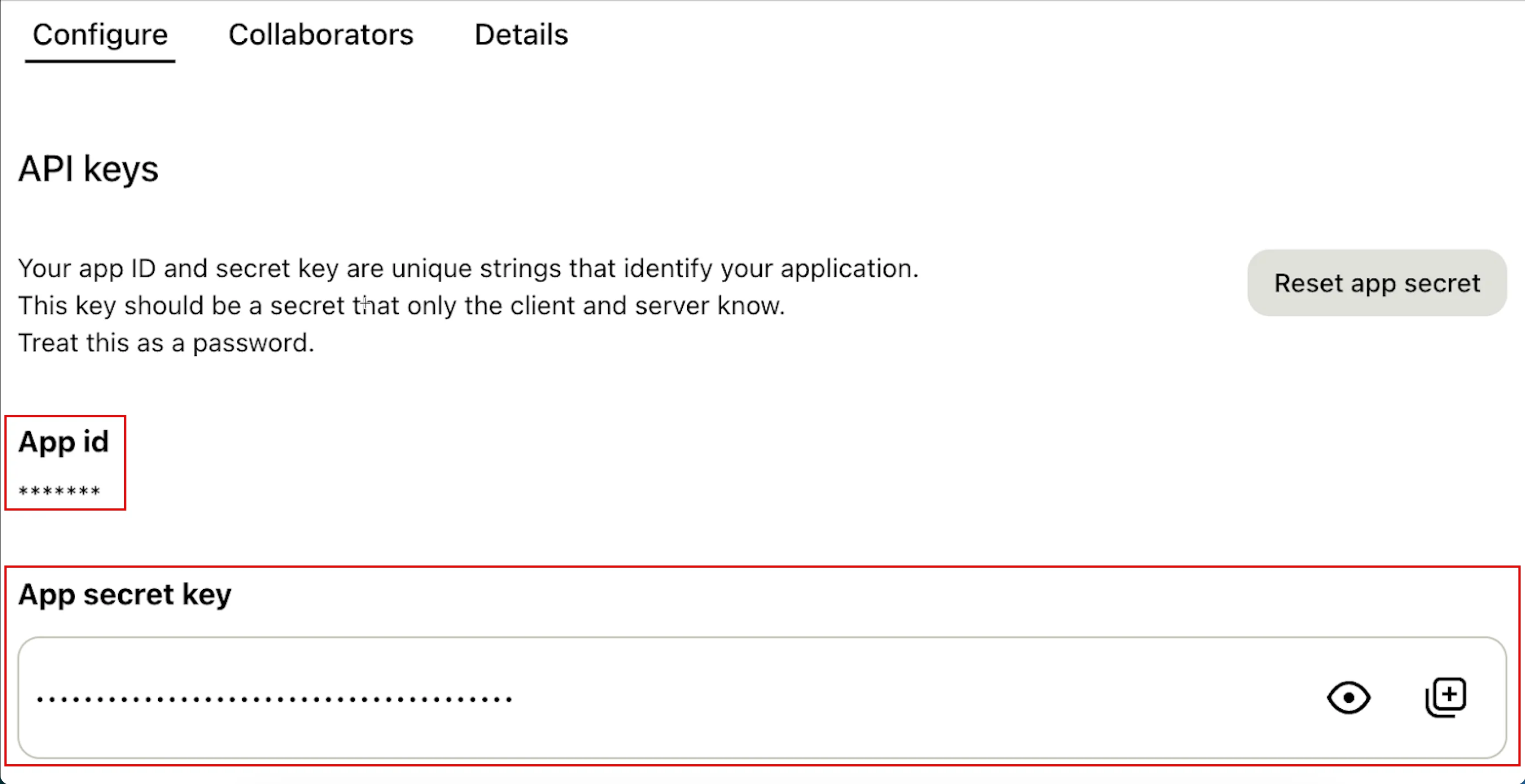
The App id and App secret key are required to set up the Pinterest integration on the MoEngage App marketplace.
Step 2: Connect Pinterest on the App Marketplace
To connect Pinterest on the App marketplace, perform the following steps:- On the left navigation menu in the MoEngage dashboard, click App marketplace.
- On the App Marketplace page, search for Pinterest.
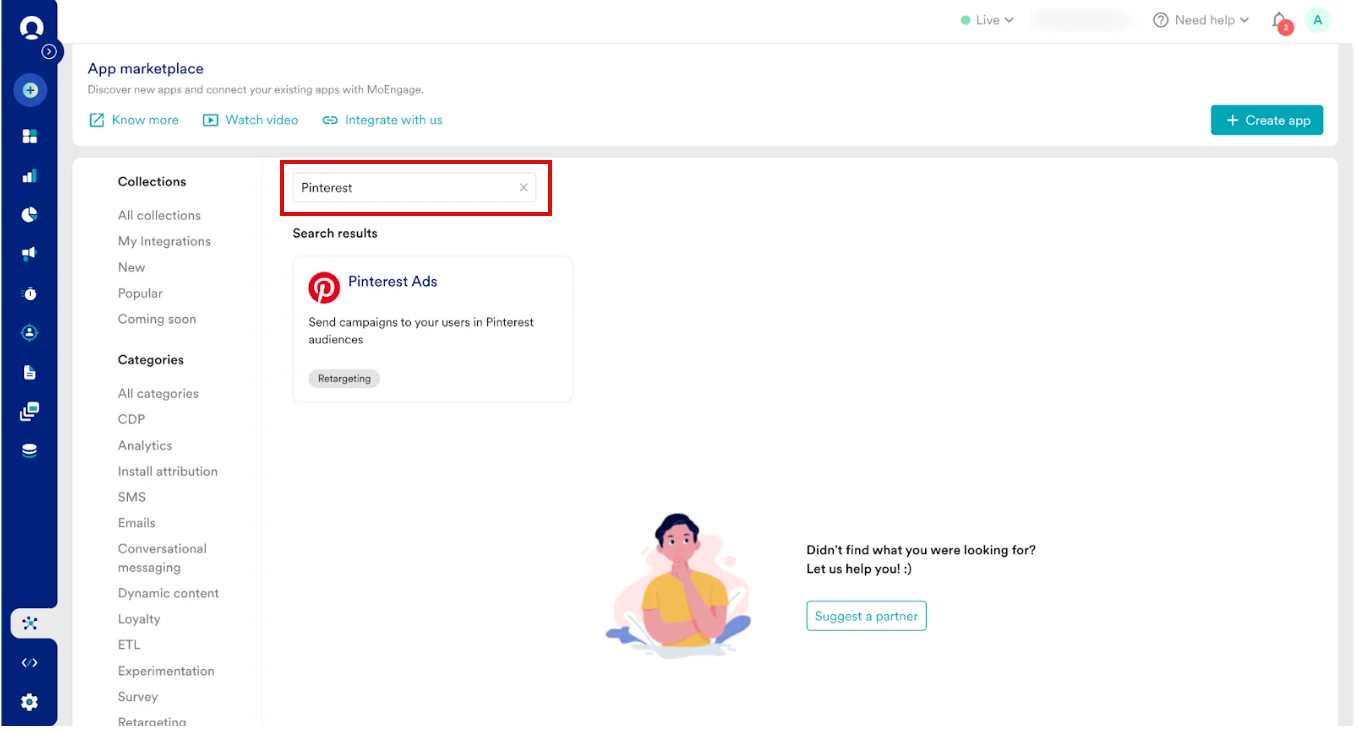
- Click the Pinterest tile.
- On the Pinterest page, go to the Integrate tab.
- Click the
 arrow, and then select one of the following options:
- Create Customer List
- Update Customer List
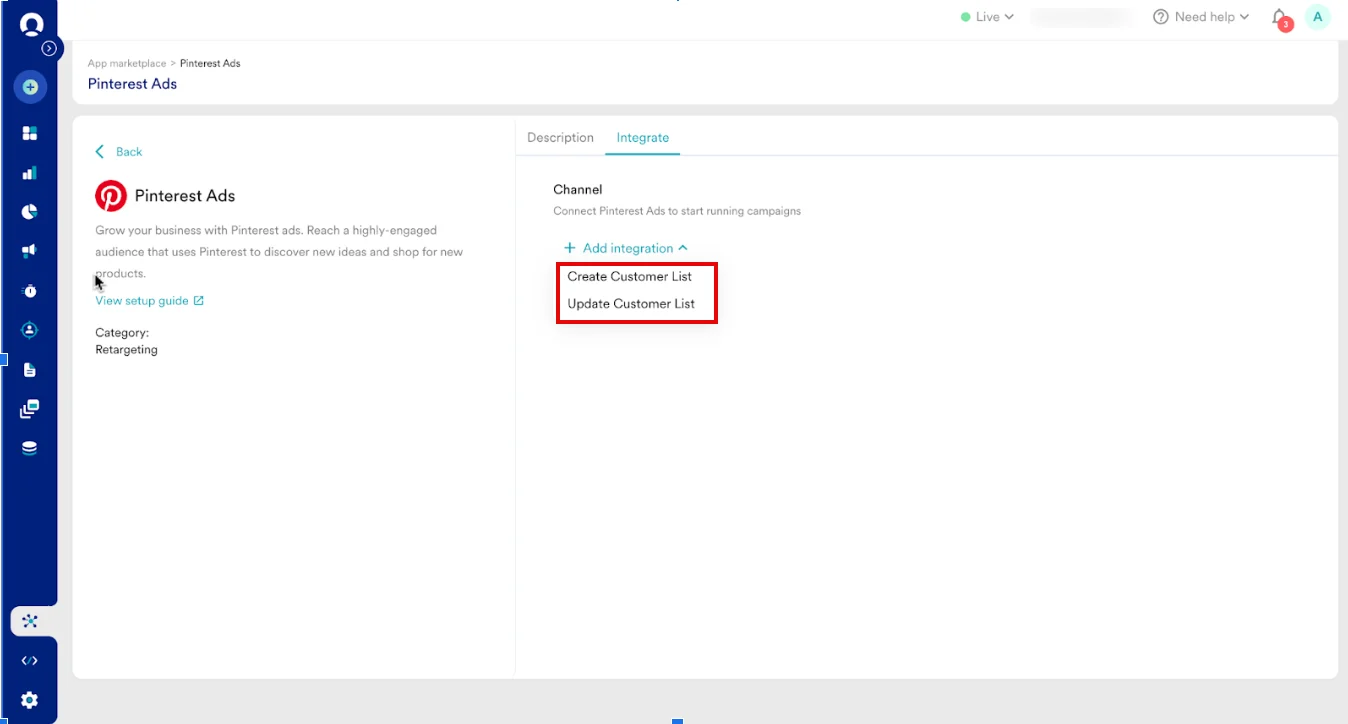
- Based on the selected connector type, enter the following details:
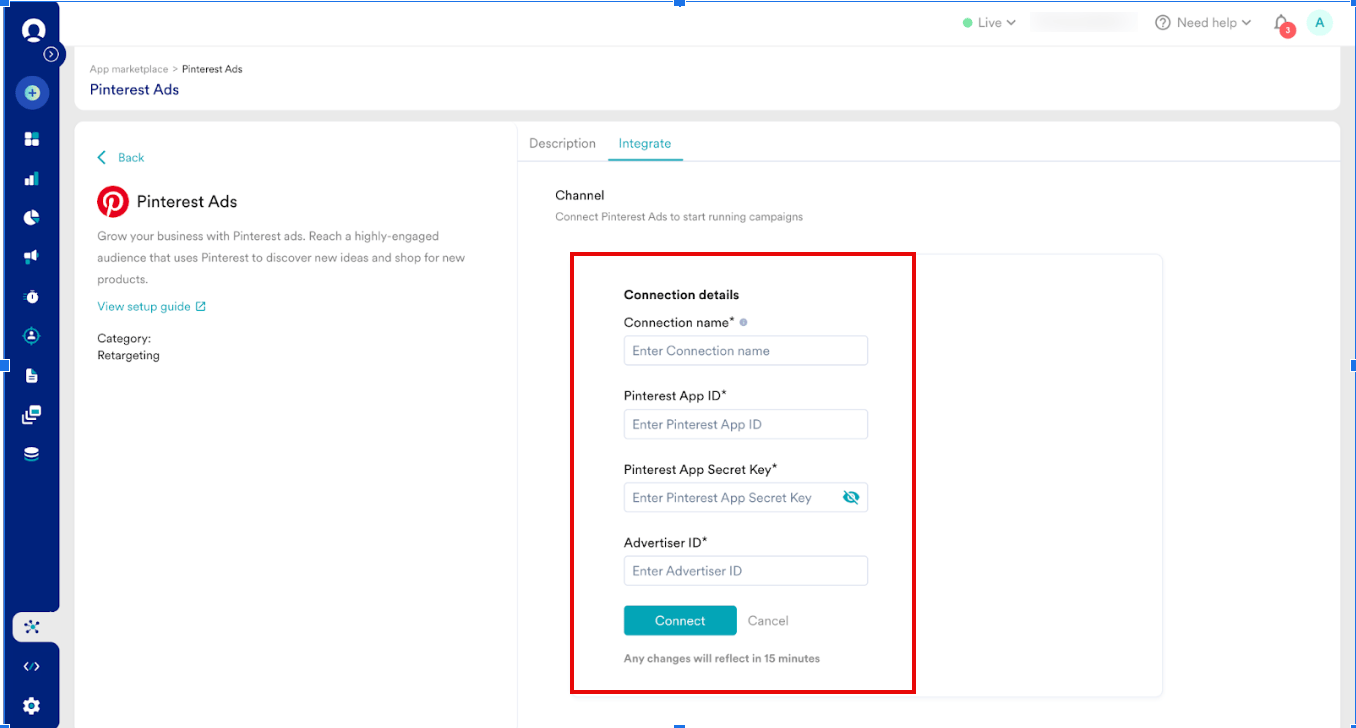
- Click Connect. Your Pinterest connection is now integrated.
Step 3: Create a Campaign on MoEngage to Sync Audiences to Pinterest Ads
To create a campaign on MoEngage, perform the following steps:- On the left navigation menu in the MoEngage dashboard, click Engage , and then click Campaigns.
- On the All campaigns page, click + Create campaign
- On the Create campaign dialog box, under Connected Apps , click Pinterest and then click the most suitable delivery type.
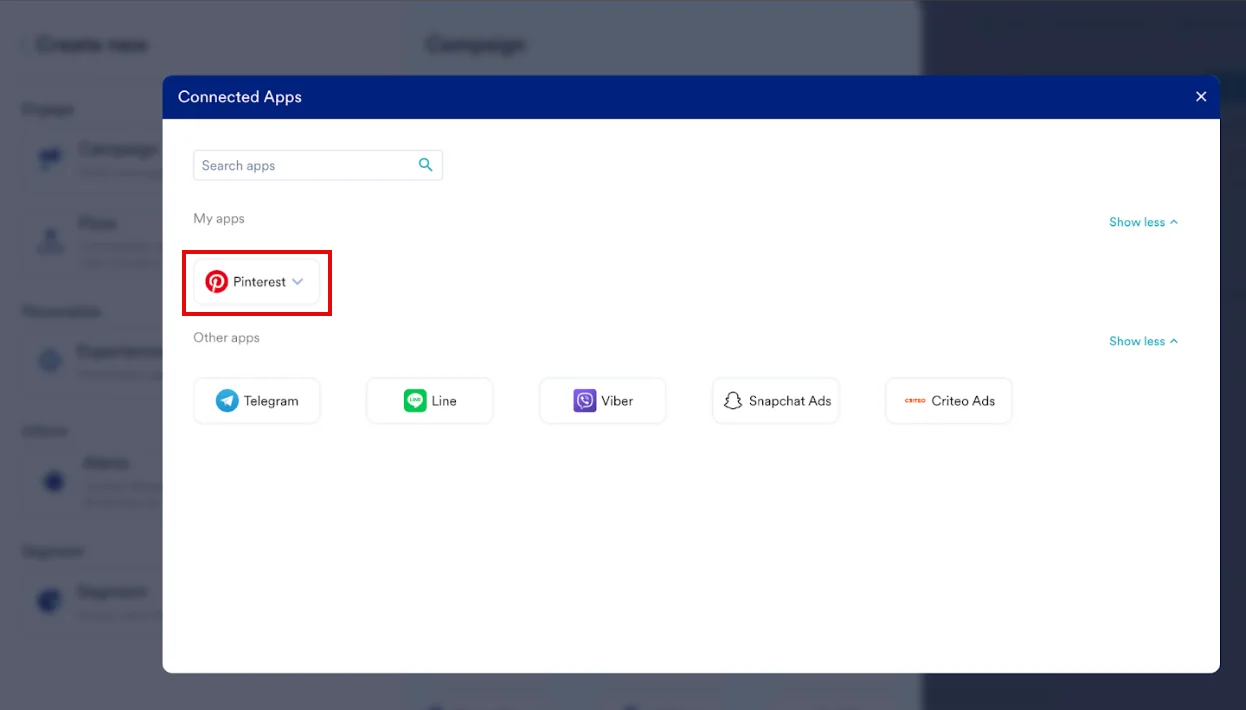
- Under Select audience , click Filter users by.
- On the User property tab, select the user segment for Pinterest syncing. You can combine this with other segment criteria.
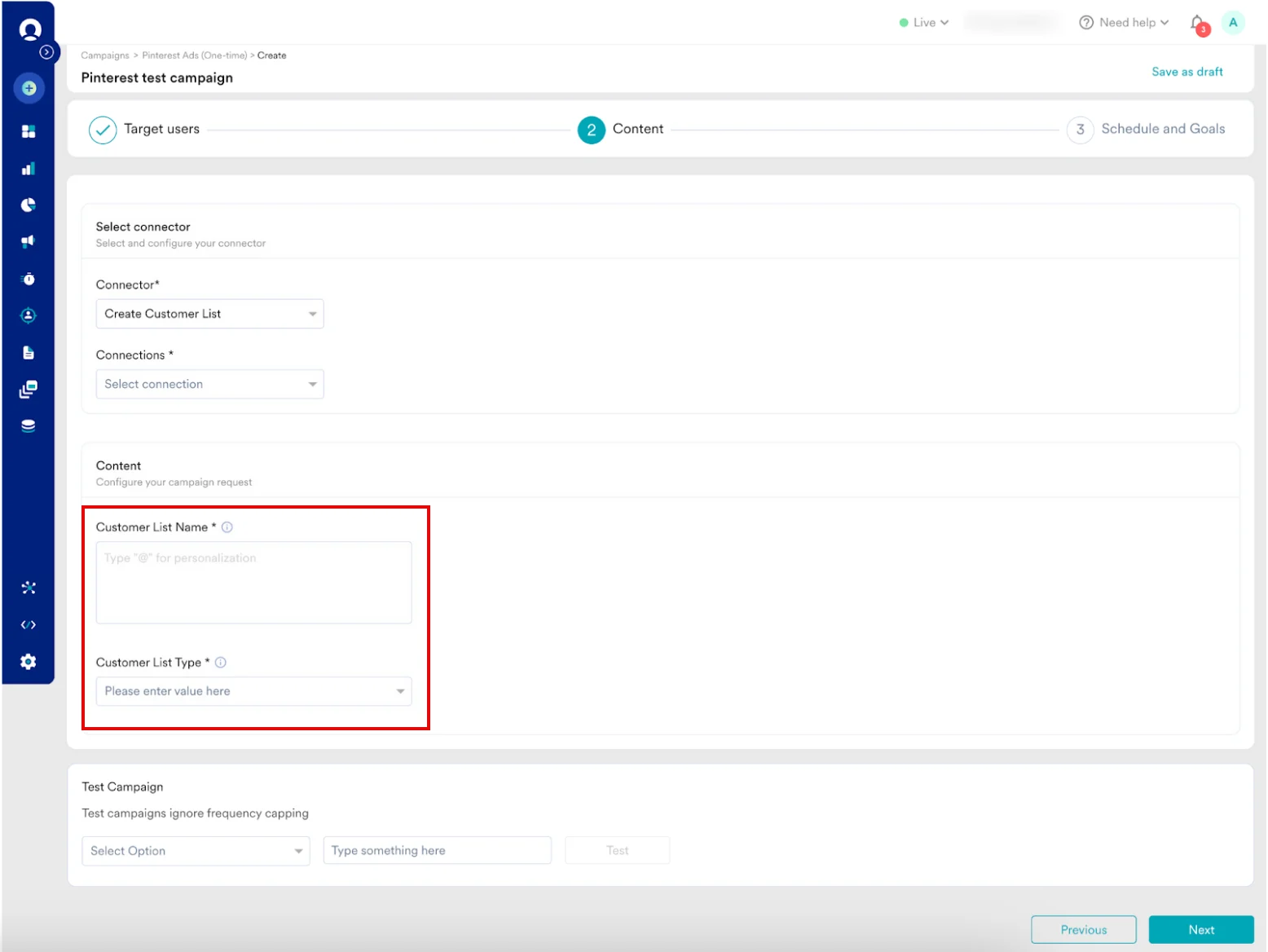
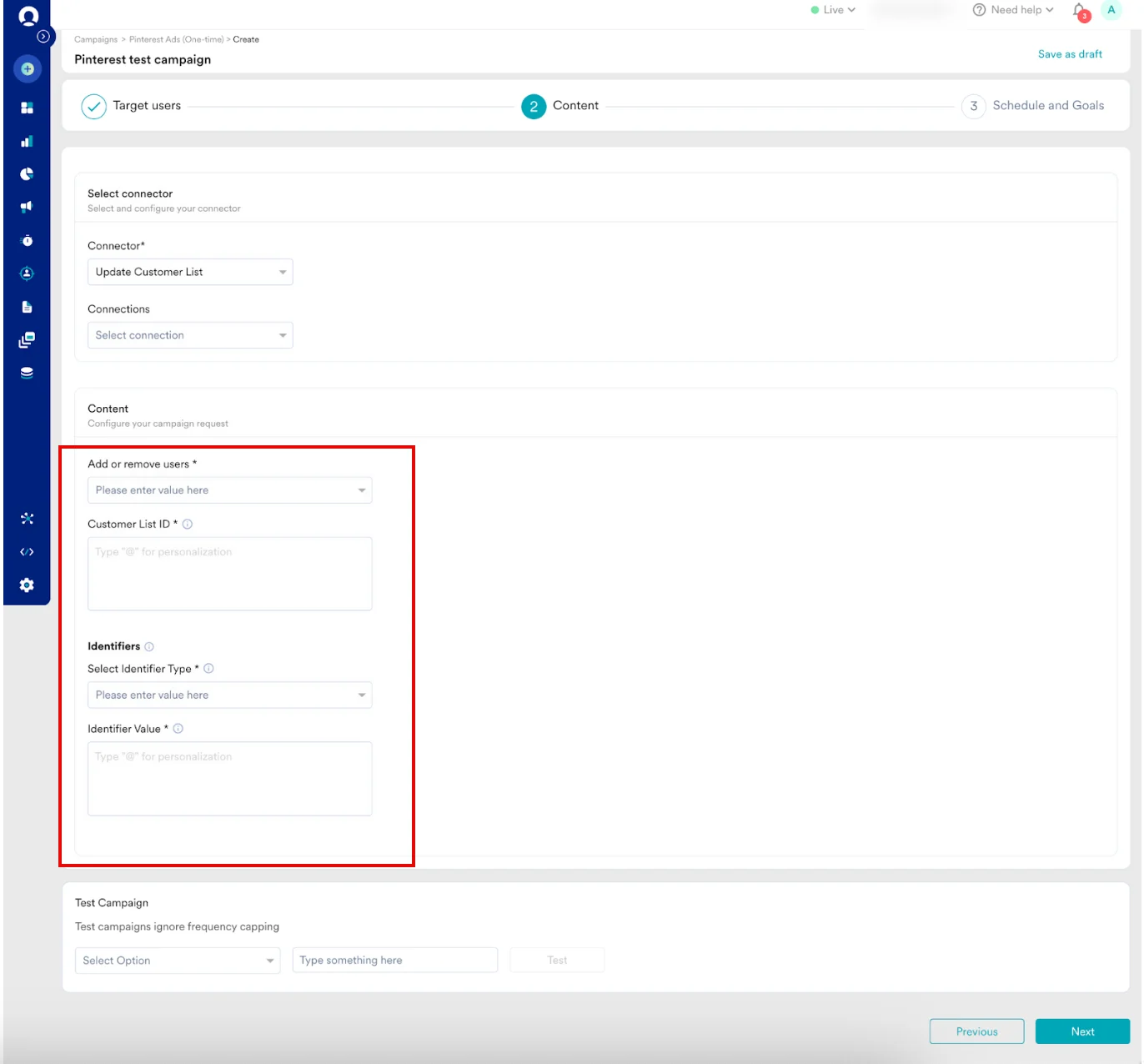
- In step 2 of the campaign, Content , select the pre-configured connectors and specify the content you want to send out. Enter the following details:
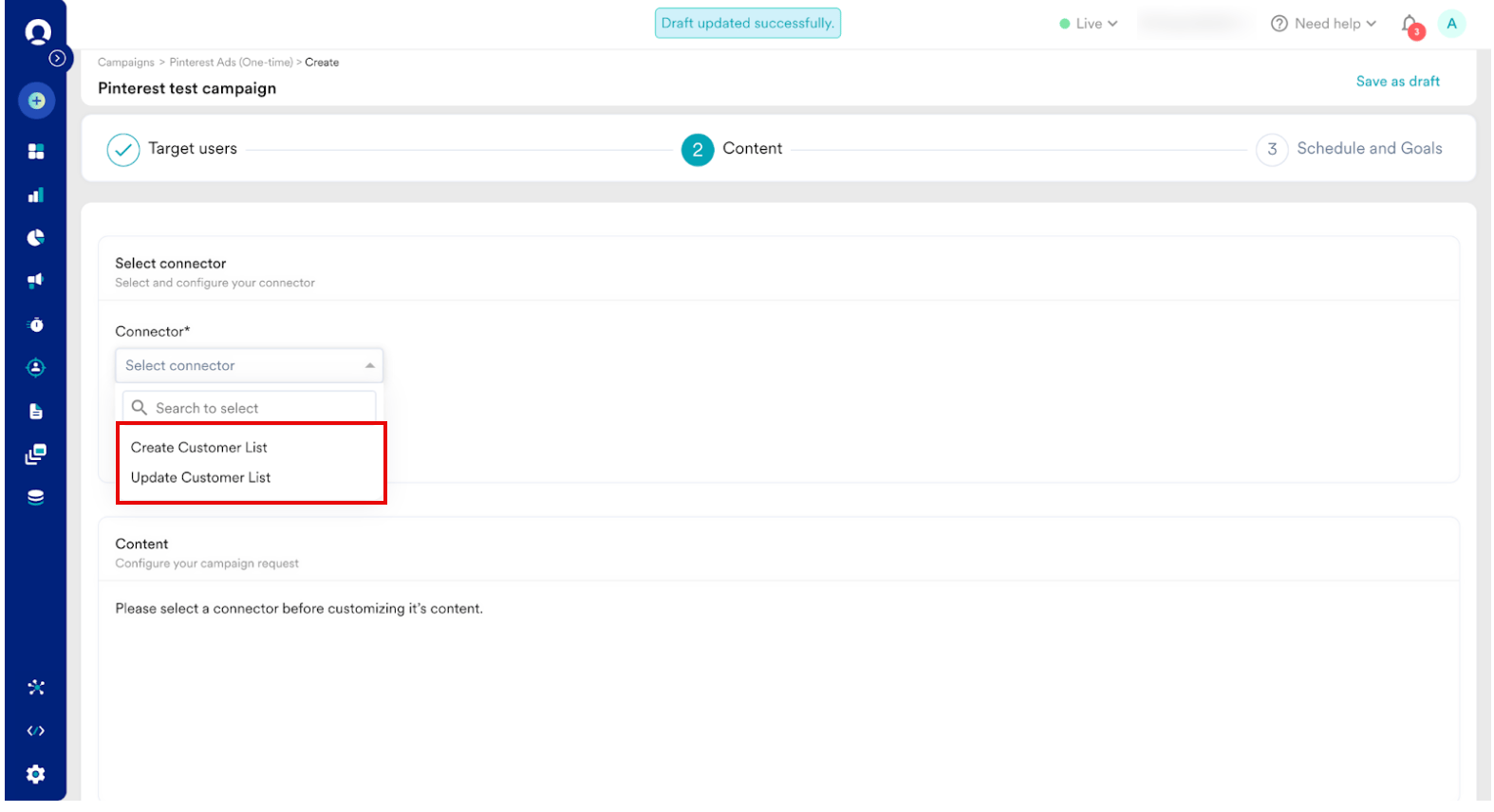
- Create Customer List
- Update Customer List
- Your campaign is now ready to be tested and sent to your audience. Using the Test functionality, you can also test your connector configuration.
 If your test user successfully receives the message, your setup is ready.
 - Publish the campaign.