Introduction
Apsalar, one of MoEngage’s Technology Partners, allows you to track install acquisition data to enhance your marketing automation campaigns on MoEngage.Scope
Use the Publisher Name and Campaign Name of install in MoEngage.Integration
Prerequisites
- Ensure you have an active Apsalar (Singular) account.
- Ensure you have access to the Settings section on your MoEngage dashboard.
Steps
To integrate Apsalar with MoEngage, follow the steps below.Step 1: Get the MoEngage attribution tracking app key
Log in to the MoEngage Dashboard and follow these steps:- Navigate to Settings > Analytics > Acquisition tracking.
- Turn on Acquisition Tracking, and select Apsalar from the dropdown. This generates an App Key.
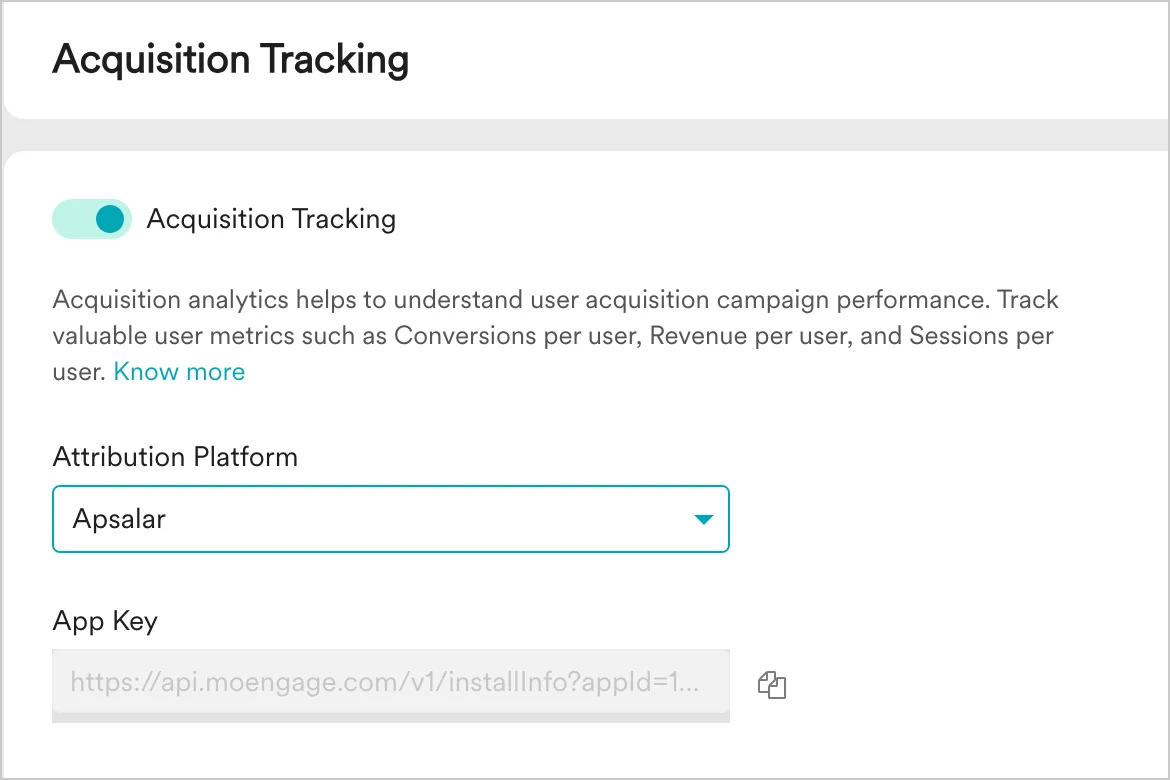
- Click Save.
- Copy the App Key. You will need it to configure MoEngage on Apsalar.
Step 2: Configure settings on the Apsalar dashboard
To configure the settings on the Apsalar dashboard, follow the steps in the Apsalar (Singular) partner-configuration document. Enter the following fields on the Apsalar dashboard:How to use the acquisition data in MoEngage
After MoEngage starts receiving data from Apsalar, you can leverage this data in the following ways.User attributes
MoEngage tracks the following user attributes: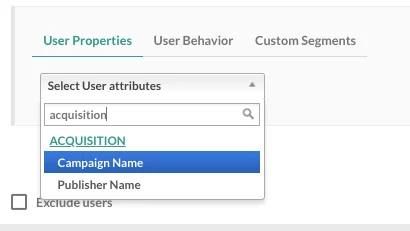
Analyze the performance of different publishers
Branch Integration can help in analyzing the effectiveness of your app install campaigns and sources in MoEngage. With the help of the data you are already tracking in MoEngage like user events, conversion goals, and uninstalls, you can compare the performance of different app install campaigns you are running and also analyze the relative performance of installs from different publishers to optimize your marketing spends. To analyze this data, view the MoEngage acquisition dashboard.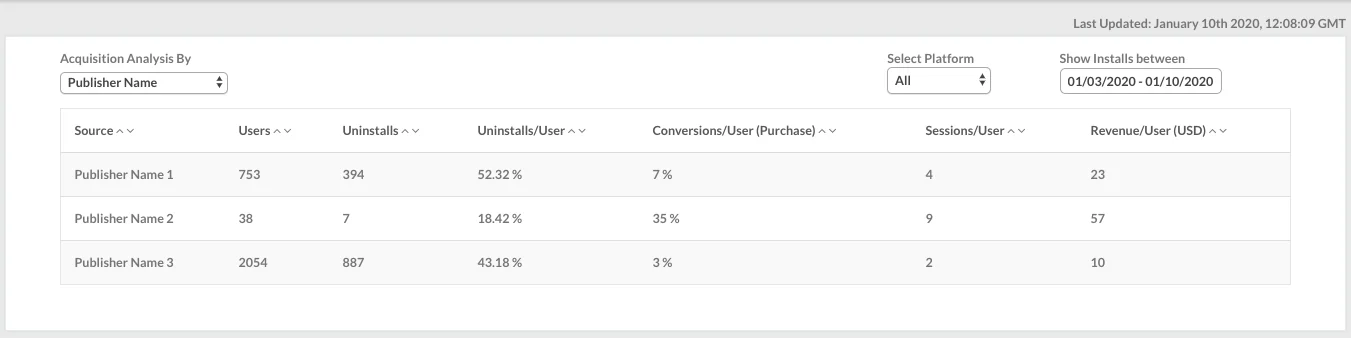
Analyze the performance of different campaigns
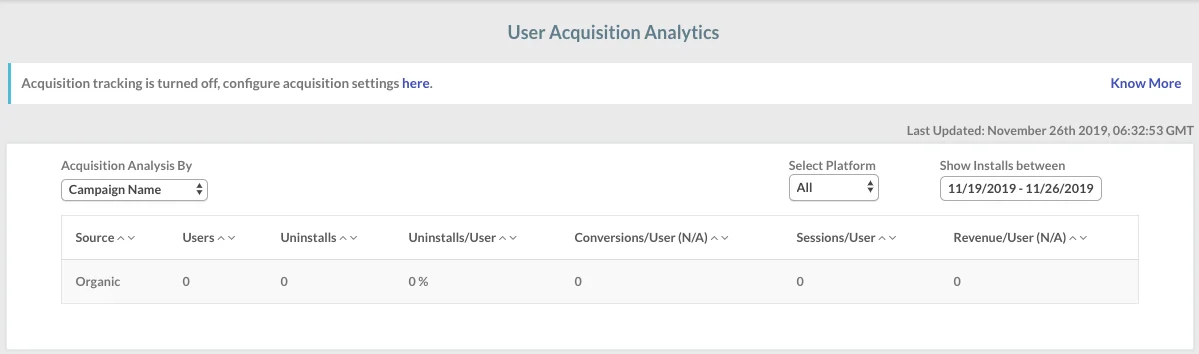
After the integration is enabled, you can also view your acquisition data analysis on the acquisition dashboard by navigating to Analyze > Acquisitions in the dashboard sidebar.