

Introduction
Lokalise is a translation management platform designed for agile teams to efficiently manage multilingual content.MoEngage × Lokalise
The integration between MoEngage and Lokalise enables you to deliver real-time, localized content across your campaigns without manual translation coordination. With this integration, you can:- Automatically fetch translations for all your campaign content through Lokalise and deliver high-quality, localized experiences to your users.
- Lokalise streamlines your translation workflow and frees up your teams to focus on campaign strategy and customer engagement.
Key features
With this integration, you can:- Real-time translation management: Automatically sync translations from Lokalise to MoEngage in real-time.
- Multi-language support: Deploy campaigns in multiple languages simultaneously with a single setup.
- Dynamic content delivery: Use language-based user attributes to serve language-specific content automatically.
- AWS S3 integration: Leverages secure cloud storage for translation file management.
- Template-based translation keys: Create once in Lokalise, reuse across all campaigns.
- Simplified localization workflow: Eliminates manual translation file management and reduces time-to-market.
Use cases
Integrating Lokalise with MoEngage helps you with the following use cases:- Global campaign localization: Deploy a single campaign template across 20+ countries with automatic language-specific content delivery. Each user automatically receives content in their preferred language, eliminating the need for separate campaigns per language.
- Real-time content updates: Update product descriptions, promotional messages, or campaign copy in Lokalise and see the changes reflected immediately in MoEngage campaigns. No need to recreate or republish campaigns — translations update instantly.
- Multi-language customer support: Deliver localized support messages, onboarding content, and FAQ responses to customers in their native language based on language preferences stored in their user profile.
- Regulated market compliance: Ensure compliance with regional marketing regulations by automatically serving legally required translated content and terms tailored to each language and region.
Integration
PrerequisitesBefore you begin, ensure you have the following requirements:
- An active Lokalise account with administrative access.
- A translation project created in Lokalise with at least one target language configured.
- A MoEngage account with Content API access enabled. A user attribute system set up in MoEngage to capture and track language preferences.
- Step 1: Create a new Lokalise project
- Step 2: Define a user language attribute in MoEngage
- Step 3: Create translation keys in Lokalise
- Step 4: Install the MoEngage app in Lokalise
- Step 5: Configure Content API in MoEngage
- Step 6: Use Content API in campaigns
Step 1: Create a new Lokalise project
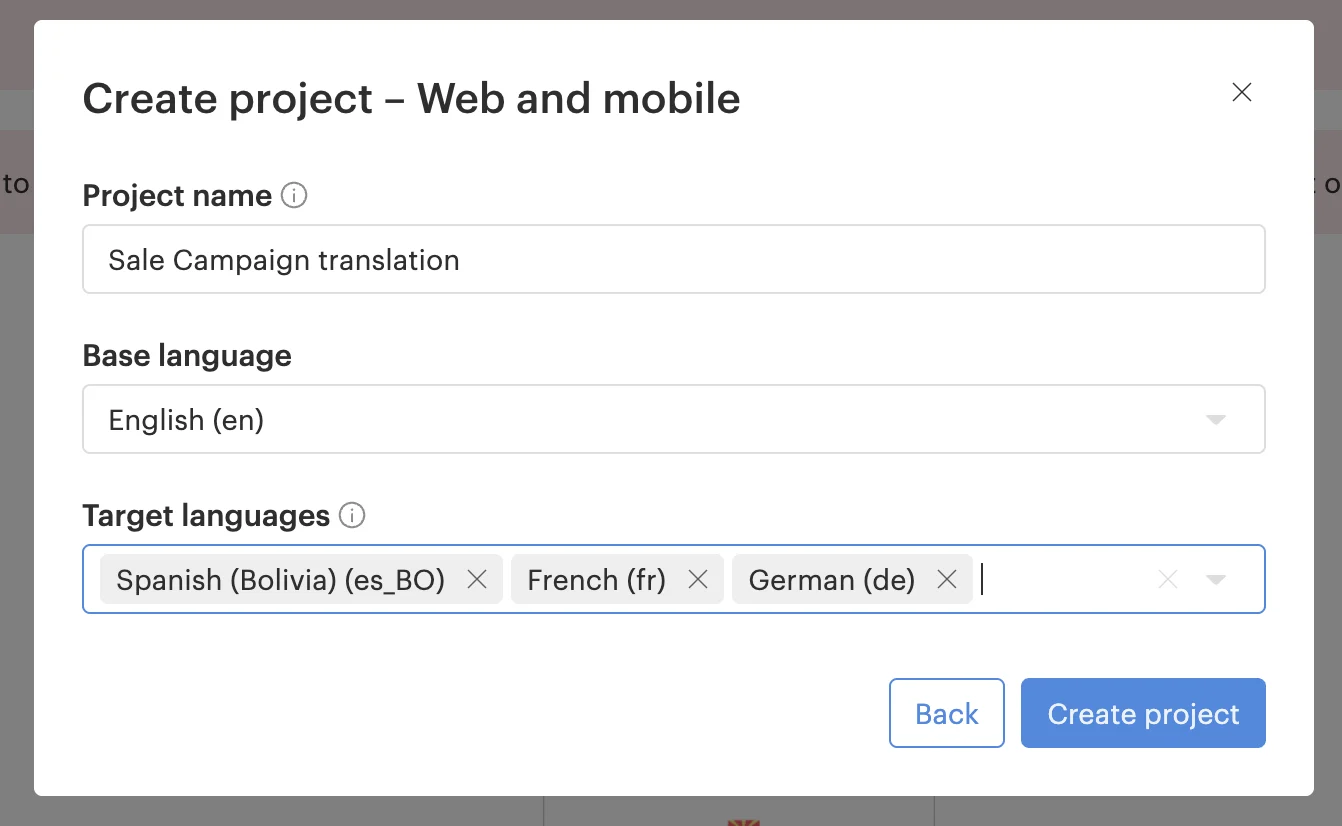
Skip this step if you already have an existing Lokalise project. To create a new translation project, perform the following steps:- Log in to your Lokalise account.
- Click New Project.
- Enter the following project details:
- Project Name: Enter a descriptive name (for example,
MoEngage Campaigns). - Base Language: Select the language you will translate from (for example, English).
- Target Languages: Add all languages you need for translations (for example, Spanish, French, German, Japanese).
- Project Type: Click Software Localization.
- Project Name: Enter a descriptive name (for example,
- Click Create project.
Step 2: Define a user language attribute in MoEngage
To ensure MoEngage fetches the correct language variant from Lokalise, you must first define a user attribute for language preferences. Create a new custom tracked user attribute calleduser_language in MoEngage using one of the following methods:
Method A: Use the User Data API
Here, you must send language data in your User Data API calls with the property nameuser_language.
Example API payload:
Method B: Use User Imports
To use User Imports, perform the following steps:- On the MoEngage UI, navigate to Segments > User Imports.
- Prepare a CSV with
customer_idanduser_languagecolumns. - Upload the file and map the columns.
- Complete the import process. For more information, see Import User Data Using CSV.
Language codes must match exactly across MoEngage and Lokalise. For example, if Lokalise uses
es-ESfor Spanish, use the same format in the MoEngageuser_languageattribute.
Step 3: Create translation keys in Lokalise
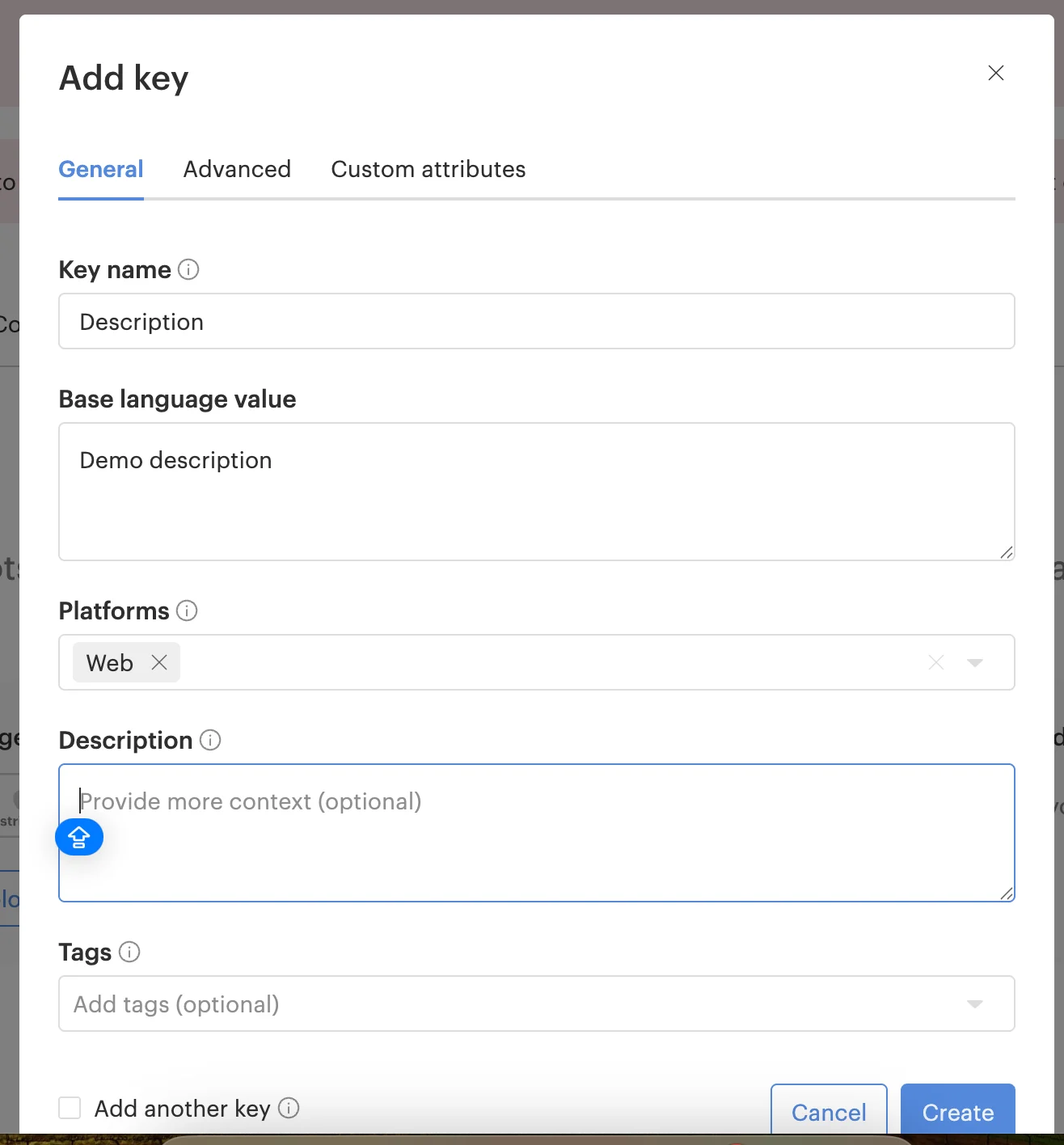
To define the content for your campaign, you must first create translation keys in Lokalise. To create translation keys in Lokalise, perform the following steps:- Open your Lokalise project.
- Click Add Key.
- In the Key name box, enter the description.
- In the Base Language Value box, enter the language value.
- In the Platforms list, click Web.
- Click Save.
Recommended translation keys
Add translations
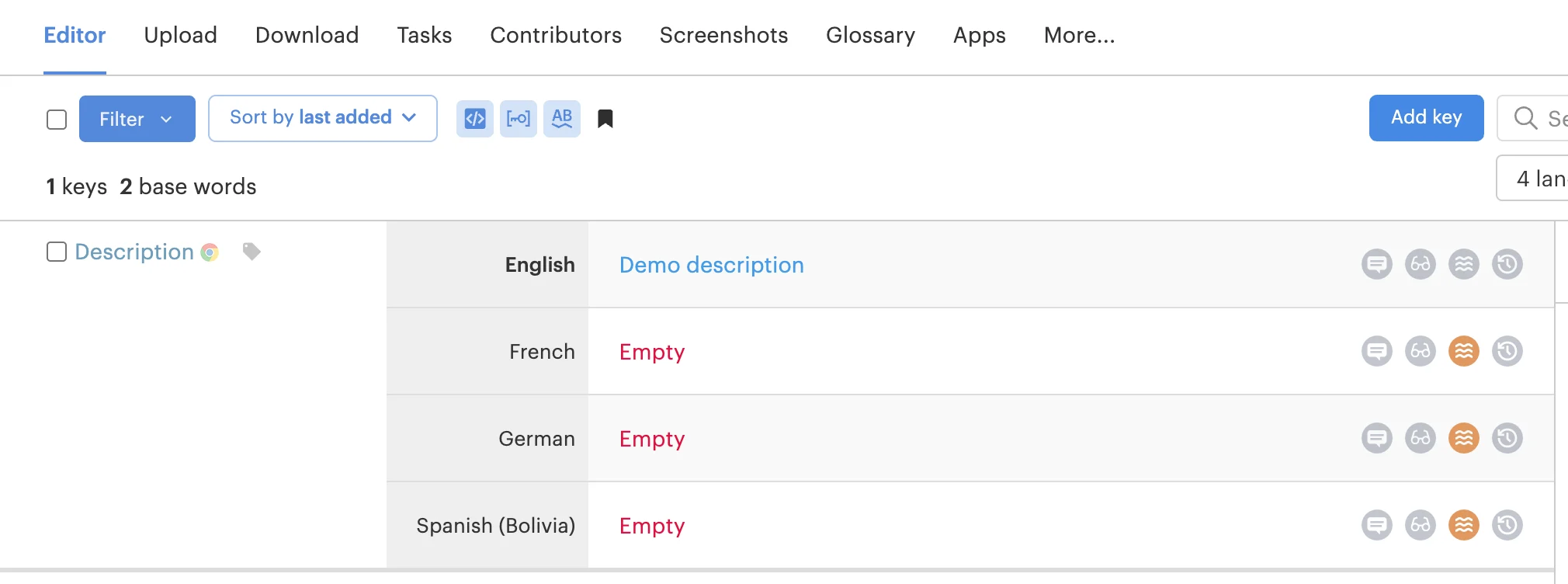
After creating the base language keys, provide the translations for your target languages:- In the project editor, select the key you want to translate.
- Enter the translation in the corresponding target language field.
- Click Save.
Step 4: Install the MoEngage app in Lokalise
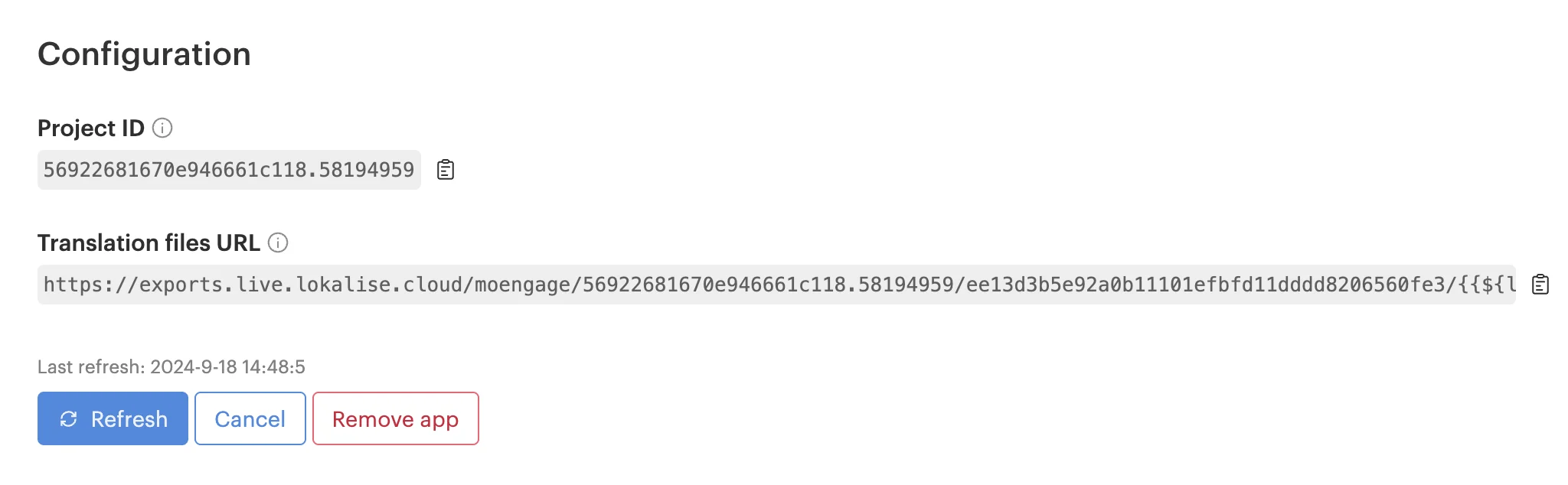
To install the MoEngage app in Lokalise, perform the following steps:- Open your Lokalise project and navigate to the Apps section.
- Search for MoEngage and click Install.
- After installation, the app generates a unique translation file URL. The URL format is:
- Click Refresh in the MoEngage app to generate or update the latest translation files on the server.
You must click Refresh every time you add new keys or update translations in Lokalise to ensure MoEngage fetches the latest version.
- Copy the generated URL. This URL remains the same even after you update your content.
- (Optional) Test the URL: Replace the
{{${language}}}placeholder with an actual language code (for example,enores) and open it in your browser. You should see a JSON file containing your translation keys and values.
Step 5: Configure Content API in MoEngage
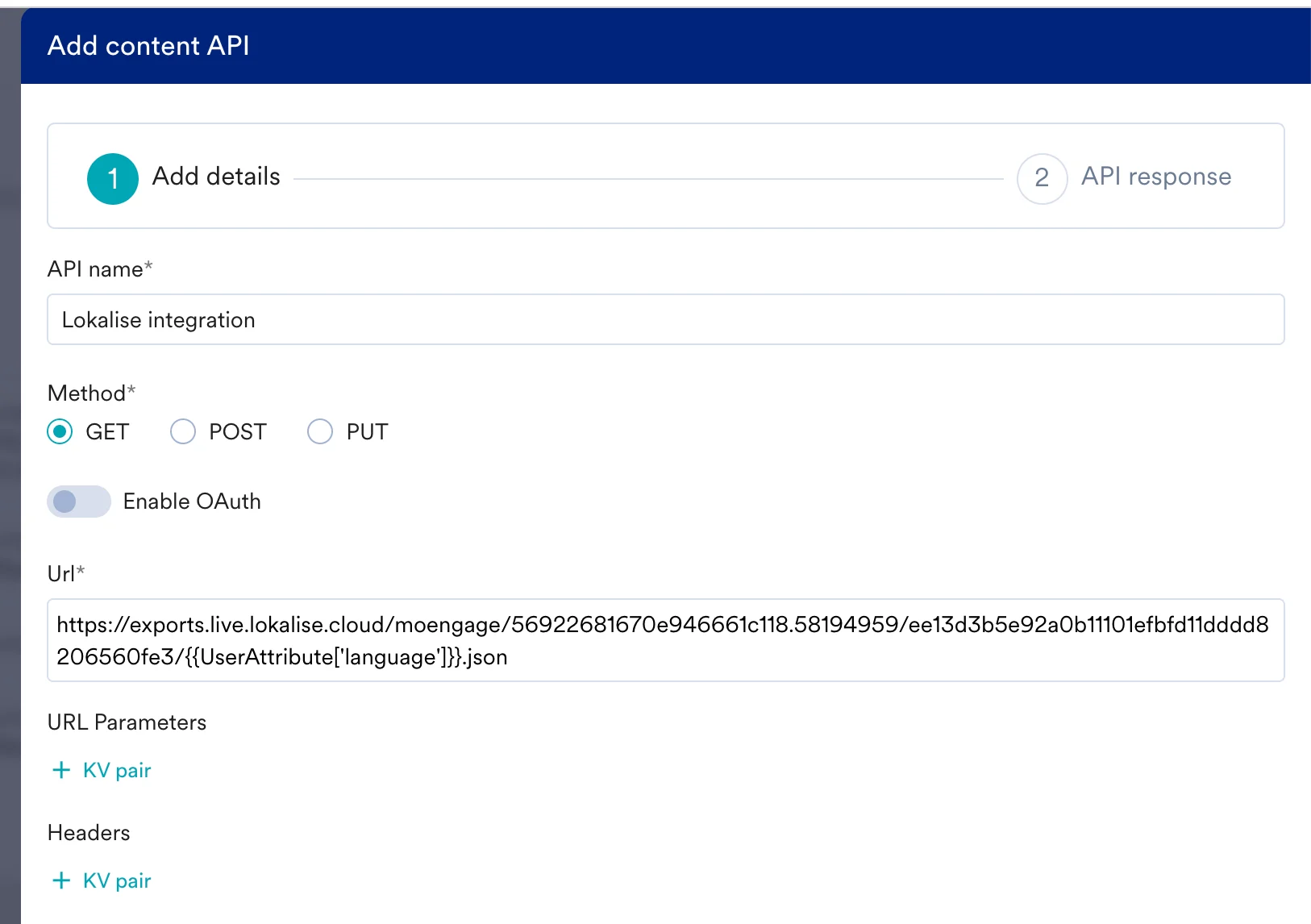
To configure the Content API in MoEngage, perform the following steps:- Log in to the MoEngage UI and navigate to Settings > Advanced Settings > Content API.
- Click + Add Content API in the upper-right corner.
- Enter the following details:
- API name: Enter a descriptive name (for example,
Lokalise Translations). - Under Method, select GET.
- URL: Paste the translation file URL you copied from Lokalise in the previous step. For example:
- Map the attribute: Replace the
{{${language}}}part of the URL with your MoEngage user language attribute.The attribute name (for example,user_language) must exactly match how you defined it in Step 2.
- API name: Enter a descriptive name (for example,
- Click Test, enter a language code (for example,
esfor Spanish orfrfor French), and verify the API returns a JSON response with your translation keys. - Click Save to complete the setup.
Step 6: Use Content API in campaigns
To use the Content API in campaigns, perform the following steps:- In the MoEngage UI, on step 2 (Campaign Content) of your campaign creation, type
@in any text field (headline, body, or CTA). For more information, see Content APIs. - In the dropdown menu, select the Lokalise Content API you configured in the previous step.
- Select the specific translation key (for example,
headlineordescription) to insert it into your content. - MoEngage automatically inserts the template
{{@.ContentAPI['key_name']}}. - Complete your campaign setup and click Publish.
MoEngage template language
You can use the MoEngage Templating Language to manipulate how translations are displayed or to create fallback logic:- Access a specific translation:
{{@.ContentAPI['key_name']}} - Combine multiple keys:
{{@.ContentAPI['headline']}} - {{@.ContentAPI['subheadline']}} - Conditional logic (display only if translation exists):
{{#if @.ContentAPI['discount_text']}}Special offer: {{@.ContentAPI['discount_text']}}{{/if}}
Expected outcome
When the campaign is sent, MoEngage resolves the variables in real time by matching the user’suser_language attribute to the Lokalise project files: