
Introduction

Amplitude enables you to drive growth through robust product and behavioral analytics. Gain a thorough understanding of exactly what behaviors and traits are common among user segments to inform powerful targeting.
The Amplitude audience integration does not currently support Unified Identity or Portfolio.

Scope

  • Enable deeper behavioral and product analysis with MoEngage and Amplitude.
  • Gauge the efficacy of segmentation and experimentation on the customer experience through Amplitude and send personalized messages through MoEngage.
  • Export behavioral cohorts directly from Amplitude to MoEngage or utilize Streams to export data from MoEngage to Amplitude.

Benefits and Use Cases

The following use-cases provide integration value addition to your analytics + user engagement activities:

E-commerce

Understand the seasonal changes in purchase trends that are happening and send rich push notifications to such users using MoEngage. For example, target the cohort of users who purchase high-value items during summers and send rich push notifications with similar recommended items.

Travel

You can create a cohort in Amplitude of millennial users who are also premium users of your app and send them popular and unique holiday destination recommendations using MoEngage emails.

Steps

Prerequisites
  • Ensure you have Amplitude account credentials. To enable the cohort sync integration, contact Amplitude.
  • Ensure you have the MoEngage account credentials.

Enabling Amplitude and MoEngage Integration for your account

  1. For enabling the cohort sync integration, please reach out to Amplitude and get this enabled for your account.
  2. Once you have the integration enabled for your Amplitude account, you will be able to configure MoEngage as a destination in Amplitude. See the below steps for setting this up.
  3. To enable the data export integration from MoEngage to Amplitude, please contact your MoEngage customer success manager (CSM) or the MoEngage Support team with a few details mentioned in Exporting Campaign Data from MoEngage to Amplitude.

Setting up MoEngage as a destination on Amplitude

To setup MoEngage as a destination on Amplitude, follow the below steps:
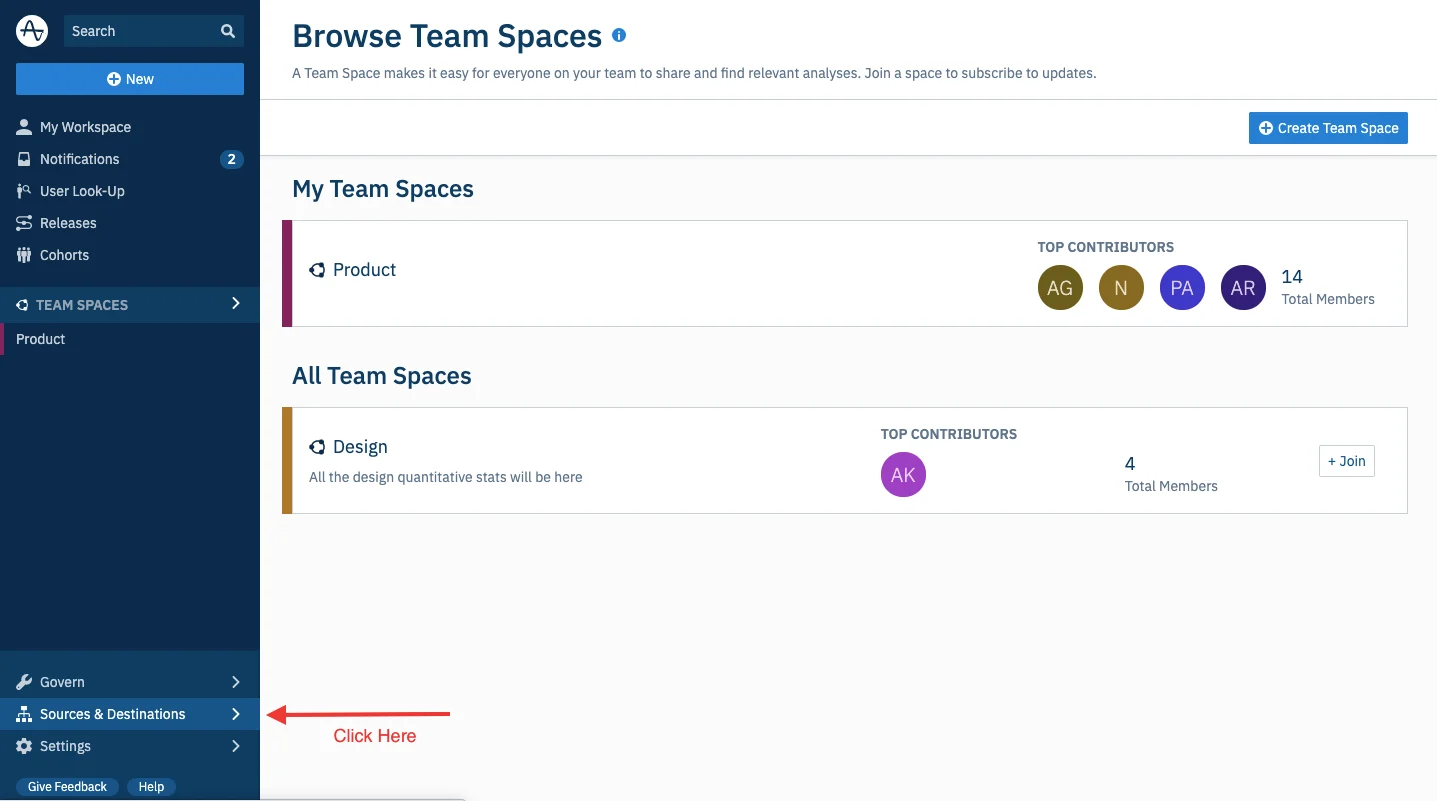
  1. Log in to Amplitude and Navigate to Sources and Destinations. Amplitude Sources and Destinations page
  2. On the Sources & Destinations page, go to Destinations and click on Add Destination > MoEngage. On doing this, you will see a pop-up with the following details: Add MoEngage as a destination popup in Amplitude
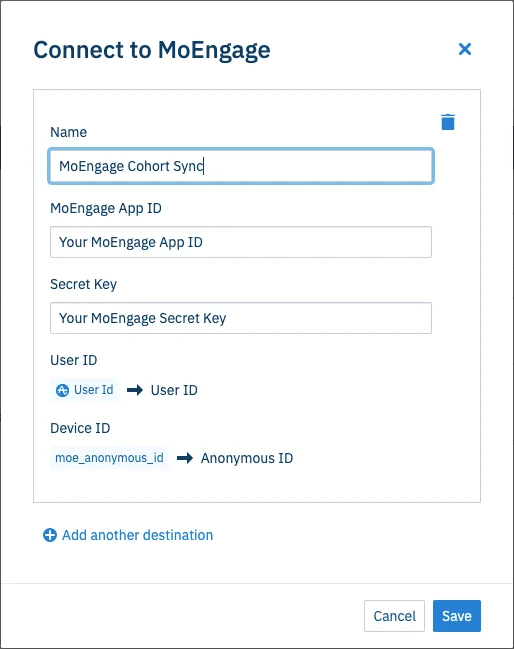
  3. Log in to your MoEngage Dashboard and navigate to Settings to get the Workspace ID and Secret Key.
    Acquisition Settings are available in Settings > Analytics > Acquisition tracking.
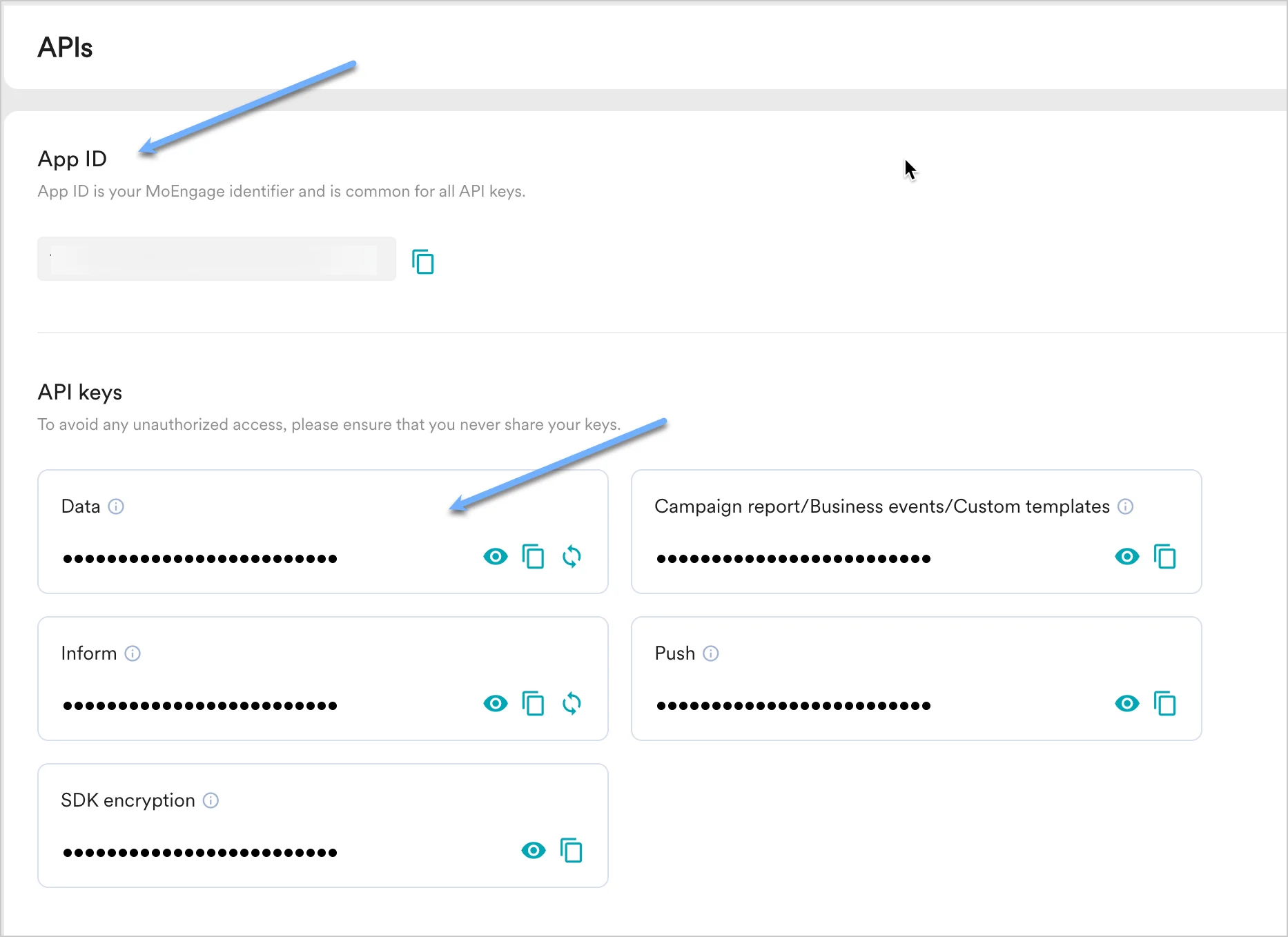
    1. Navigate to Settings > Account > APIs.
    2. Click on the copy icon to copy the Workspace ID.
    3. Click on the copy icon in the Data tile in the API Keys section to copy the Secret Key. MoEngage Settings APIs page showing Workspace ID and Data API key
  4. The Attribute Mapping is as follows:
    • User Id - This will be the primary key to map a user between Amplitude and MoEngage. Please ensure that you are identifying users with the same unique user id in both Amplitude and MoEngage.
    • moe_anonymous_id: This will be the secondary identifier that will be used to map users between Amplitude and MoEngage and will be essential to map the anonymous users between Amplitude and MoEngage. Please ensure that you are setting moe_anonymous_id as a user attribute in MoEngage and the attribute selection made on the Amplitude dashboard and moe_anonymous_id in MoEngage have the same value so that the mapping is possible.
  5. Complete the Destination Setup.
After everything is configured on the Amplitude dashboard, click Save to add MoEngage as a destination.

Exporting Cohorts from Amplitude to MoEngage

Ensure your cohort name does not start with a period (.) and must not contain the following restricted characters: |, *, ?, \, :, <, >, =, $, ".
To export specific behavioral cohorts from Amplitude to MoEngage, please follow the below steps:
  1. Open a cohort in Amplitude that you want to sync with MoEngage and click Sync To > Select MoEngage. Amplitude cohort sync to MoEngage option The Sync your cohort to MoEngage pop-up is displayed. Sync your cohort to MoEngage popup with sync options
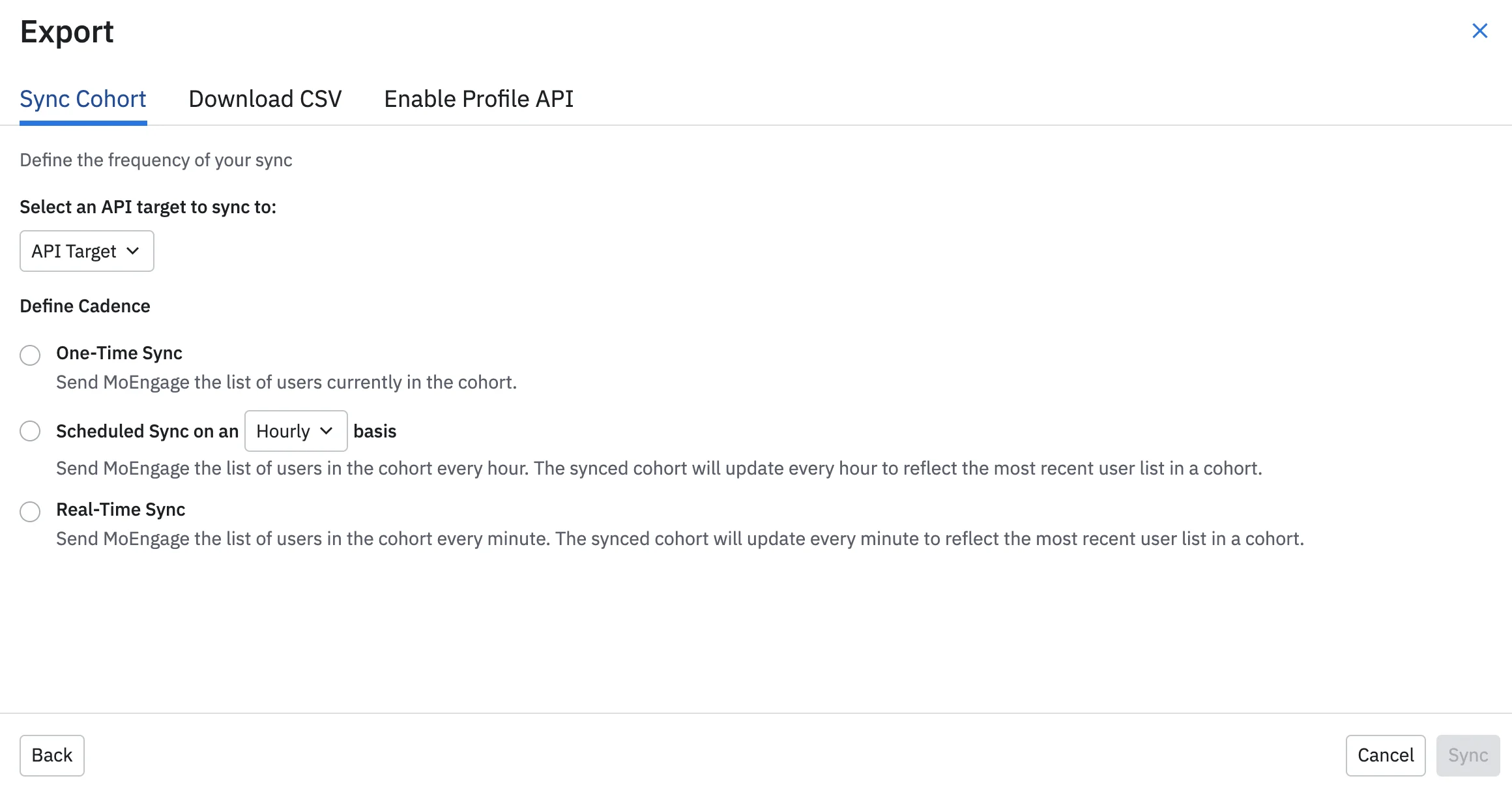
  2. Select one of the following:
    • One-Time Sync: This will only send the users under the cohort to MoEngage once and the cohort will not sync thereafter.
    • Scheduled Sync: This option will ensure that the updated information of the cohorts like the new users who qualify for this cohort and the existing users who are removed from the cohort are sent to MoEngage every hour or day.
    • Near Real Time Sync: This option will ensure that the updated information of the cohorts like the new users who qualify for this cohort and the existing users who are removed from the cohort are sent to MoEngage every minute.
Users in your Amplitude cohort attempted to map with unique user profiles in MoEngage. If MoEngage systems do not have that user profile, the user is not mapped and not added to the cohort/segment.In this scenario, you may find fewer users in the MoEngage cohort compared to the Amplitude cohort. Make sure you have all users in MoEngage before you perform the cohort sync.

Using Cohorts in MoEngage Campaigns

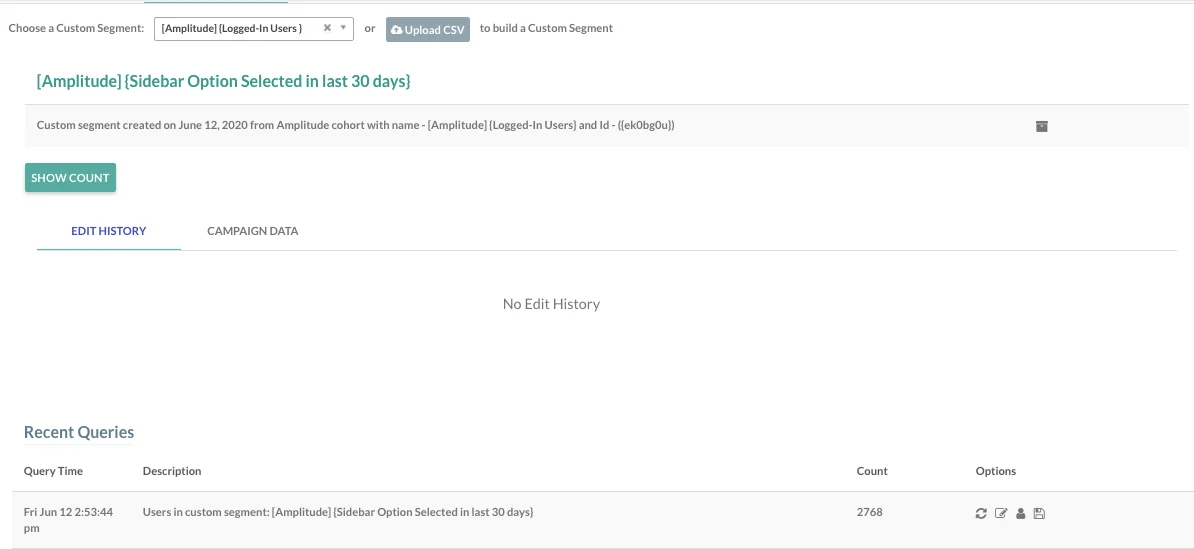
After the sync, the cohort is available as a custom segment in MoEngage as described: Amplitude cohort appearing as a custom segment in MoEngage The custom segment is used in any MoEngage campaigns to send personalized messages to the users under this segment.
Exporting Campaign Data from MoEngage to Amplitude

PrerequisitesExports to Amplitude make use of MoEngage Streams, which is an add-on.
To setup exports to Amplitude, go to MoEngage Dashboard > App Marketplace. Search for Amplitude and go to the Integrate tab. Amplitude integration tile in the MoEngage App Marketplace
  1. Click on + Add Integration.
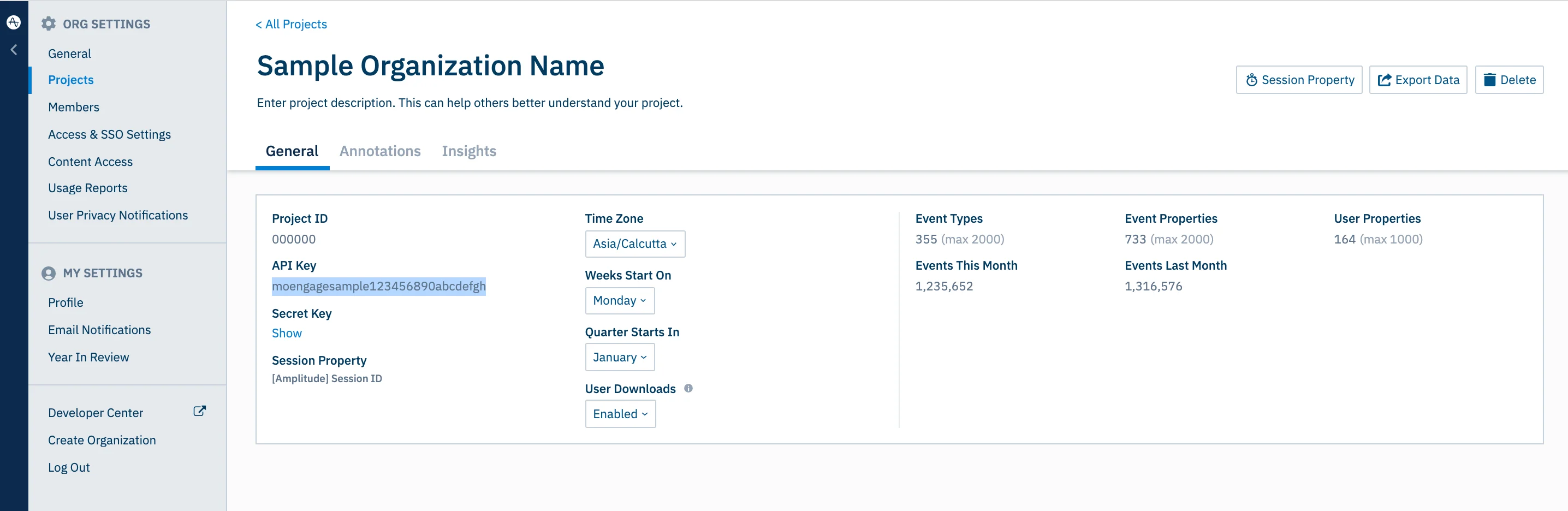
  2. Fill up the form: Amplitude API Key - This is available on your Amplitude Account > Settings > ProjectName > General > API Key as shown below: Amplitude project settings page showing the API Key
  3. Select the events you want to forward and select a Data Residency.
  4. Click on Connect.
All the events sent by MoEngage are displayed in Amplitude by filtering basis $source = MOENGAGE. These events are sent to Amplitude in near real-time and will rely on the common user identifier between Amplitude and MoEngage for user identification. The following MoEngage source-specific documents for setting unique user id in MoEngage:
Ensure that you are setting the same value for User Id in Amplitude and Unique User Id in MoEngage.

Rate Limits

To maintain platform stability, MoEngage limits ingestion of Amplitude data to a maximum of 500 requests per second (RPS) per workspace. If your workspace exceeds this limit, MoEngage returns an HTTP 429 (Too Many Requests) status code. Refer to Amplitude’s default retry policy to understand how rate limiting affects your data flow. Retry Exhaustion: If Amplitude exhausts all retry attempts for a batch of data, you must contact the Amplitude Support Team to replay the failed requests.

Export Data

The following data points are sent by default to Amplitude:
Event NameEvent CodeType (Reference Only)ChannelDescription
Card Sentn_c_sDeliveryCardsTracked when a Card notification is sent to the user, doesn’t indicate if the notification is delivered to the App Inbox
Card DeliveredMOE_CARD_CAMPAIGN_DELIVEREDDeliveryCardsTracked when a Card is delivered to the App Inbox after the user has opened the Inbox
Card ViewedMOE_CARD_CAMPAIGN_VIEWEDDeliveryCardsTracked when the user views a Card or scrolls down to it in the App Inbox
Card ClickedMOE_CARD_CAMPAIGN_CLICKEDInteractionCardsTracked when the user clicks the Card in the App Inbox
Connector SentMOE_CONNECTOR_SENTDeliveryConnectorTracked when a connector was sent successfully.
Email SentMOE_EMAIL_SENTDeliveryEmailTracked when our system sends an email to a user.
Email DeferredMOE_EMAIL_DEFERREDDeliveryEmailTracked when the receiving server is unable to accept your request, email sending will be re-tried in this case
Email DeliveredMOE_EMAIL_DELIVEREDDeliveryEmailTracked when an email is delivered in an inbox
Email DroppedMOE_EMAIL_DROPDeliveryEmailTracked when a user opens an email.
Email BouncedMOE_EMAIL_HARD_BOUNCEDeliveryEmailTracked when a user clicks on any link in the email.
Email Soft BouncedMOE_EMAIL_SOFT_BOUNCEDeliveryEmailTracked when an email is dropped. Email is dropped when it’s part of the bounce list, the unsubscribe list, or the spam report list.
Email OpenedMOE_EMAIL_OPENInteractionEmailTracked when our system finds an email is soft bounced. Typically happens when there is a temporary delivery issue.
Email ClickedMOE_EMAIL_CLICKInteractionEmailTracked when our system finds an email is hard bounced. Typically happens when an email address doesn’t exist.
Email UnsubscribedMOE_EMAIL_UNSUBSCRIBEInteractionEmailTracked when a user marks the email as spam.
Email Spam ComplainedMOE_EMAIL_SPAMInteractionEmailTracked when a user unsubscribes from receiving emails.
In-App Shown AndroidIN_APP_SHOWNInteractionIn-AppTracked when an In-App message is shown to the user on an Android device.
In-App Clicked AndroidIN_APP_CLICKEDInteractionIn-AppTracked when a user clicks In-App message on an Android device.
In-App Closed AndroidIN_APP_CLOSE_CLICKEDInteractionIn-AppTracked when a user dismisses an In-App message by clicking on the close button on an Android device.
In-App Shown iOSiOS_IN_APP_SHOWNInteractionIn-AppTracked when an In-App message is shown to the user on an iOS device.
In-App Clicked iOSiOS_IN_APP_CLICKEDInteractionIn-AppTracked when a user clicks In-App message on an iOS device.
In-App Closed iOSiOS_IN_APP_CLOSE_CLICKEDInteractionIn-AppTracked when a user dismisses an In-App message by clicking on the close button on an iOS device.
Mobile In-App ShownMOE_IN_APP_SHOWNInteractionIn-App V3Tracked when a user is shown an in-app version 3 campaign
Mobile In-App ClickedMOE_IN_APP_CLICKEDInteractionIn-App V3Tracked when a user clicks an in-app version 3 campaign
Mobile In-App DismissedMOE_IN_APP_DISMISSEDInteractionIn-App V3Tracked when a user closes an in-app version 3 campaign
Notification Received AndroidNOTIFICATION_RECEIVED_MOEDeliveryPushTracked when a user receives a notification on an Android device.
Notification Clicked AndroidNOTIFICATION_CLICKED_MOEInteractionPushTracked when a user clicks notification on an Android device.
Notification Sent iOSn_i_sDeliveryPushTracked when a user receives a notification on an iOS device.
Notification Received iOSNOTIFICATION_RECEIVED_IOS_MOEDeliveryPushTracked when App in foreground and user receives the notification on iOS.
Notification Clicked iOSNOTIFICATION_CLICKED_IOS_MOEInteractionPushTracked when a user clicks notification on an iOS device.
Notification Received WebNOTIFICATION_RECEIVED_WEB_MOEDeliveryPushTracked when a user receives a notification on a browser.
Notification Clicked WebNOTIFICATION_CLICKED_WEB_MOEInteractionPushTracked when a user clicks notification on the browser.
On-site Message ShownMOE_ONSITE_MESSAGE_SHOWNInteractionOn-siteTracked when an on-site messaging campaign is shown to a user
On-site Message ClickedMOE_ONSITE_MESSAGE_CLICKEDInteractionOn-siteTracked when an on-site messaging campaign is clicked by a user
On-site Message ClosedMOE_ONSITE_MESSAGE_CLOSEDInteractionOn-siteTracked when an on-site messaging campaign is closed by a user
Web Personalization Message ShownMOE_WEBP_MESSAGE_SHOWNInteractionWeb PersonalizationTracked when a web personalization campaign is shown to a user
Web Personalization Message ClickedMOE_WEBP_MESSAGE_CLICKEDInteractionWeb PersonalizationTracked when a web personalization campaign is clicked by a user
Web Personalization Message ClosedMOE_WEBP_MESSAGE_CLOSEDInteractionWeb PersonalizationTracked when a web personalization campaign is closed by a user
SMS SentSMS_SENTDeliverySMSTracked when our system sends SMS to a user.
SMS DeliveredSMS_DELIVEREDDeliverySMSTracked when our system receives a delivery receipt for the SMS sent to a user.
User Entered FlowUSER_ENTERED_FLOWDeliveryFlowsTracked when a user falls in the target audience and has qualified for the entry in the Flow.
User Exited FlowUSER_EXITED_FLOWDeliveryFlowsTracked when a user exits from a Stop Cell of the Flow.
User Added To Control GroupMOE_CAMPAIGN_CONTROL_GROUPDeliveryAll CampaignsTracked when a user is added to a control group
User Removed From Control GroupMOE_USER_REMOVED_FROM_CONTROL_GROUPDeliveryAll CampaignsTracked when a user is removed from a control group
User Removed From Campaign Due to Control GroupMOE_CAMPAIGN_USER_REMOVED_DUE_TO_CONTROL_GROUPDeliveryAll CampaignsTracked when a user is removed from a campaign due to the user being a part of the control group
Points to remember for events sent to Amplitude
  • All events sent to Amplitude have UID by default. This captures the value of the ID which is present in a unique user profile in MoEngage. If present, this will be used to match a user on Amplitude basis the User Id present in the Amplitude user profile.
  • All campaign events have campaign_id, campaign_name, campaign_type, campaign_channel by default.
  • All campaign events having attribute moe_anonymous_id in the corresponding user profile for whom the event is tracked are sent to Amplitude as device_id key.
  • Events for users who do not have a unique user ID or moe_anonymous_id set for their user profile in MoEngage are dropped by Amplitude.
  • All email campaign events have email_id as moe_email_id by default.
  • All push campaign events have push_id as moe_push_id by default.
  • All SMS campaign events have a mobile number as moe_mobile_number by default.
  • All campaign events of the campaign are a part of MoEngage Flows have two additional attributes parent_flow_id and parent_flow_name are present.
  • All campaigns having multiple variations or locales have the following additional attributes:
    • variation_id
    • locale_id
    • locale_name
  • All events have moengage_user_id by default. This is a MoEngage internal user identifier and is populated with each event in MoEngage.
For further assistance, please contact your MoEngage Customer Success Manager (CSM) or the Support team.

Frequently Asked Questions

No, Data Exports is primarily built to export your Events in near real-time and user attributes in MoEngage are updated asynchronously so it is currently not possible to guarantee the latest values of user attributes in the exports.
It typically takes up to 30 minutes for the automated data exports to be set up for your account and for you to start seeing data there.
Yes, if you need to export new events at a later time, you can always edit your configuration on the App Marketplace and get the new events added to your exports.
As of now, you cannot export historical data using Automated Data Exports. Once configured, you will start seeing data for each event from the time you enabled your exports.
If your billing plan does not cover this already and you need to get this enabled at a later time, you would need to work with your Customer Success Manager to get this included in your billing plan. Based on the amount of data that MoEngage will place in your Data warehouse/Partner/API on a monthly basis, this could lead to additional charges.