Introduction

Snowplow is an open-source, event analytics platform. Snowplow empowers organizations to generate trustworthy, first-party Customer Data to power Marketing and Advertising performance.

MoEngage × Snowplow

With the MoEngage and Snowplow integration, you can forward the events captured on Snowplow to MoEngage via GTM server-side tagging, without writing any code on your website. The MoEngage GTM Tag allows you to:
  • Control the data you want to ingest into MoEngage
  • Have the flexibility to pick, choose, and remap Snowplow attributes to MoEngage attributes
  • Update user attributes in MoEngage with an event

Use Cases

  • Create dynamic user segments using Snowplow’s behavioral data collection
  • Make use of Snowplow’s extensive data points to create hyper-personalized customer flows using omnichannel campaigns.

Integration

Prerequisites
  • Ensure you have a Snowplow pipeline already set up.
  • Ensure you have GTM Server Side deployed with the Snowplow Client for GTM SS already set up.
  • Ensure you have a Google Tag Manager account with permission to import templates and add new tags.
With the Google Tag Manager template built by MoEngage, you can forward your Snowplow events from GTM to MoEngage.

Step 1: Download and import the MoEngage GTM Tag for Snowplow
MoEngage GTM tag for Snowplow editor view
  1. Download the MoEngage GTM tag for Snowplow (right-click and Save).
  2. To import the tag into your GTM workspace, go to the Templates screen from the left-side menu. GTM Templates screen showing the Tag Templates section
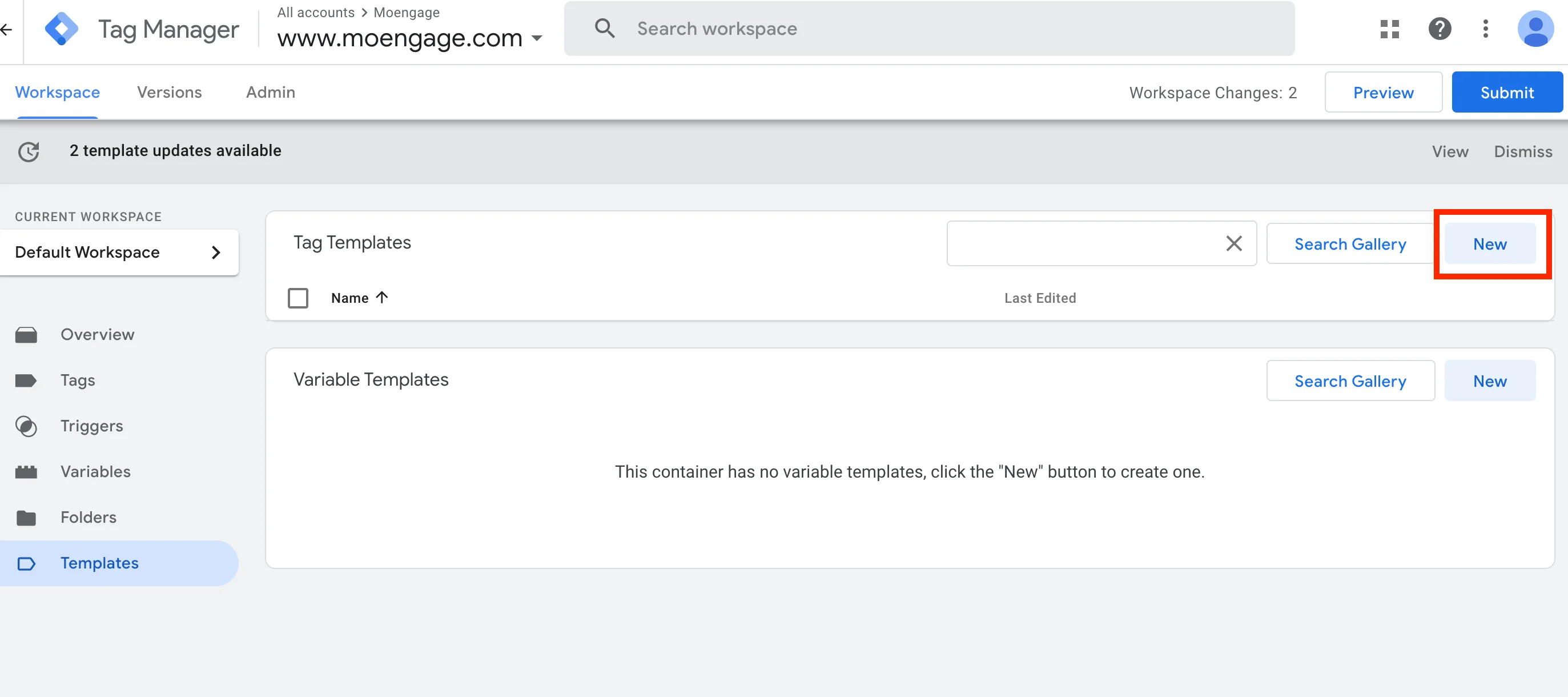
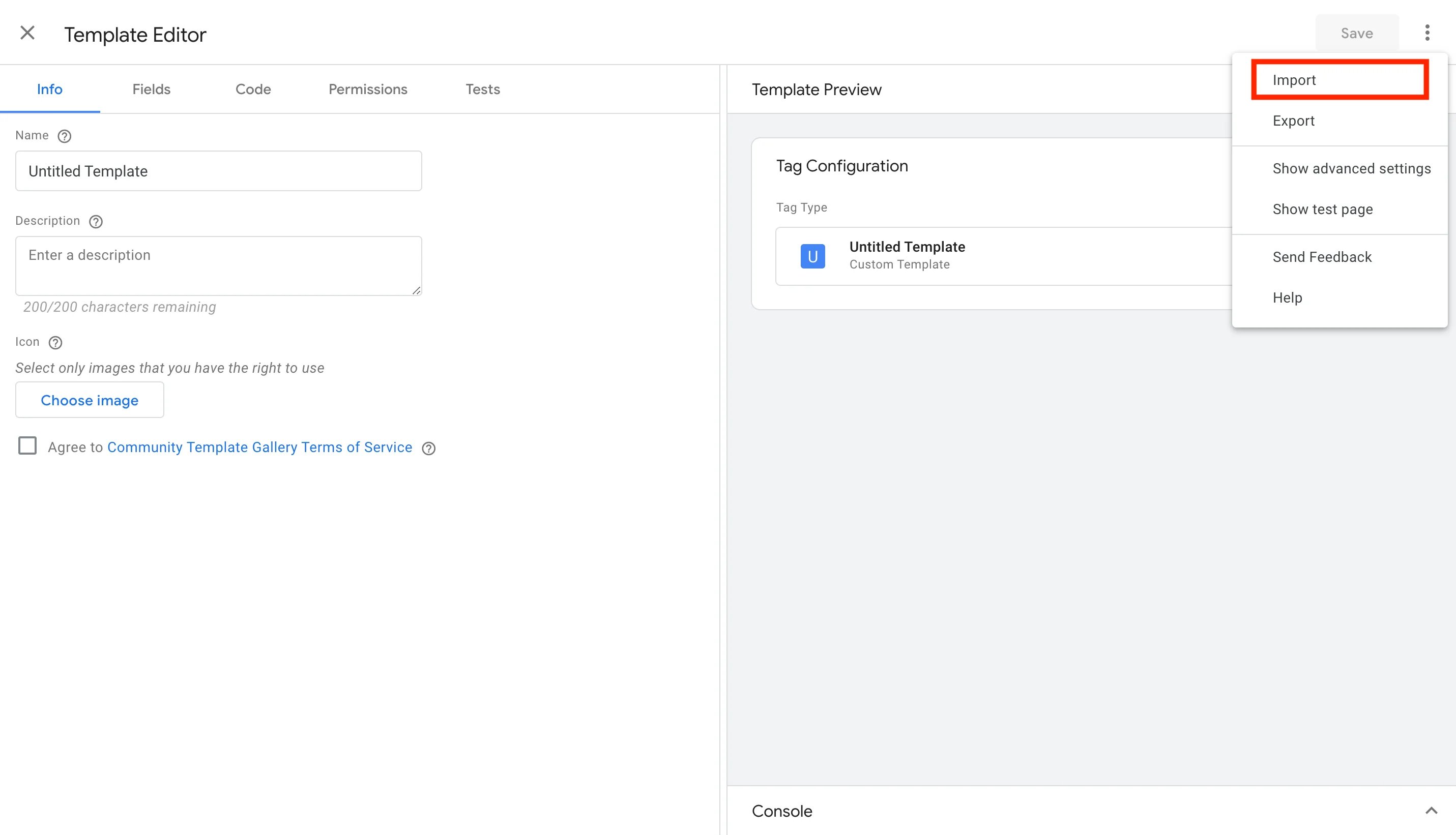
  3. Under Tag Templates, click the New button > Actions menu (top-right) > Import. Select the MoEngage tag file you just downloaded.
  4. Click Save when you see the MoEngage logo on the left.

Step 2: Select and configure the MoEngage Tag

The MoEngage Tag template lets you forward Snowplow events, and update custom as well as standard user attributes inside MoEngage.
  1. On your GTM dashboard, click Tags > New.
  2. Click Tag Configuration, and under Custom look for the MoEngage Tag.
  3. Setup the tag according to your needs.
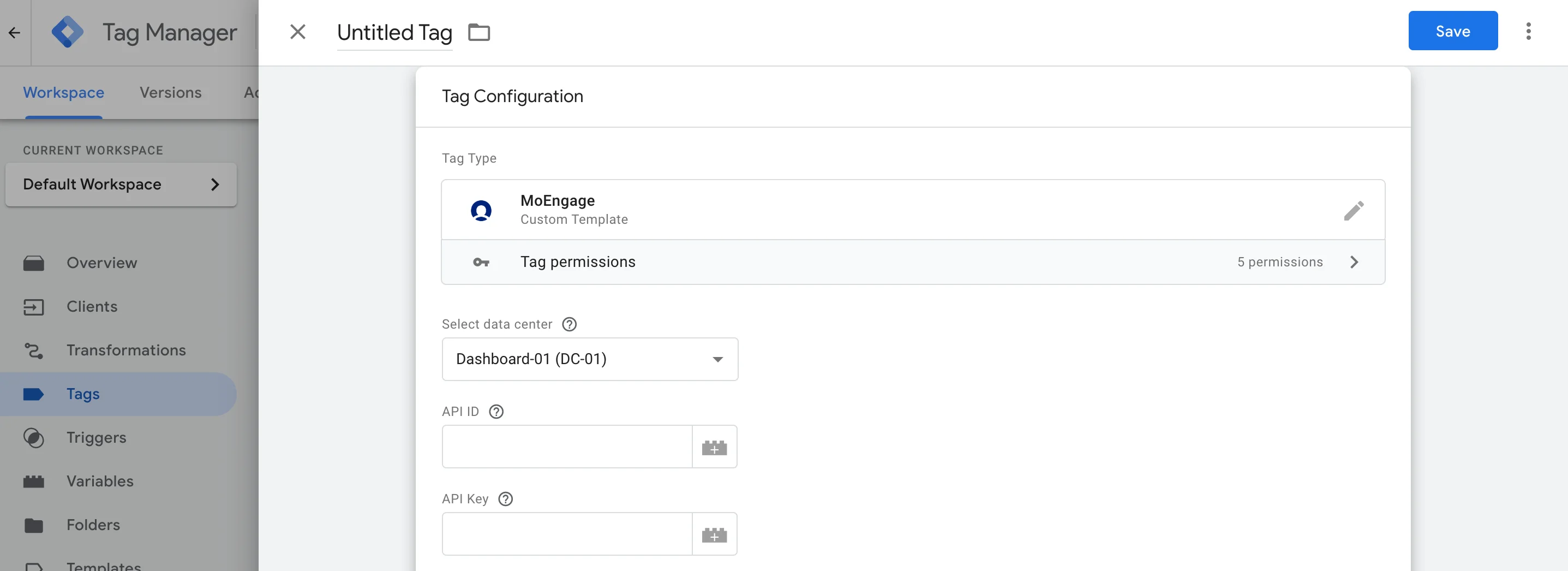
MoEngage Tag configuration screen in GTM
PropertyValue
Select data centerYour MoEngage Data Center region (DC_X):
  • Dashboard-01 (DC-01)
  • Dashboard-02 (DC-02)
  • Dashboard-03 (DC-03)
  • Dashboard-04 (DC-04)
Workspace IDThe Workspace ID of your MoEngage account is available at Settings > Account > APIs > Workspace ID. The Data API ID and the Workspace ID of your MoEngage account are the same.
App KeyThe Data API key of your MoEngage account is available at Settings > Account > APIs > API keys > Data API settings.

User Identifier

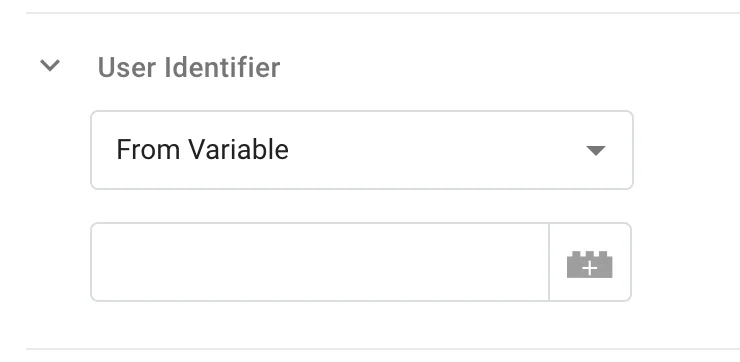
User Identifier mapping section in the MoEngage Tag Here you need to map the user identifier to identify the user in MoEngage. You can map this value using multiple ways:
  • From Variable: Select this option if you want to use a GTM Variable as the user identifier value.
  • From Event Property: Select this option if you want to extract the user identifier from an event property. Enter the attribute key here, for example, user_id. Note that we can only pick values only from the root level keys. If you want to extract values of nested keys, please use GTM Variables and then select “From Variable” option.

Snowplow Event Mapping Options
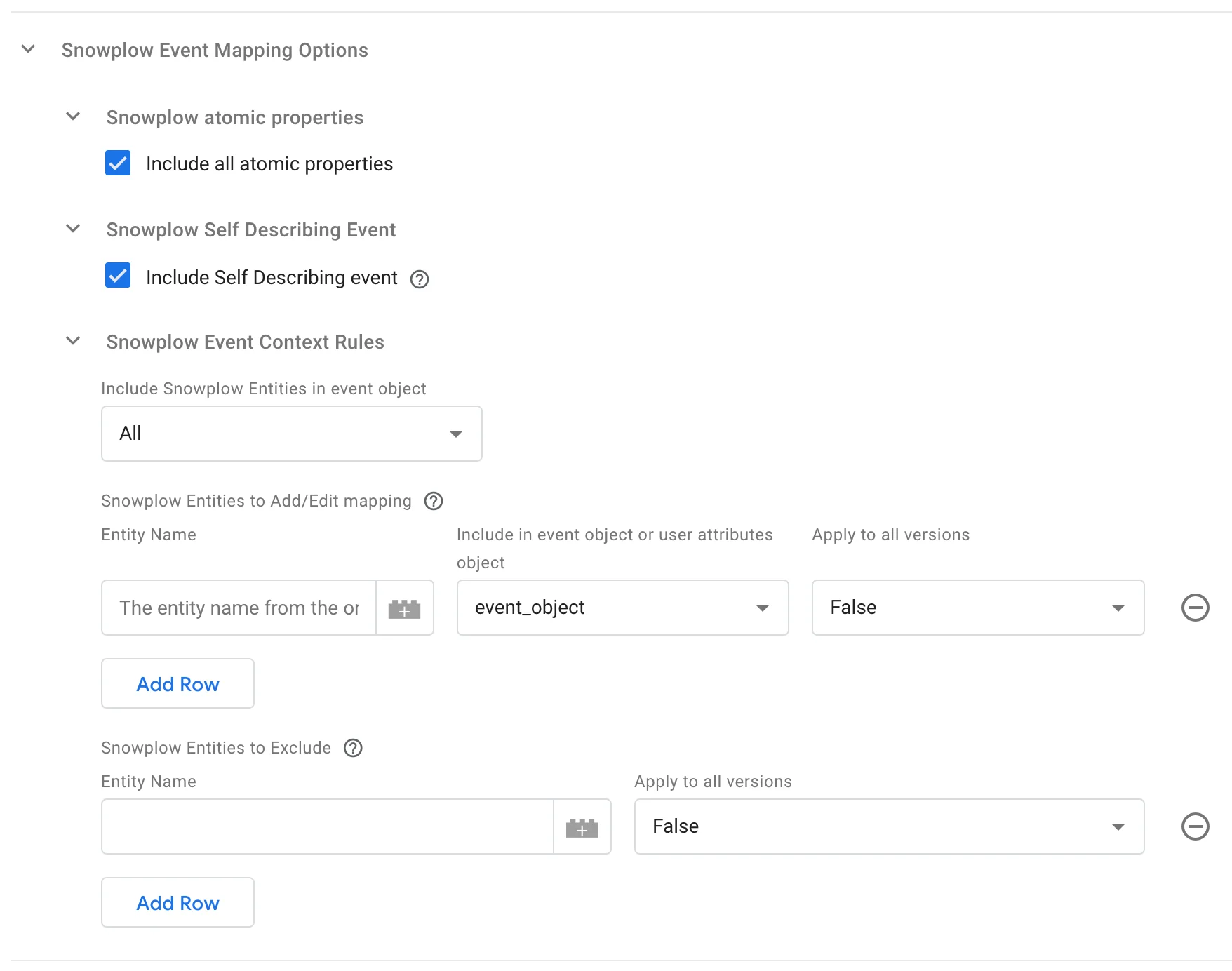
Snowplow Event Mapping Options section in the MoEngage Tag Here you can customize the configuration to ingest Snowplow events into MoEngage. We support Snowplow events collected by the Snowplow Client for GTM SS.
PropertyValue
Include all atomic propertiesCheck this option to include all Snowplow atomic properties as part of the event object in MoEngage.
Include Self Describing eventCheck this option to include Snowplow Self Describing event in the event object.
Include Snowplow Entities in event objectHere you can select whether you want to include all the Snowplow entities as event properties in MoEngage or cherry-pick selected entities.
  • All — Selecting this option, we will include all the entities. You can choose to map selected entities in the Snowplow Entities to Add/Edit mapping section, or mark individual entities to exclude in the Snowplow Entities to Exclude section.
  • None — Select this option if you only want to forward entities chosen by you. You can pick which entities you want to forward in the Snowplow Entities to Add/Edit mapping section.
Snowplow Entities to Add/Edit mappingHere you can map certain Snowplow entities to MoEngage event properties or user attributes. If you have selected “None” above, then you can enter the entities you want to forward to MoEngage.
Type the key name in “Entity Name” and select whether this key should be included as an event attribute (event_object) or user property (user_attributes_object) inside MoEngage.
If you select user property, we will update that user’s property accordingly.
Note: You have to prefix all Snowplow entity names with x-sp-.
Apply to all versions: If you mark this as True, then we will remove the version number from the end of the entity. If you mark this as False, then we will ingest the entity as is without removing the version number from the end.
Snowplow Entities to ExcludeIf you have selected “All” Snowplow Entities above, you can individually select entities you want to exclude from being forwarded to MoEngage.
Note: You have to prefix all Snowplow entity names with x-sp-.
Apply to all versions: If you mark this as True, then we will remove the version number from the end of the entity. If you mark this as False, then we will ingest the entity as is without removing the version number from the end.

Additional Event Mapping Options

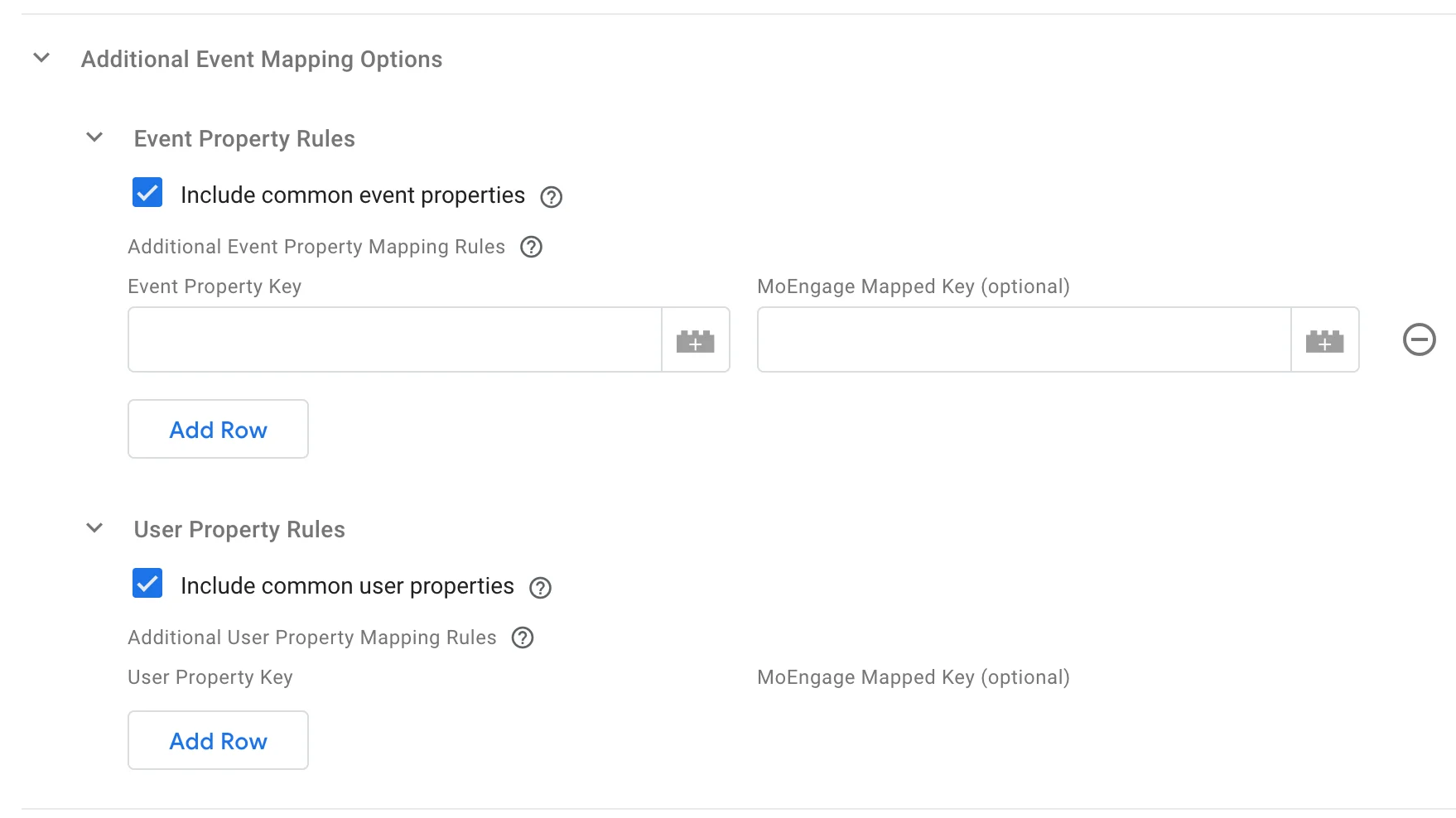
Additional Event Mapping Options section in the MoEngage Tag
PropertyValue
Include common event propertiesSelect this option if you want to automatically include the event properties from the common event data in GTM as event properties to MoEngage.
Additional Event Property Mapping RulesYou can select the keys you want to map as event properties inside MoEngage.
Click Add Row to add a new key mapping.
Specify the property key from your event data object in Event Property Key and provide the name you would like to map it to under MoEngage Mapped Key. If you leave the MoEngage Mapped Key field blank, we will not rename the key.
These properties will be stored as event properties in MoEngage.
Include common user propertiesSelect this option if you want to automatically include the “user_data” properties from the common event data in GTM as user attributes to MoEngage.
Additional User Property Mapping RulesYou can select the keys you want to map as user attributes inside MoEngage. Click Add Row to add a new key mapping.
Specify the property key from your event data object in User Property Key and provide the name you would like to map it to under MoEngage Mapped Key. If you leave the MoEngage Mapped Key field blank, we will not rename the key.
These attributes will update the user’s attributes in MoEngage.

Additional Event Data

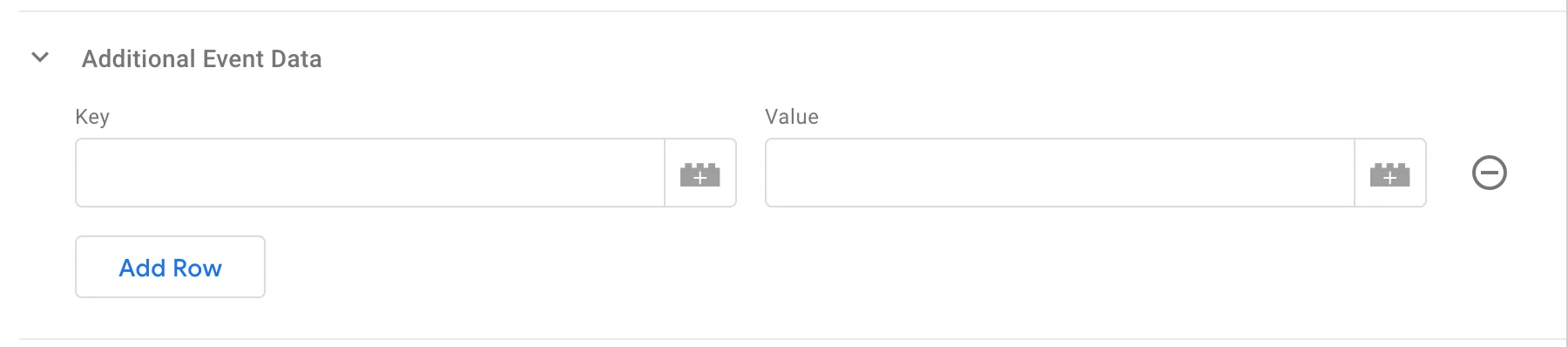
Additional Event Data section in the MoEngage Tag If you want to extract values from nested objects or arrays, you can create GTM Variables for the same and use this section to directly use the variable as an event attribute. Click Add Row to add a new event attribute.
PropertyValue
KeySpecify the key you want to add to your event attributes.
ValueHere you can either enter a direct value of this event attribute or use a GTM Variable.

Additional User Data

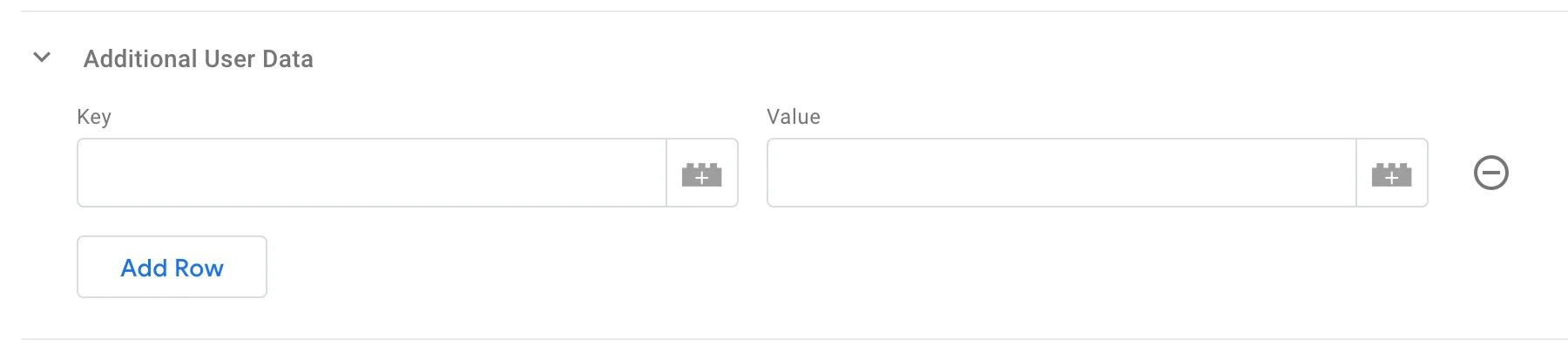
Additional User Data section in the MoEngage Tag You can also use the above method to extract values from nested objects or arrays and use this section to directly use the variable as a user attribute. Click Add Row to add a new user attribute.
PropertyValue
KeySpecify the key you want to add to your user attributes.
ValueHere you can either enter a direct value of this user attribute or use a GTM Variable.

Advanced Event Settings

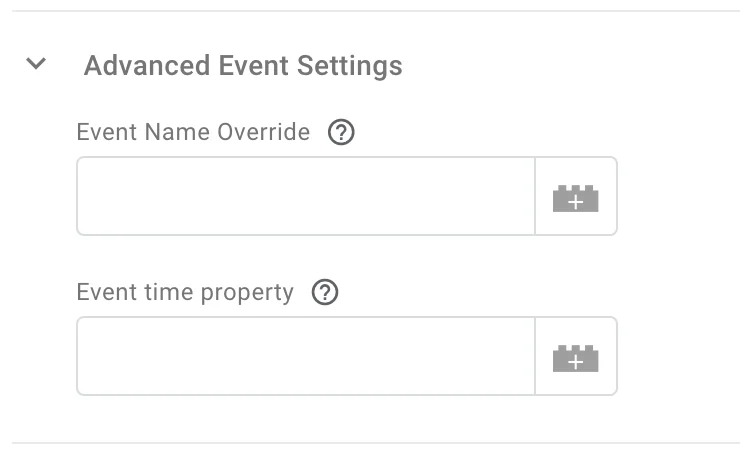
Advanced Event Settings section in the MoEngage Tag You can use this section to rename your event or change your event time.
PropertyValue
Event Name OverrideIf you want to rename the event that is ingested in MoEngage, type the new event name here. If you leave this blank, we will take the event name from the common event properties.
Event time propertySpecify the client event property to populate the event time (in ISO-8601 format) or leave it empty to use the current time.

Step 3: Select the trigger condition

Triggering section in the MoEngage Tag setup Under the Triggering section, you can select an event as a trigger or create a new trigger as per your requirements. Click Save when you’re done with the tag configuration. You can preview the tag and verify if all your expected events are being ingested in MoEngage as per your configuration.