

Introduction
Heap Analytics is a product analytics platform that automatically captures a complete and retroactive dataset of all user actions, including clicks, taps, and page views. With Heap, teams can eliminate manual tracking, focusing entirely on analysis and insights.MoEngage × Heap
The MoEngage and Heap Analytics integration allows for the bi-directional flow of data. You can stream behavioral events from Heap to MoEngage to enrich user profiles, and you can forward MoEngage events to Heap for in-depth analysis. This synchronization ensures you have the richest, most current user behavior data for accurate segmentation and timely, contextually relevant engagement campaigns. With this integration, you can:- Stream automatically behavioral data and custom events from Heap to MoEngage.
- Enrich MoEngage user profiles with detailed user properties and segmentation data from Heap.
- Trigger real-time, personalized campaigns based on significant in-app or on-site actions identified by Heap.
- Use Heap’s retroactive data to segment users in MoEngage based on actions taken even before the campaign was set up.
Use Cases
Integrating Heap with MoEngage helps you solve the following use cases:- High-friction drop-off re-engagement: When a user completes a critical product flow but drops off at a high-friction point (identified by Heap Illuminate), trigger an immediate MoEngage campaign with a helpful tip or a support offer.
- Feature adoption nurturing: Track the first time a user performs a key action in your product. Stream that event to MoEngage to initiate a multi-step campaign that encourages deeper feature exploration or highlights advanced functionality.
- Subscription trial conversion: When a user’s Trial Ended event is captured in Heap, stream it to MoEngage to trigger a highly personalized discount or extension offer based on their past usage intensity (for example, number of sessions or key events completed).
Sync Data to MoEngage
This section describes how to configure webhooks in Heap Analytics to stream user and event data to your MoEngage workspace.Ensure you have the following:
- Administrator access to your Heap account.
- A Heap plan that includes access to Webhooks.
Sync Modules
The following table outlines the default sync type for each module:Step 1: Get Your MoEngage Endpoint
To get a dedicated endpoint for your integration, please contact the MoEngage Support team. In your request, you must specify the common identifier used to link user profiles between MoEngage and the partner platform. For example, the common identifier is typically the user’s email address or phone number.Step 2: Create a Webhook in Heap
To create a webhook in Heap, perform the following steps:- Log in to your Heap account.
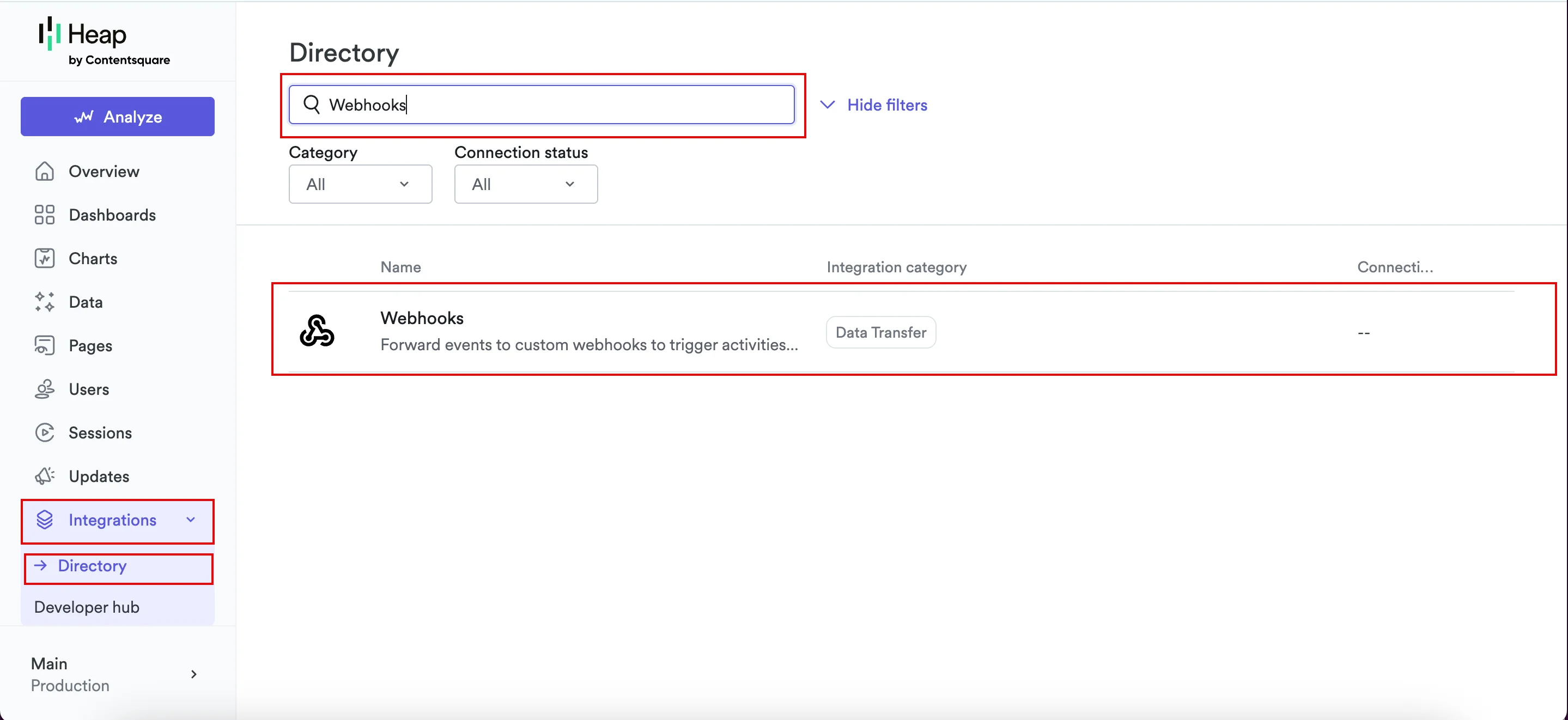
- On the left navigation menu, click the Integrations list, and then click Directory.
- In the Search all box, type Webhooks.
- In the results list, click Webhooks.
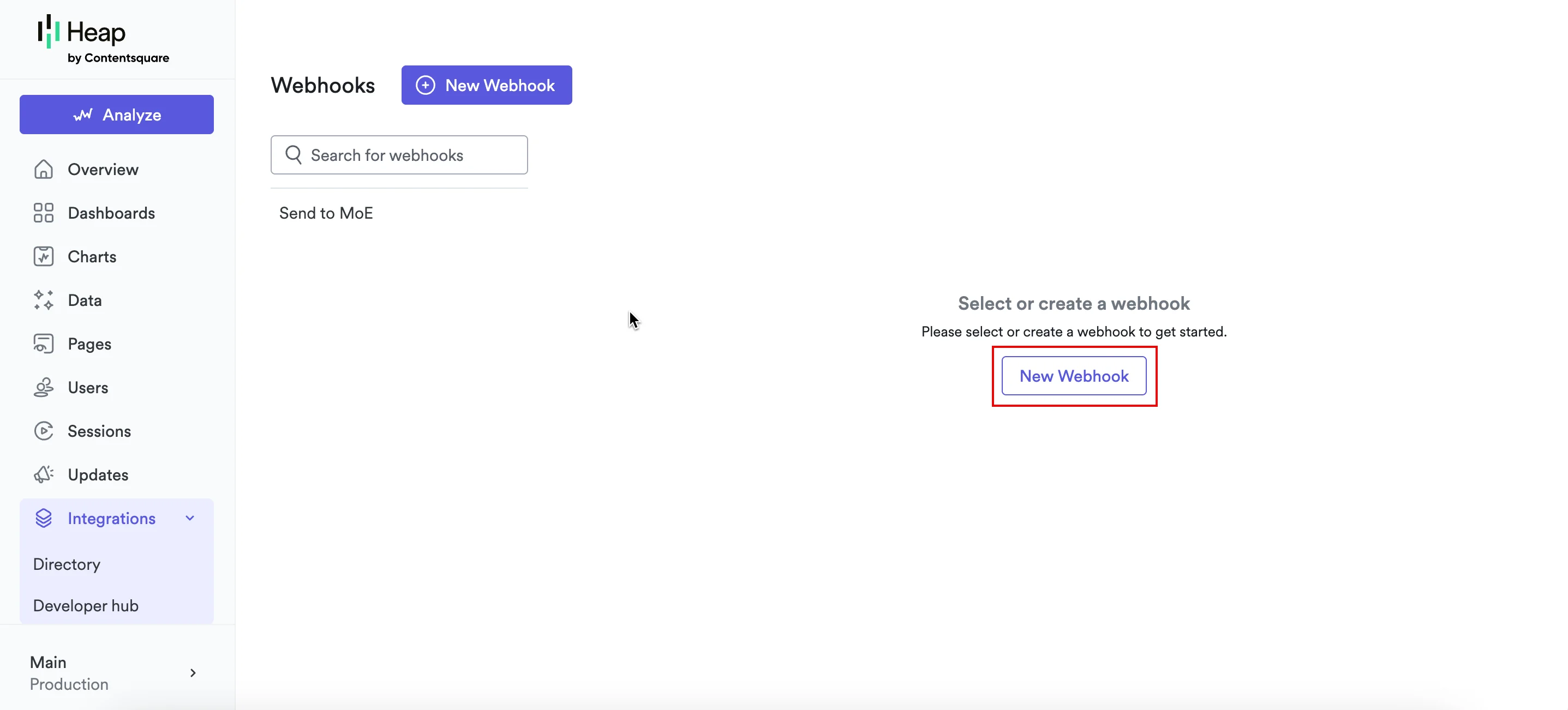
- In the center of the screen, click New Webhook.
Step 3: Configure the Webhook, Authentication, and Data to Send
Provide the following details to configure the webhook, Authentication, and Data to Send:- Under Basic Configuration, in the Heap Webhook section, provide the following details:
- Under HTTP Headers, click Add Header.
- Provide the following key-value pairs:
- In the Data to Send section, map the required fields for syncing.
- Click + Add Field.
- Enter the field name.
- Select its type (for example, property).
- Select the corresponding value based on the sync type.
- Configure the user’s sync. The following mappings are for syncing user profiles:
- To send user’s additional details, click + Add Field again. Create a field named
user_attributesand set its type to Nested. - Configure the event sync.
- To map the required details, repeat steps 4 through 8.
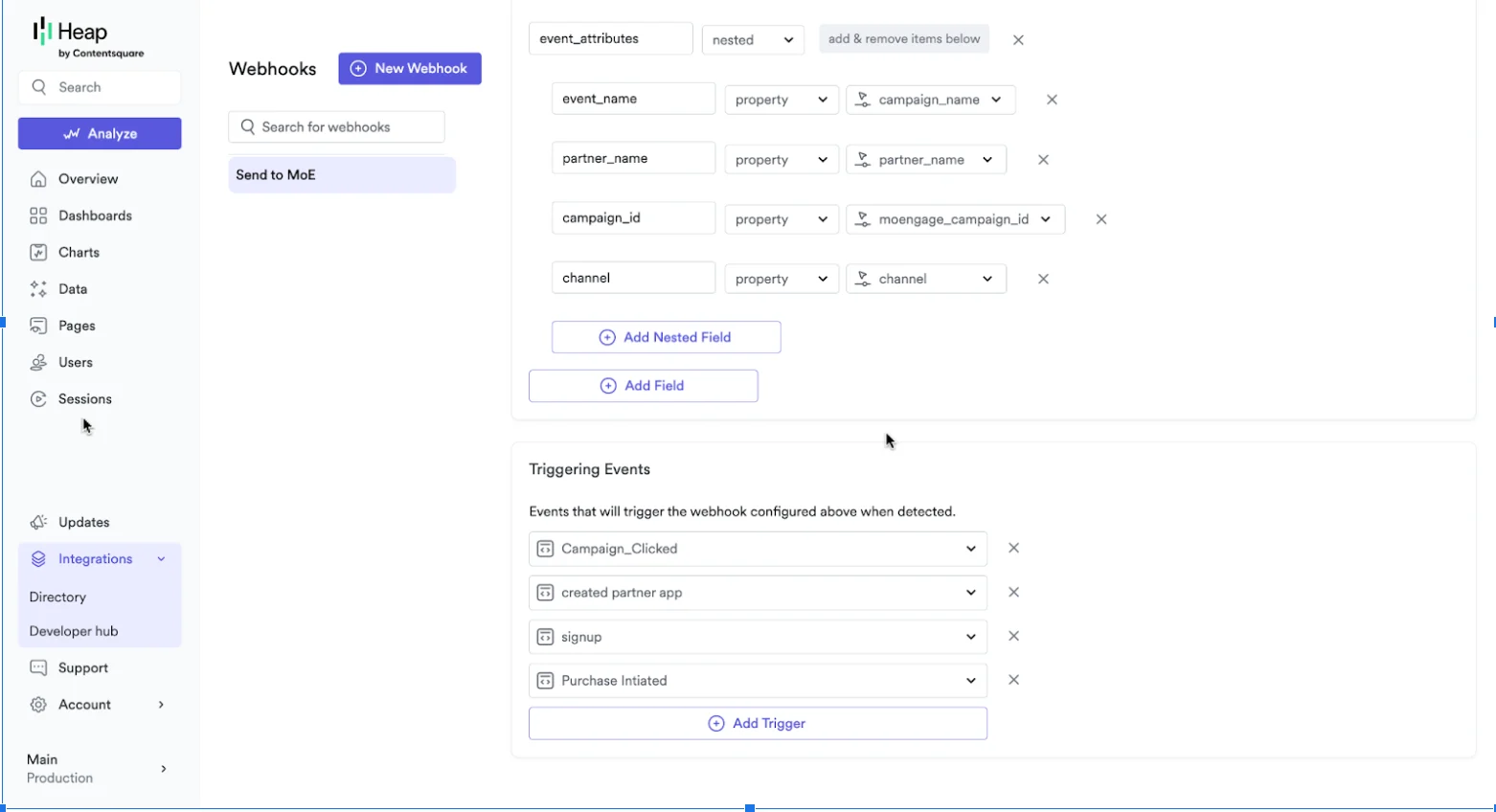
- To send event details, click + Add Field again. Create a field named
event_attributesand set its type to Nested. - Inside this
event_attributesnested structure, add the following keys:- An
event_namekey to identify the event. - Any other event-specific properties (for example,
order_idorproduct_category).
- An
- Scroll down to the Triggering Events section and select the event(s) that will trigger the webhook.
- Click Save Webhook in the upper-right corner to save your configuration.
You can sync customer information along with the event, if needed, by using the keys in the user profiles table.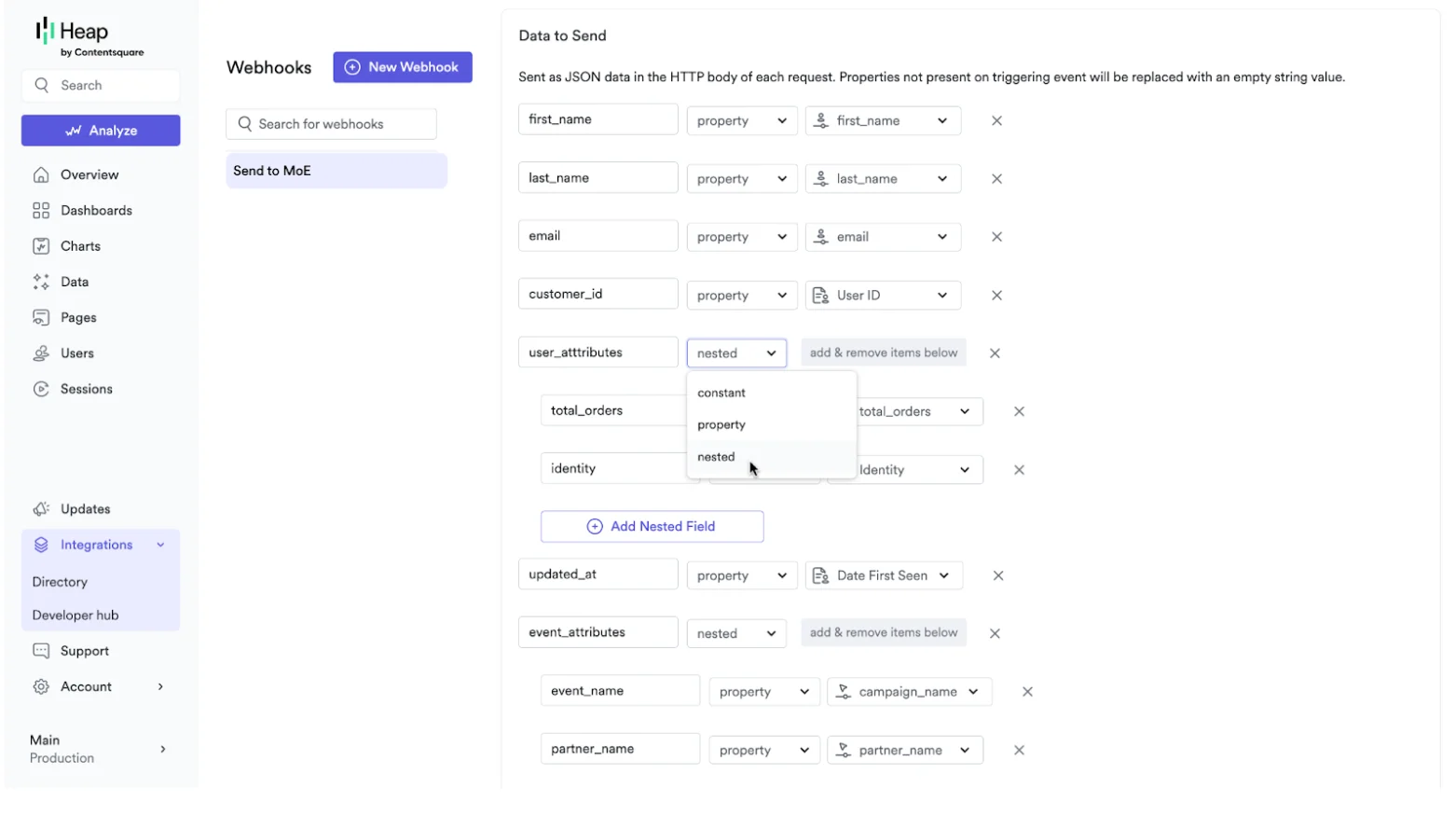
Data Mapping Guidelines
- Unique Identifier (Customer ID): Use a consistent, immutable unique identifier (like an external_id, email address, or phone number) from your Heap setup. Map this value to the
customer_idfield in your MoEngage payload. This is critical for data merging and preventing duplicate user profiles. - Required Fields: All payloads must include the
customer_id,updated_at, and standard user fields (first, last name, email, and phone fields) for proper data processing. - Event Name: Include the
event_nameinsideevent_attributesin every event to identify and categorize actions in MoEngage accurately for analysis and segmentation.
Send Data from MoEngage
This section describes how to use the MoEngage connector campaigns to forward events to Heap for in-depth analysis.PrerequisitesEnsure you are aware of your Heap data API limit.
Step 1: Create a Connector Campaign on MoEngage
To create a connector campaign in MoEngage, perform the following steps:- Navigate to the MoEngage Dashboard.
- On the left navigation menu, click Engage and then click Campaigns.
- On the All campaigns page, in the upper-right corner, click + Create campaign.
 The Create campaign page is displayed. You can also click Create New > Campaign. The Campaign page is displayed.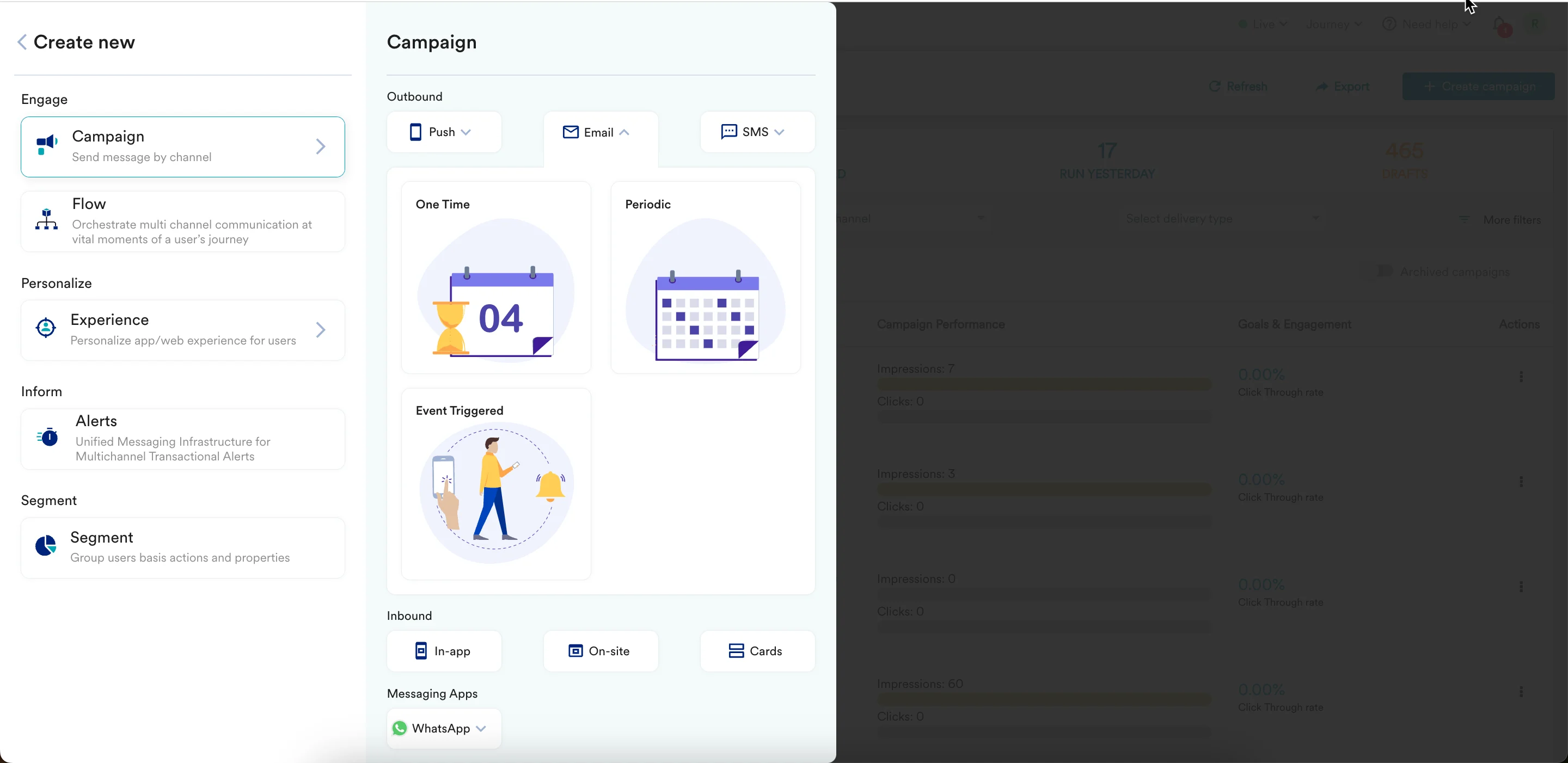
- Under Connectors, click Custom and select one of the following campaign delivery types:
- One Time
- Periodic
- Event Triggered
- Business Event Triggered For more information, refer to Delivery Types. The Connector creation page is displayed.
 Note: For example, click Event Triggered and select the event as Purchased.
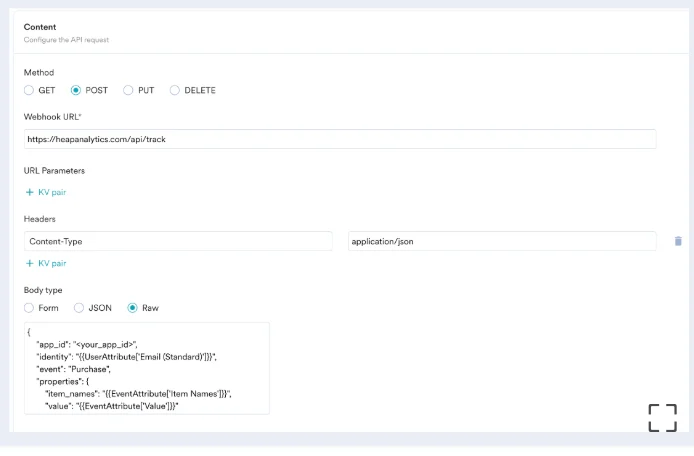
- In step 2 of the campaign, provide the following information:
- Under Method, select POST.
- In the Webhook URL box, paste the following https://heapanalytics.com/api/track.
- In the Headers section, add the following key-value pairs:
- Content-Type: Application/json.
- In the body section, you can use @ to personalize your payload with user and event attributes.
Step 2: Preview Your Request
The campaign is now ready to be tested and sent. You can test the connector configuration using the Test functionality available in the second step of campaign creation. To verify the connection, check your Heap account. If a ticket is created successfully, your setup is correct, and you can publish the campaign.
Rate Limits
To maintain platform stability, MoEngage limits ingestion of Heap data to a maximum of 500 requests per second (RPS) per workspace. If your workspace exceeds this limit, MoEngage returns an HTTP429 (Too Many Requests) status code.
Although Heap handles most of these rate-limiting instances automatically through its default retry policy, note the following behavior:
Retry Exhaustion: If Heap exhausts all retry attempts for a batch of data, you must contact the Heap Support Team to replay the failed requests.