

Introduction
SEEN is a personalization video platform that allows companies to create and build videos around their customers to deliver a more engaging experience. With SEEN, you can design a video around your data, personalize it at scale in the cloud, then distribute it where it works best.Use cases
SEEN offers automated video personalization across the entire customer journey. Common uses include onboarding, loyalty, sign-ups and conversion, and win-back and anti-churn.Integration
Prerequisites
- Ensure you have access to a Seen Campaign.
- Ensure MoEngage Connected sources is available for your account
Step 1: Create a connector campaign on MoEngage
To create a connector campaign on MoEngage,- Navigate to Create Campaign >> Connectors >> Custom
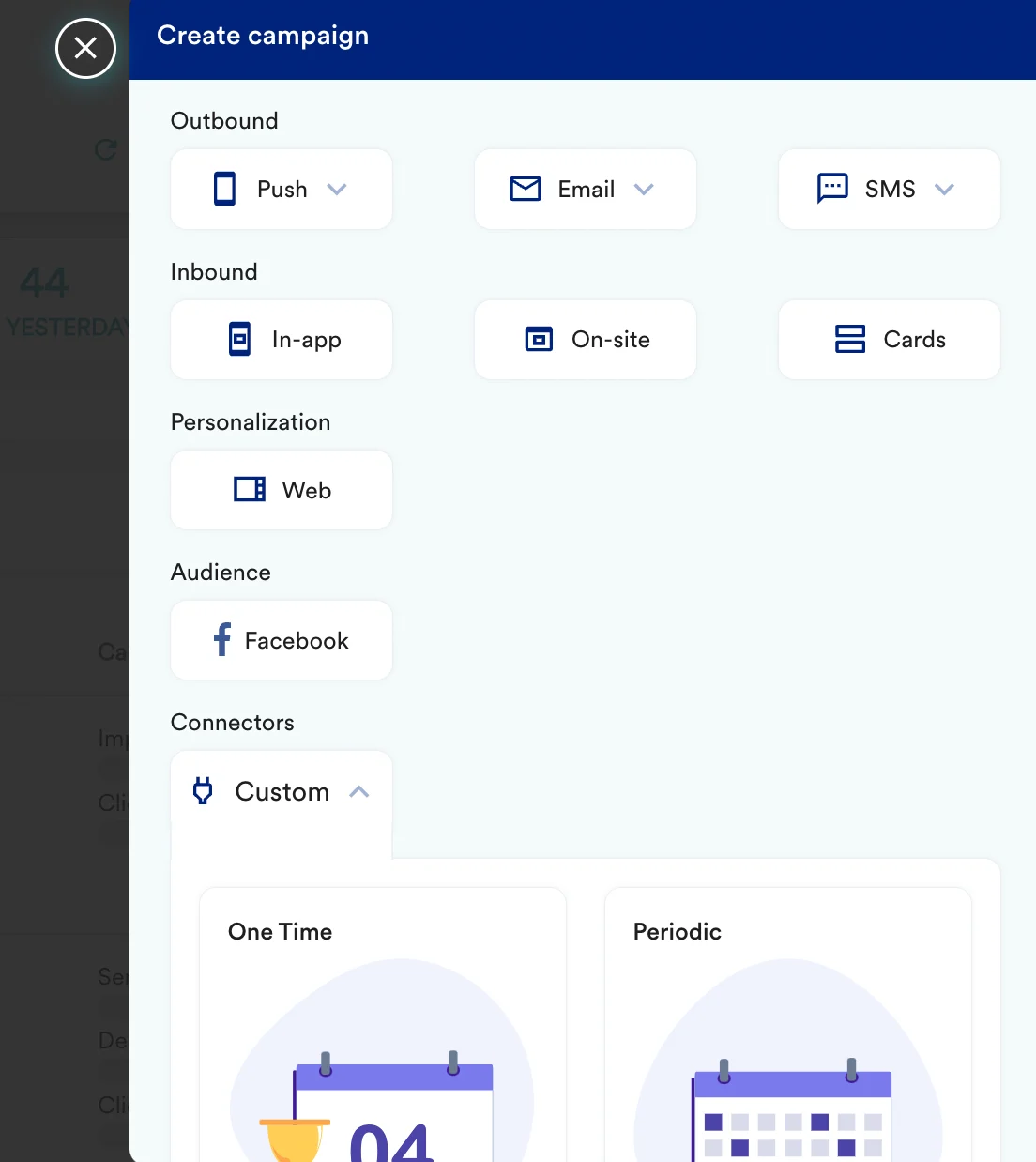
- On step 2 of the campaign, add -
| Key | Value |
|---|---|
| Method | POST |
| Webhook URL | https://api.seen.io/v1/campaigns/<campaign_slug>/receivers/ Get your campaign_slug from SEEN to call the correct endpoint. |
| Headers | Authorization: Token {token} Content-Type: application/json You will receive your Authentication Token from SEEN. |
| Body | Follow the SEEN API documentation for the exact request body. You can select raw and copy paste the request. 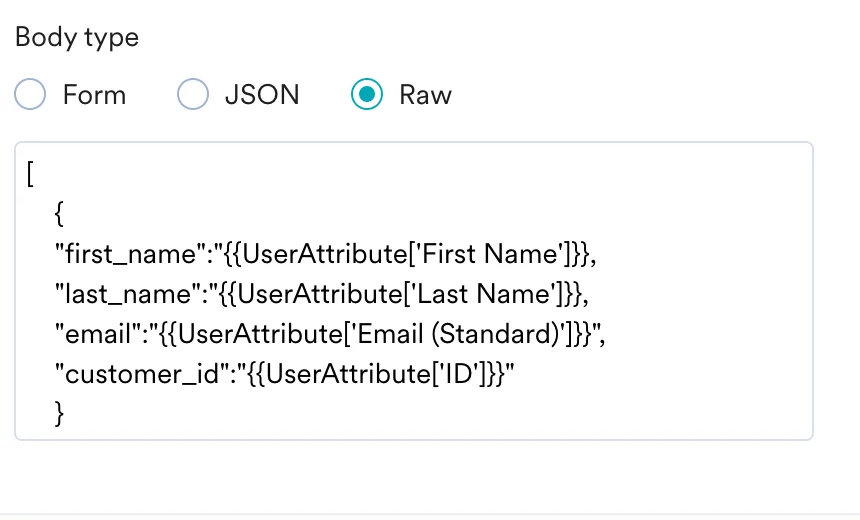 |
- At this point, your campaign should be ready to test and send. You can also test your connector configuration using the Test functionality available on Step 2 of Create Connector Campaign

Rate limit
The SEEN API currently accepts 1,000 calls per hour.Step 2: Create a connected source on MoEngage
On your SEEN dashboard,- Create new custom attribute fields for
landing_page_urlandemail_thumbnail_url. These are the two attributes we will be using in this example. - Create a connected source on MoEngage. Reach out to your CSM or support team to create connected source - provide your config and get a valid endpoint.
- Paste the endpoint on your Seen CallBacks. Follow the Seen documentation for more details.