

Introduction
Vizard’s no-code and low-code template editors help marketers generate dynamic, personalized images on the fly. You can then use those images inside MoEngage campaigns to deliver ultra-personalized messages.MoEngage and Vizard
The MoEngage and Vizard integration lets you use personalized dynamic images (rendered on the fly) in MoEngage campaigns. The integration supports push, email, in-app, and on-site channels.Integration
Prerequisites
- A Vizard account.
- Use your Vizard creatives directly in MoEngage campaigns by adding them as image URLs.
- Fetch personalized Vizard creatives (rendered on the fly based on user attributes) through MoEngage Content APIs.
Option 1: Use direct image URLs
Step 1: Create a new project on Vizard
Create a new project using the required template.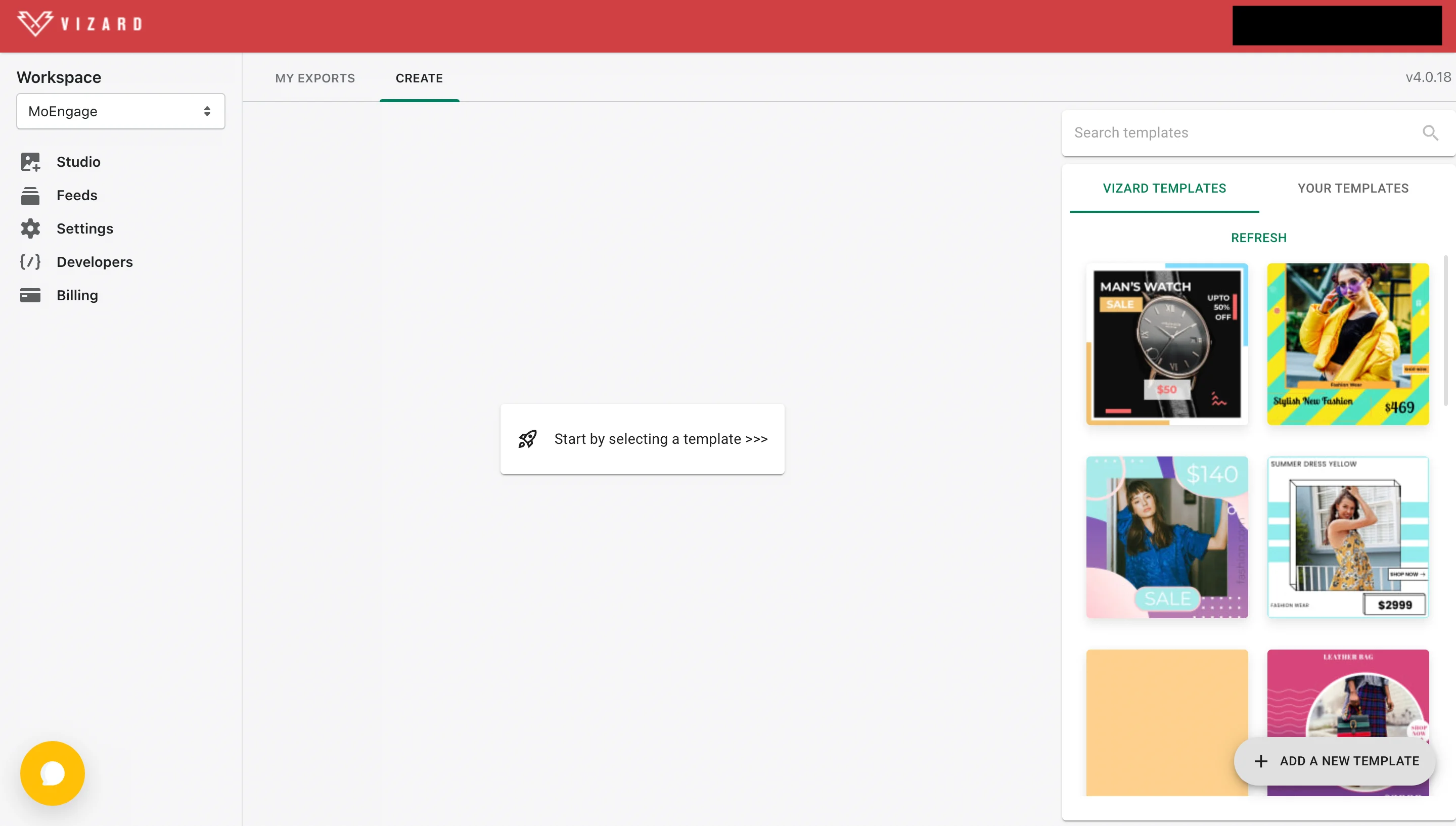
Step 2: Select Generate Dynamic Images to use APIs
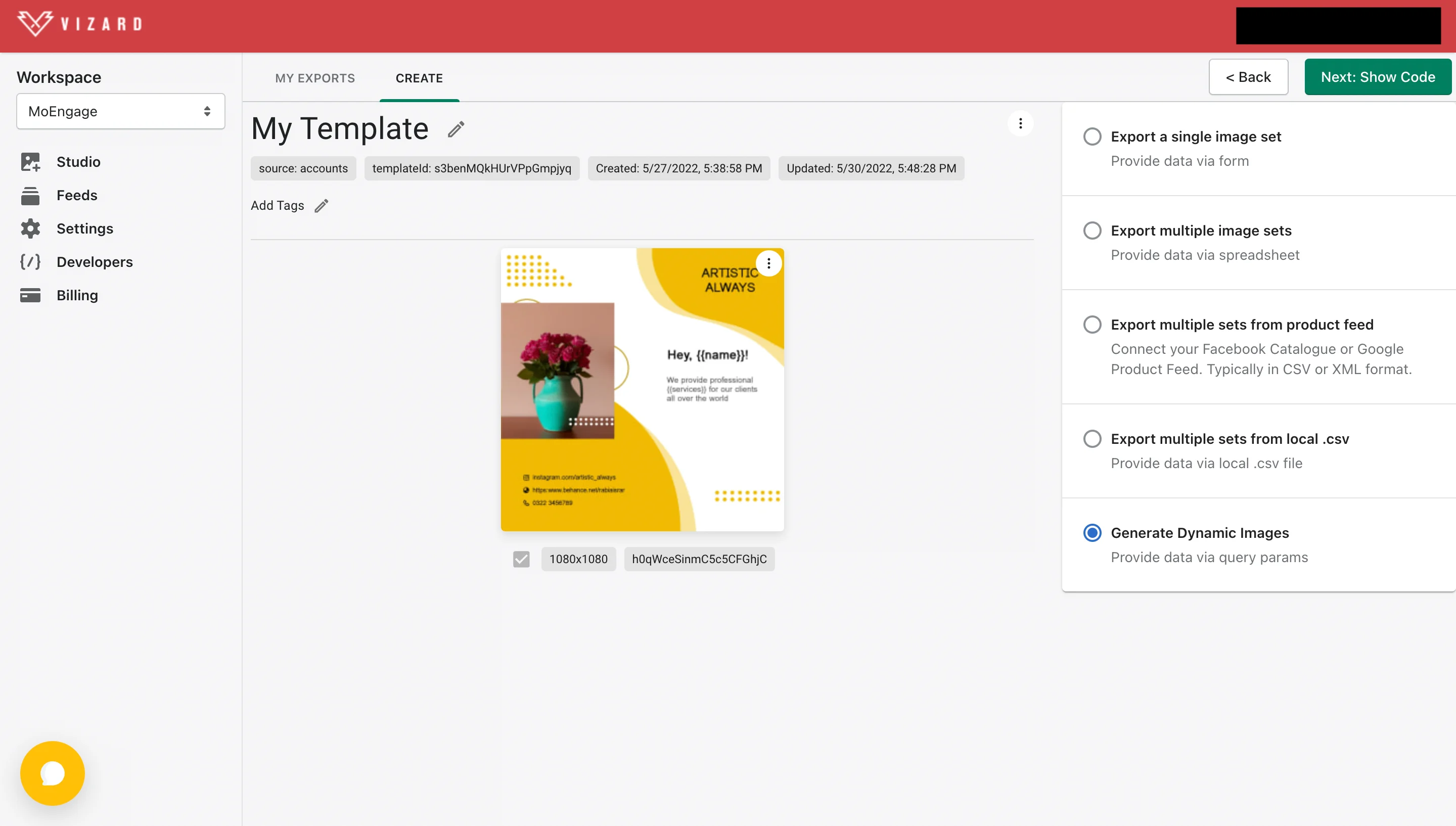
Step 3: Get the magic image link
 Select the Dynamic Image URL (Magic Image) tab to get your URL. Choose the dimension you want to use, then click Copy to clipboard. The URL looks like this:
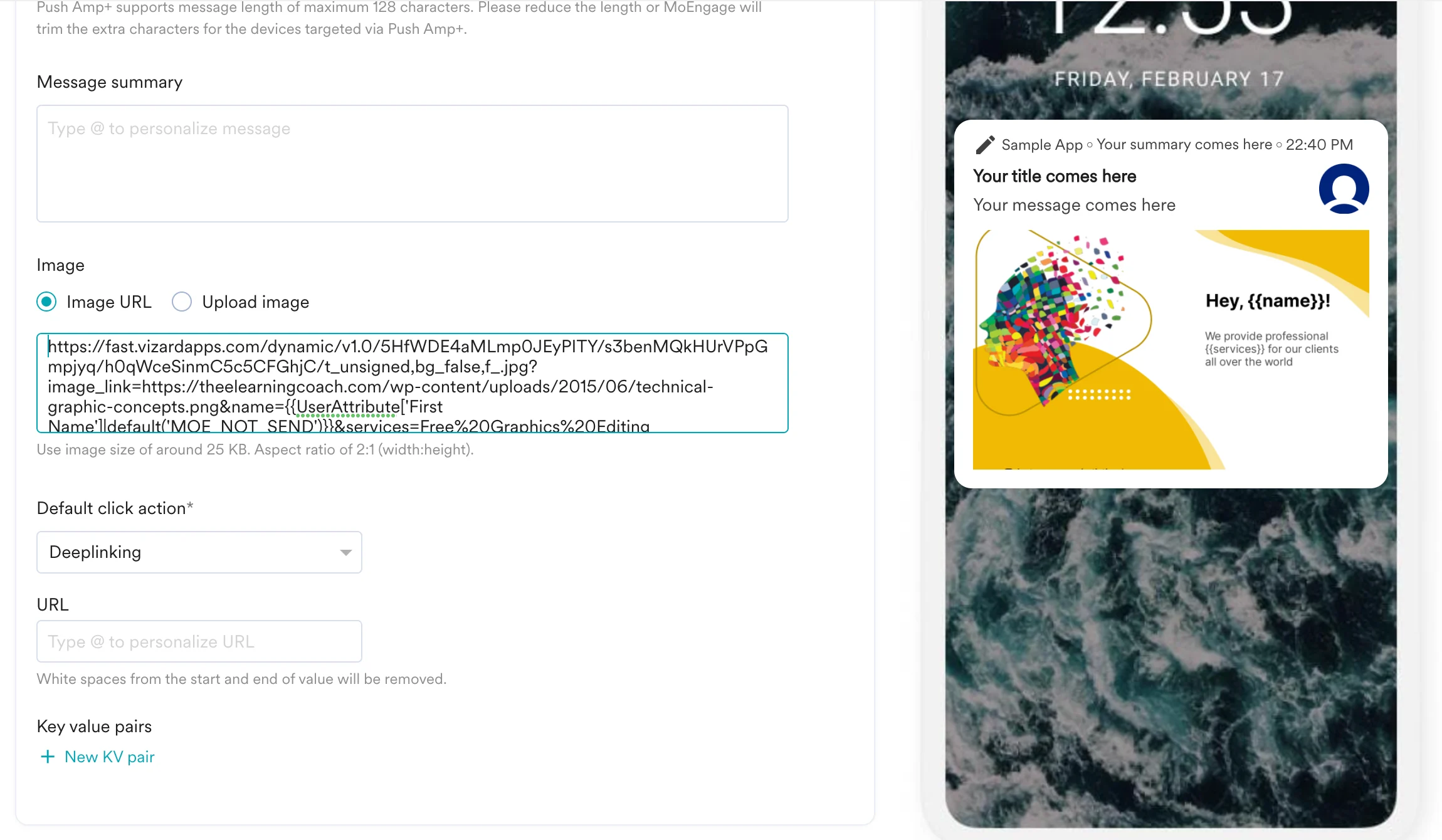
Step 4: Use the link in MoEngage campaigns
To include the Vizard URL in your MoEngage campaign, on step 2 of campaign creation:Push campaigns
In-app campaigns
Insert the Vizard URL into your in-app image URL field.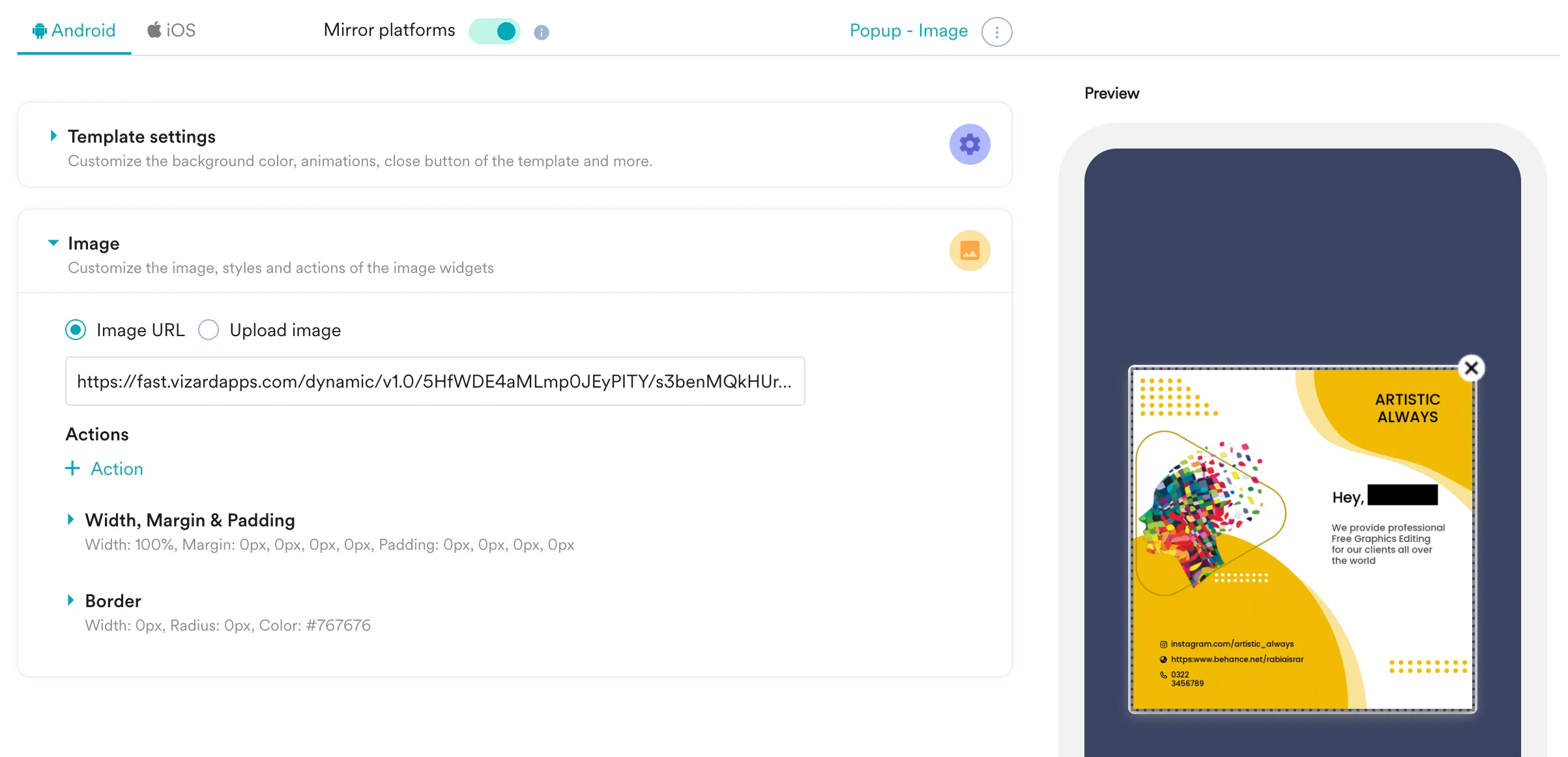
Email campaigns
Insert the Vizard magic link URL directly in your email templates.Option 2: Use personalized URLs
If you want to reuse your Vizard creative across campaigns, store it as a Content API in MoEngage. After you get your URL using Steps 1 and 2 above, follow the steps below.Step 1: Add a Content API on MoEngage
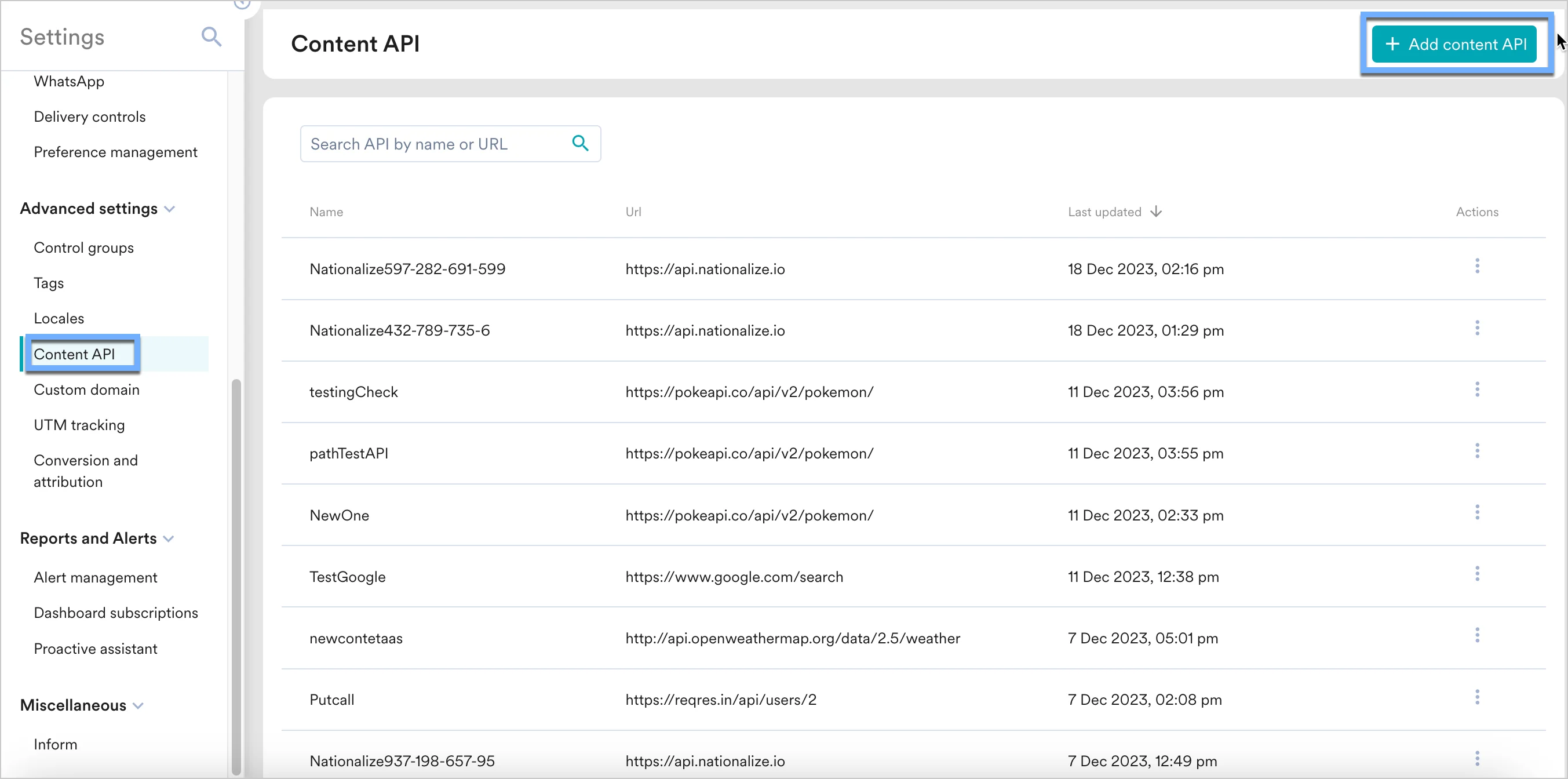
- Navigate to Settings > Advanced settings > Content API. Click + Add content API in the upper-right corner of the Content API screen.
- Add your Vizard API to the endpoint URL. It must be the same URL you copied above.
API URL
This URL must be the same as the one copied in the previous step.
Parameters
Your parameters auto-populate. Update the values with personalized variables — type
@and select the variable.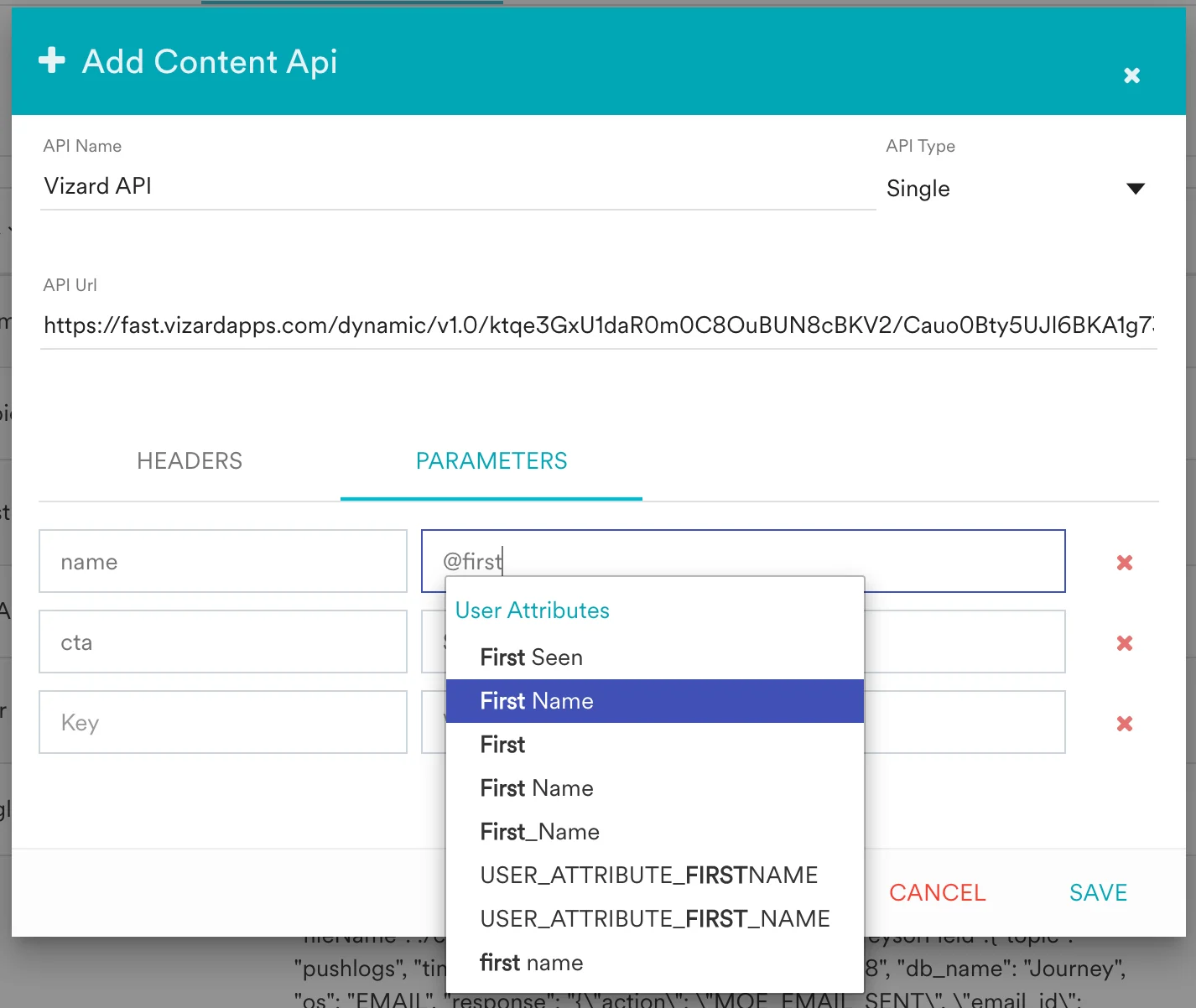
- Click Test to validate your API response, then click Save.
Step 2: Use the Content API in MoEngage campaigns
You can now use this Content API in your campaigns. To learn more, refer to Content APIs.- On step 2 of campaign creation, type
@. - In the personalization pop-up, select the Vizard Content API you configured in Step 1.
- Use the MoEngage Templating Language to parse the API response and use the content in your campaign.